

Is this angle 90° or just pretending to be? How steep is the incline? Find out here how to use the Snipping Tool (Snip and Sketch) protractor tool to measure angles in screenshots and images on screen with precision.
First, from the Elbow to the Tip of the Middle Finger
From the elbow to the middle finger’s tip fit seven palms, which make one royal cubit in Ancient Egypt’s measuring system.
Now, if you measure the width of a pyramid in palms (then divide in two) and its height in cubits, their ratio gets you a classic measure of angles: the seked. The Khufu pyramid’s “walls,” for instance, are at an angle of near precisely 5.5 seked (51.87°).
How to Measure an Angle with the Windows Snipping Tool Ruler
To use the ruler in Windows Snipping Tool to measure angles:
- Show the ruler on the screenshot or picture in Snipping Tool.
Here’s how: Click the See more three dots menu button and select Show ruler.
Snipping Tool keyboard shortcut: You can also press Ctrl R to show the ruler. - Position and rotate the ruler to align the red marks inside the ruler’s protractor with one edge of the angle you want to measure.
Here’s how to move: Click and drag the ruler to move it.
Here’s how to rotate: Swipe with two fingers up or down to rotate the ruler in Snipping Tool.
Why use the red marks: You can rotate around the center of the ruler but not the edge, so positioning is easier. - Make a note of the angle displayed on the ruler.
Here’s what you get: The ruler always measures positive angles with a horizontal line from 0°–90°.
Example: The ruler in the screenshot displays 42°.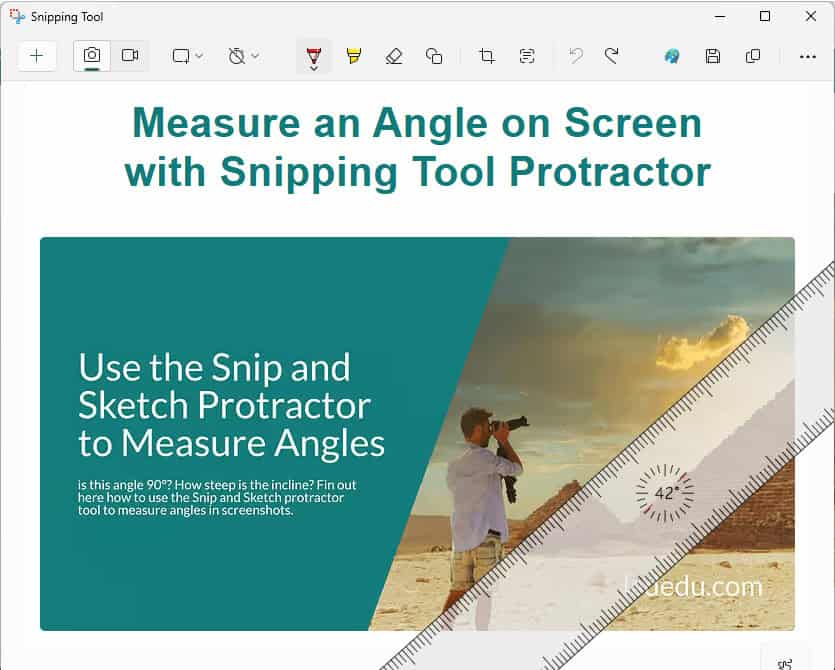
- Now measure the other edge (unless it is the horizontal line).
- Compute the resulting angle.
Example: The angle between the two slopes (42° and 42°) is (90 – 42) + (90 – 42) = 96°.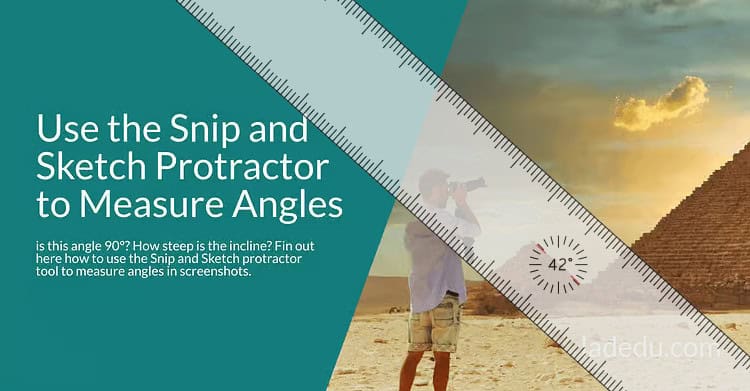
Speaking — or writing — of degrees: How to Make a Degree Symbol (Windows Keyboard shortcut)
Measure an Angle on Screen with Protractor in Windows Snipping Tool
Time needed: 2 minutes
To measure angles precisely in Snipping Tool (Snip and Sketch) up to version 11.24XX using the built-in protractor:
- Click the Ruler or the Protractor icon in the Snipping Tool toolbar.
Make it the protractor: If the ruler appears, click and hold the Ruler icon, then select Protractor from the menu that appears.
Keyboard shortcut: Press Alt L twice to bring up the ruler and protractor menu. - Position the center of the protractor’s circle at the vertex of the angle you want to measure.
- Choose a pen, pencil, highlighter, and color.
No eraser: You need to draw along the protractor to measure, so a drawing tool needs to be selected.
Snipping Tool shortcuts: Snipping Tool and Snip & Sketch offer keyboard shortcuts for the tools, e.g. Alt B for the pen and Alt I for the pencil. - Draw along the protractor’s outer edge to measure the angle in degrees.
- Optional: Click Undo to remove the line but keep the measurement on the Snipping Tool protractor.
New measurement: Move the protractor to reset it and measure another angle.
Keeping the angle measurement: Save the screenshot as is to keep the measurement.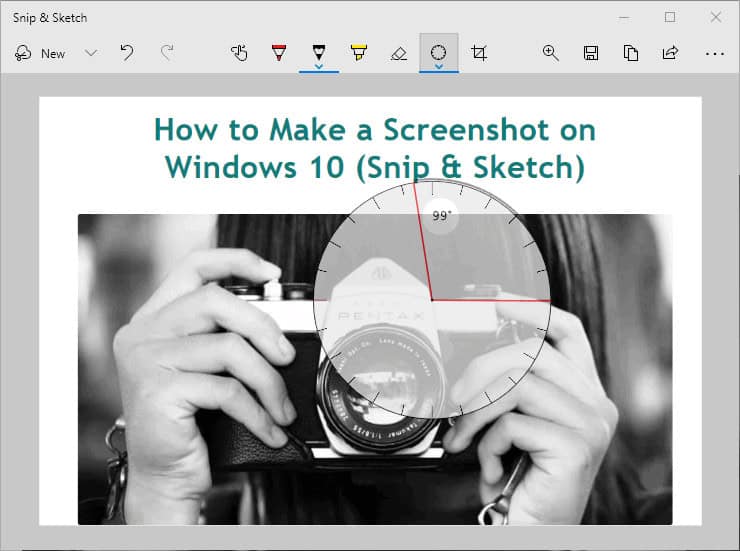
Writing down the degrees? How to Make Degrees Symbol ( ° ) on Windows Keyboard
Want to draw lines instead of circles? How to use the Snipping Tool ruler (also at an angle if you fancy that).
How to Measure Angles on Screen with Windows Snipping Tool: FAQ
Can I change the size of the protractor?
No (and yes).
You cannot change the protractor’s size after it has been added to the image. The tool is, in effect, always the same size. You can change the displayed size of the image, of course.
To change how big the protractor is relative to what you measure:
- Remove the protractor or ruler from the screenshot.
- Zoom in or out of the image to focus on the part you want to measure.
Snipping Tool keyboard shortcut: Press Alt Z to zoom. - Add the protractor again and measure as above.
Can I use the protractor to draw circles?
Yes.
As you draw all or part of the way around the protractor tool, you do draw along a circle in Snipping Tool.
(Tested with Snipping Tool 11.2304–11.2508 and Snip and Sketch 10.2008; first published September 2021, last updated October 2025)