
Tired of your iPhone cluttering the Photos app with every screenshot? Wondering if there’s a setting for that? Find out here how to stop iPhone from saving screenshots to the Photos app automatically ⤓ and decide what to do with each image instead.
On This Page
How to Stop iPhone from Auto-Saving Screenshots
⚡ Quick Fix
Turn on Full-Screen Previews in General | Screen Capture settings to effectively disable screenshot auto-saving on iPhone.
Time needed: 2 minutes
To set up iPhone and iPad so screenshots are not saved automatically, having you decide what to do with each one as it’s taken:
- Open the Settings app.
- Go to the General category.
- Open Screen Capture.
- Turn on Full-Screen Previews.
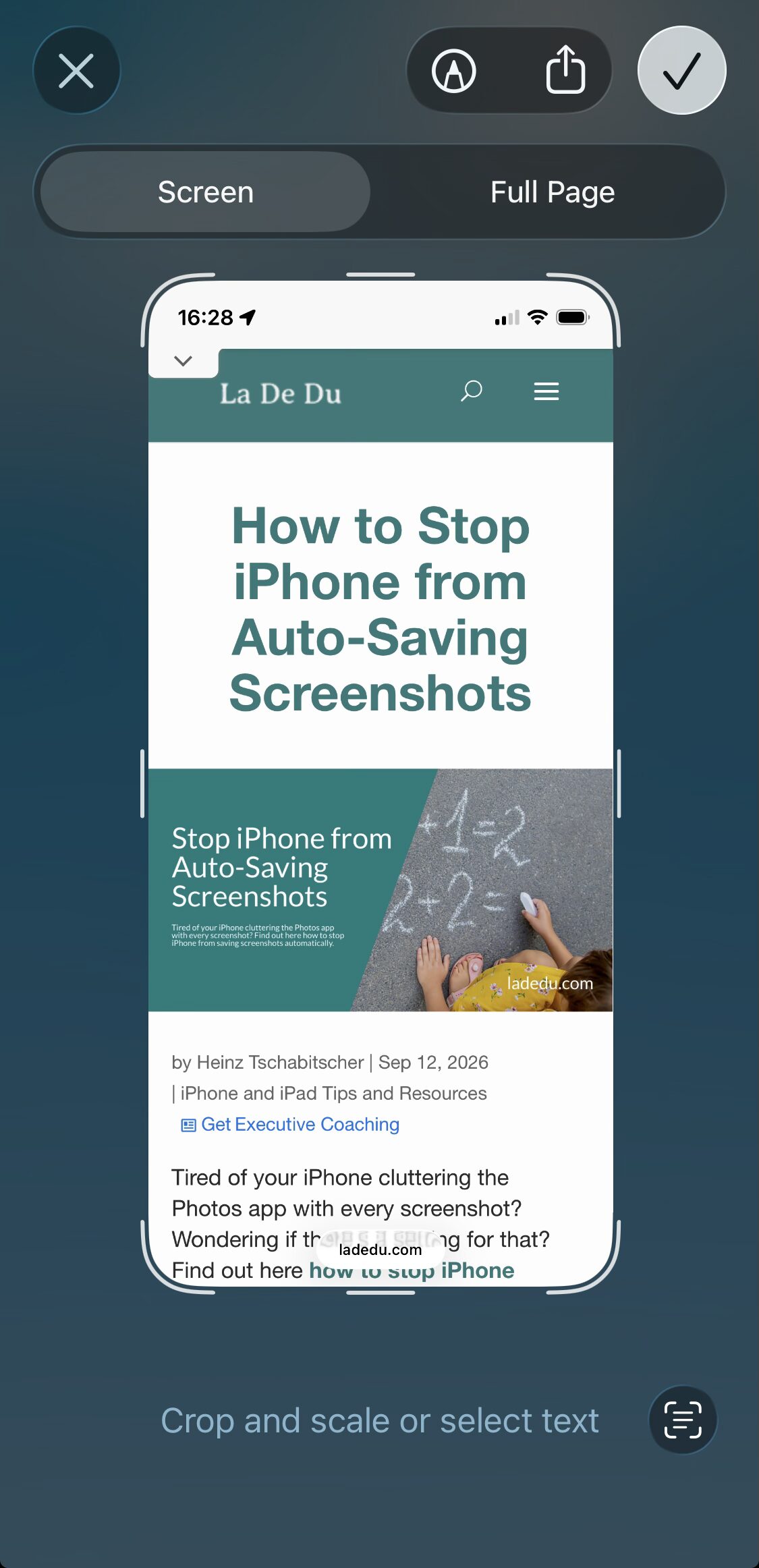
Here’s what this does: With Full-Screen Previews enabled, each screenshot will pop up as a modal window, in which you can edit, save, share or dismiss the image; screenshots are only saved when you decide to put them either in Photos or Files.
Safety net: If you either dismiss the full-screen screenshot preview or are taken out of it — because of a phone call, for example — the screenshot is saved automatically to the Photos app.
Their word: Apple include information on changing screenshot settings in the iPhone User Guide.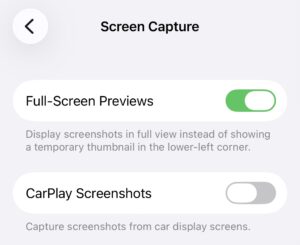
In full-screen control now?
Tips help fuel these email and tech how-tos.
What Full-Screen Screenshot Previews Do on iPhone
With full-screen screenshots enabled:
- Instead of a small preview thumbnail you get a preview filling the whole screen.
- While screenshot thumbnails are saved automatically, full-screen previews let you decide whether to save, share or delete.
Example: You can quickly save emails as PDF files or take screenshots of complete web pages. - Thumbnail screenshot previews automatically disappear while full-screen previews do not.
- Screenshot thumbnails do not appear in subsequent screenshots you take, but full-screen previews do.
How to Enable Automatic Screenshot Saving
To turn on automatic screenshot saving on iPhone and iPad:
- Go to General | Screen Capture in the Settings app.
- Turn off Full-Screen Previews.
Better than screenshots for saving still images from videos:
How to Export a Frame as a Picture from a Video on Your iPhone
How to Stop iPhone from Auto-Saving Screenshots: FAQ
Why are screenshots no longer saved automatically on my iPhone?
If screenshots you take on your iPhone suddenly stopped being saved to Photos automatically, chances are that
- Full-Screen Previews is enabled.
See above for disabling the setting to re-enable automatic screenshot saving.
Can I still save a screenshot quickly from the full-screen preview?
Yes.
To save the screenshot without further questions, editing or decisions from full-screen preview on iPhone:
- Dismiss the screenshot preview.
Here’s how: Swipe up from the bottom edge, for example, swipe sideways to switch apps or press the Home button.
What happens when I take another screenshot while in full-screen preview?
When you take a screenshot with the full-screen screenshot preview open on iPhone:
- You’ll take a new screenshot of what’s on the screen.
Here’s what happens: The new screenshot will be added as a new tab to the full-screen screenshot preview.
How to save: You can either act on the screenshots individually in their respective full-screen preview tabs or dismiss the whole preview to save all automatically.
Does turning on full-screen previews delete screenshots?
No.
The full-screen preview setting neither deletes existing screenshots already saved nor will it delete new screenshots automatically. You do have to dismiss the full-screen preview for a screenshot to be discarded.
What happens if I just do nothing on the full-screens preview screen?
If you take a screenshot and do not act on the full-screen preview at all, the image is saved automatically to Photos when the device locks.
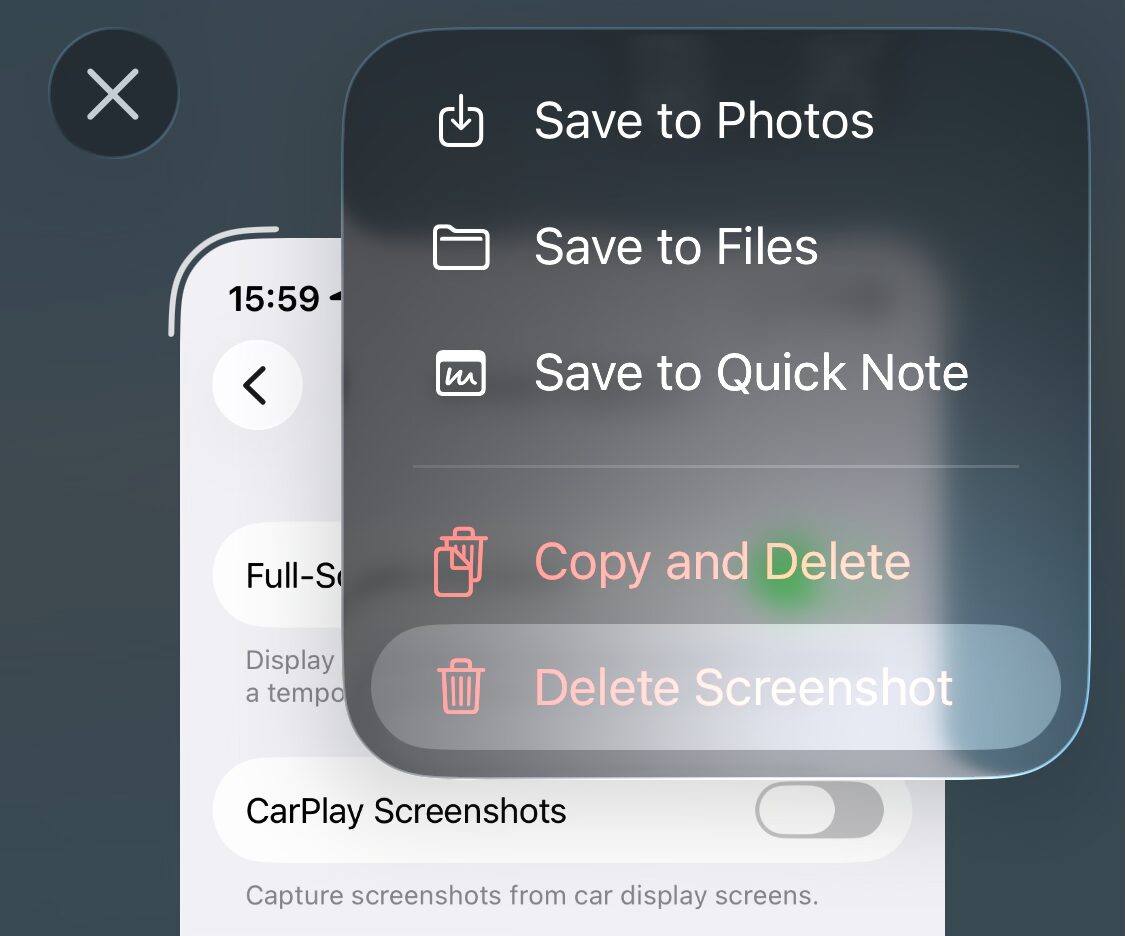
How do I dismiss a screenshot without saving it?
To immediately delete a screenshot after you have taken (and, perhaps, shared) it on your iPhone:
- Tap ✕ to dismiss the preview or
- Tap the checkmark and select Delete Screenshot.
(Tested with iOS 26; first published September 2026)