

Tired of the wrong email program springing to life when you click an email link on your Linux system? Opened a mailto: link in your browser, and a long-forgotten client woke up? Wondering if you can make web-based email the default as well? Find out here how to set the default email program on Linux ⤓ (using the terminal, Gnome and KDE).
On This Page
How to Set the Default Email Program on Linux
⚡ Quick Fix
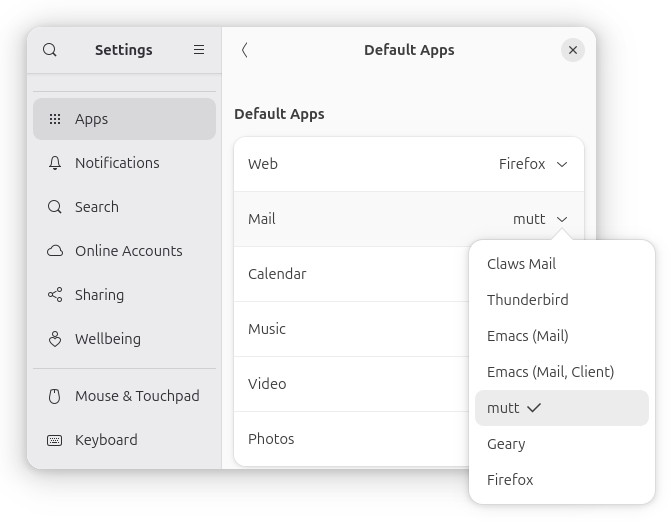
Gnome: Select the default email program in Gnome Settings | Apps | Default Apps.
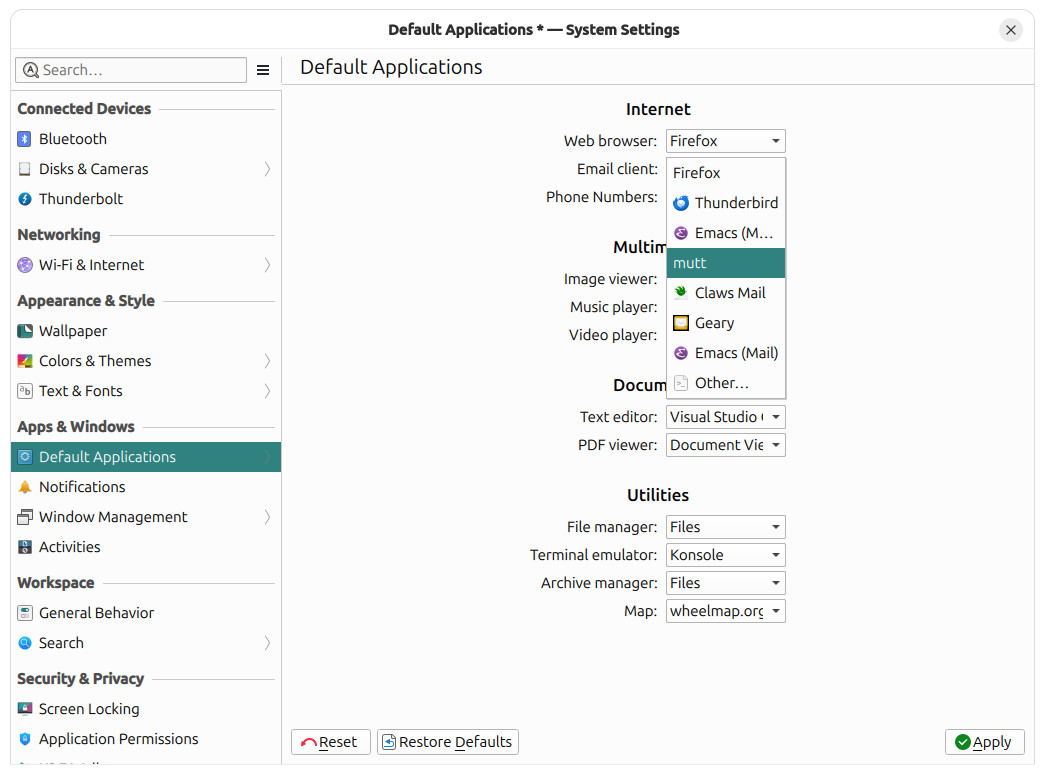
KDE: Choose the default email app in System Settings | Apps & Windows | Default Applications.
Terminal: Use xdg-mime default <program.desktop> x-scheme-handler/mailto.
On most Linux desktops, you can change the default email program either in your desktop environment’s system settings (such as Gnome and KDE) or using XDG tools on the command line.
Change the Default Email Program on Gnome
Time needed: 2 minutes
To set the default email client for use on Linux using the Gnome desktop environment:
- Open the Gnome Settings application.
Here’s how: Open the quick settings area in the menu bar, for example, and click the settings gear icon.
- Go to the Apps section.
- Select Default Apps.
- Now choose the application you want to use for email under Mail.
Set the Default Email Client Using KDE Linux
To pick the email program you want to be the default for Linux using KDE:
- Open System Settings.
Here’s how: Select Settings | System Settings in the KDE Application Launcher, for instance. - Select the Default Applications category (under Apps & Windows).
- Pick the desired email program default for Email client: under Internet.
Not in the list: If the app you want to use is not in the list, you can choose Other… and pick from all apps known to KDE or choose a custom file to run. - Click Apply.
Set the Default Email Program Using the Linux Console
To change the default email program on Linux using the console:
- Open a Terminal app.
- Type the command
xdg-mime default <program.desktop> x-scheme-handler/mailto.
Here’s why: XDG-MIME lets you set associations between file types or schemes and applications; the x-scheme-handler/mailto scheme is for handling mailto: links.
<program.desktop>: Replace<program.desktop>with the .desktop file for the email client you want to use as the default handler for email links; you can find local .program files in the /usr/share/applications/ folder.
Example: Typexdg-mime default emacs-mail.desktop x-scheme-handler/mailtoto set Emacs as the default. - Press Enter.
Their word: Freedesktop.org include information on using XDG tools in the xdg-mime man page.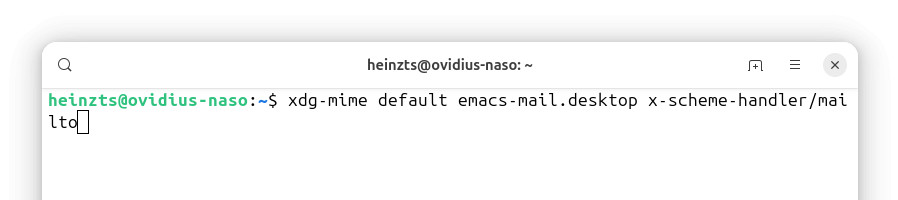
Linux mailing your way now?
Tips help fuel these email and tech how-tos.
How to Set the Default Email Program on Linux: FAQ
Can I use a web-based email service as the default mail app on Linux?
Yes.
To have web-based email open when you click an email address on Linux:
- Set a browser to be the default email program; see above.
Here’s which: Firefox registers to handle email links and is the preferred choice. - Choose the desired web-based email service to be the default email client in the browser:
How to Set the Default Mailto Email Client in Firefox
How to Change the Default Email Program in Chrome
(Tested with Linux using Gnome 48–50 and KDE 6; first published September 2025, last updated September 2026)