

Trying to take a screenshot (or just look at a website) — but an obnoxious overlay, menu, pop-up or interstitial keeps getting in the way? Find out here how to remove any element from any website in Firefox ⤓ for cleaner screenshots and a clutter-free experience.
On This Page
How to Remove Any Element from a Website in Firefox (for Screenshots etc.)
⚡ Quick Fix
Right-click the element and select Inspect. In Inspector, right-click the highlighted node and choose Delete node.
Reload the page to restore its unedited state.
Time needed: 3 minutes
To remove a part of a website (such as a menu or overlay) temporarily in Firefox (e.g., to take a screenshot):
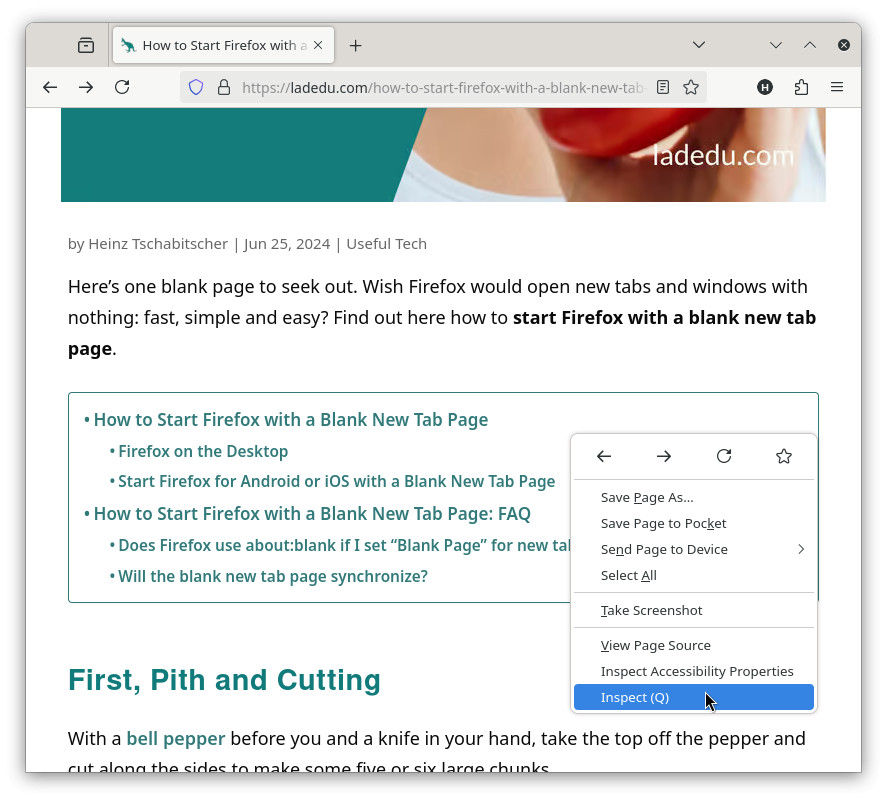
- Click on the web page element you want to remove with the right mouse button.
- Select Inspect from the context menu that has appeared.
No “Inspect”: If you do not see Inspect in the context menu, Firefox developer tools may be disabled; see below for enabling them.
- Highlight the node that encompasses the element you want to delete in Inspector.
Here’s why: Each page component (a headline, image, menu or entire section) is represented as an HTML node.
Here’s where: Start with the node that has been selected; if that does not cover everything, try the node one level up.
Here’s how: Firefox will highlight the node from the source code Inspector in the web site display; use that to find the node to remove.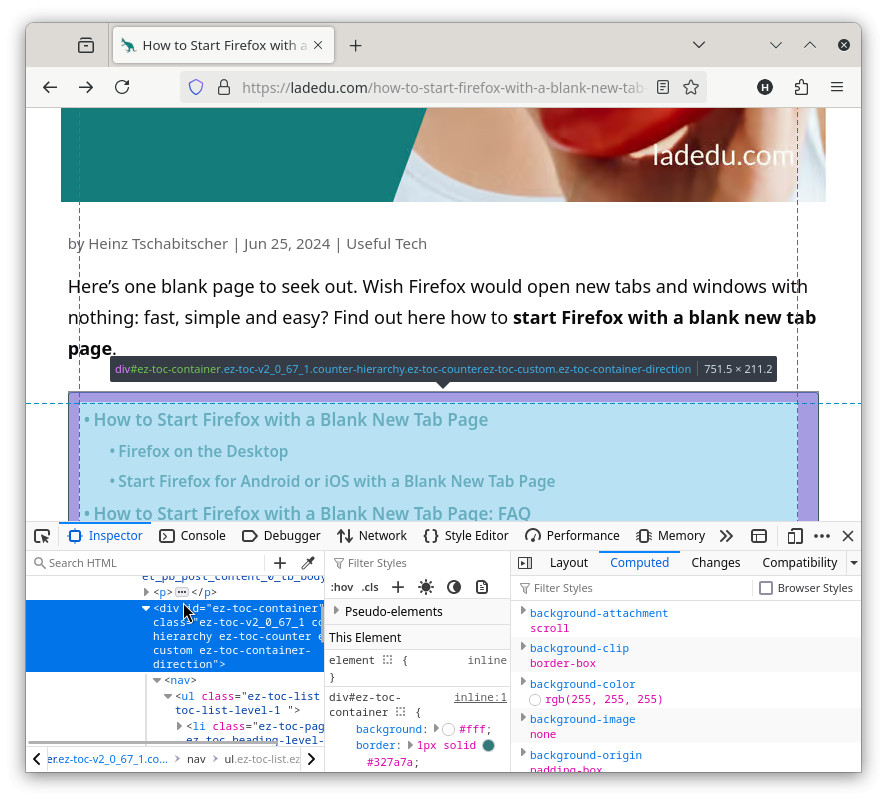
- Click on the node with the right mouse button.
- Select Delete node from the context menu.
No undo: Note that you cannot easily add the node back; see below for an alternative that hides elements instead of removing them.

- Close developer tools.
Back to it all: To go back to the original display, reload the page.
Their word: Mozilla include information on developer tools in an MDN article.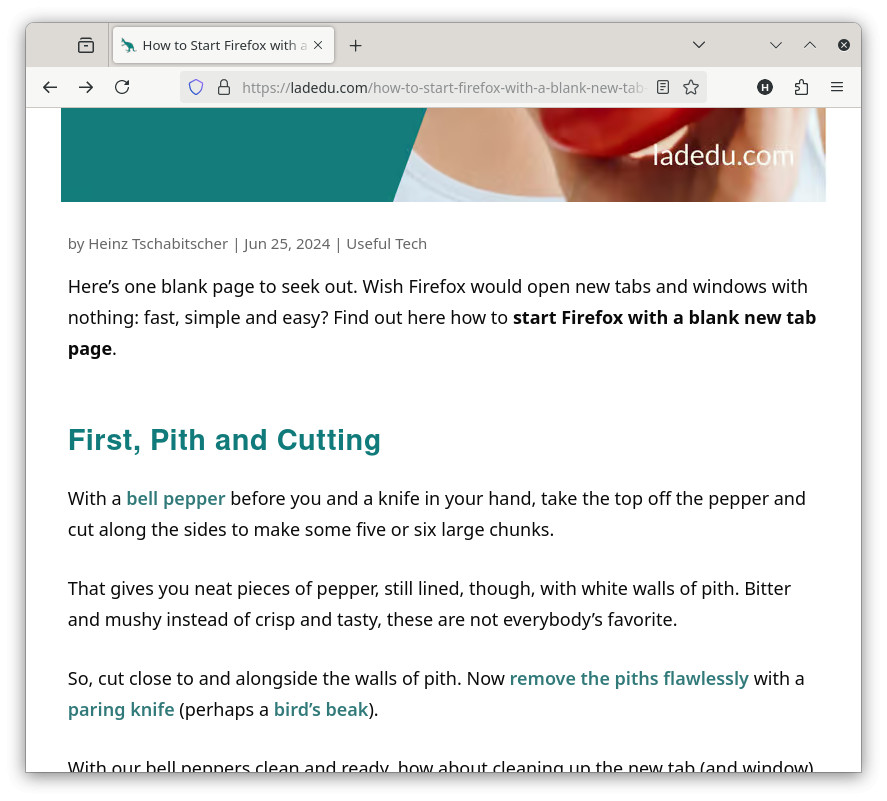
website.cleaned.up?
Tips help fuel these email and tech how-tos.
Hide an Element on a Website
As an alternative, you can edit the HTML source code for the node and make it invisible if this is possible with reasonable effort.
To make an element invisible in Firefox:
- Open the element in Inspector (see above).
- Right-click on the node.
- Select Edit As HTML from the menu.
- Add
style="display:none;"to the element’s opening tag as inline CSS.
Example: To hide a headline, make<h1>read<h1 style="display:none;">. - Click outside the HTML editor.
How to Remove Any Element from a Website in Firefox (for Screenshots etc.): FAQ
I cannot open Firefox developer tools; how can I enable them?
Most likely, developer tools have been disabled using a Firefox policy.
To enable access to developer tools:
- Set DisableDeveloperTools to false or disabled depending on the policy governing your Firefox installation.
(Tested with Firefox 127–152; first published June 2024, last updated June 2026)