

Squinting at a crumpled receipt, whiteboard scribble or cookbook page already dreading the thought of typing up the lot on your iPhone’s keyboard? You can snap a photo, of course, and pull the text out — but why not take a shortcut? Find out here how to scan editable text right into a note with Apple Notes for iPhone ⤓.
On This Page
How to Scan Editable Text into a Note with Apple Notes for iPhone
⚡ Quick Fix
Tap the attachment icon while composing a note, select Scan Text, frame your text and tap Insert.
Time needed: 1 minute
To insert text scanned using the camera in a note with Apple Notes for iOS on an iPhone:
- Position the text cursor where you want to paste scanned text in your note.
- Tap the attachment paperclip icon in the Apple Notes toolbar.
- Select Scan Text from the context menu that has appeared.
Context menu alternative: You can also tap at the position where you want to insert the text, select > from the menu and choose AutoFill | Scan Text.
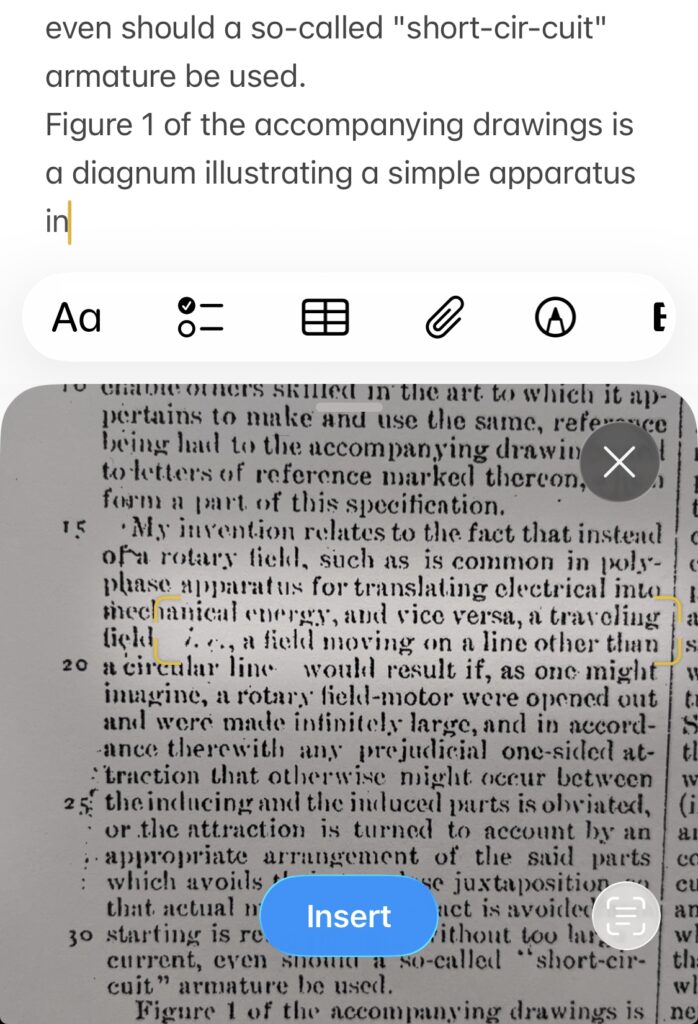
- Position the camera so that the text you want to insert is highlighted.
Outline: Apple Notes also marks the detected text with a yellow outline.
- Tap Insert.
- Edit the scanned text as desired.
Editable: Use headings to organize scanned text, for instance, and get an outline view.
Their word: Apple include information on scanning text in the iPhone User Guide.
Because you scan!
Tips help fuel these email and tech how-tos.
How to Insert Scanned Text in a Note with Apple Notes for iPhone: FAQ
Can I scan more than one page or section at a time?
No.
With editable text, Apple Notes will always insert just the text highlighted and outlined in yellow. You can scan more than once, of course, to insert longer passages of text.
To scan a document in a more streamlined manner, you can attach it as a PDF file into the note.
Another way to get text into Notes: How to Import from Markdown into Apple Notes (Mac, iPhone, iPad)
(Tested with Apple Notes for iOS 26–27; first published April 2026, last updated October 2026)