

Scrolling through endless walls of long and winding text in Apple Notes? Wish there was an easier way to jump around and find exactly the spot you need? Find out here how to collapse sections of text and use outline view in Apple Notes ⤓ on Mac, iPhone and iPad.
On This Page
How to Collapse Sections and Use Outline View in Apple Notes
Apple Notes for Mac
Time needed: 1 minute
To collapse a section so only its heading is visible and the body text underneath hidden in Apple Notes for macOS on a Mac:
- Use headings and subheadings to create structure in your note.
Here’s why: You can only collapse body text organized under headings and subheadings in Apple Notes.
- Hove the mouse cover a heading or subheading.
- Click the downward-pointing arrowhead (˅) that appears to the left of the heading.
Apple Notes keyboard shortcut: You can also press Command Option ⬅ (left arrow) to collapse the current section from to its headline.
Using the menu. The corresponding menu command is View | Collapse Section.
Their word: Apple include information on collapsing sections in the Notes User Guide.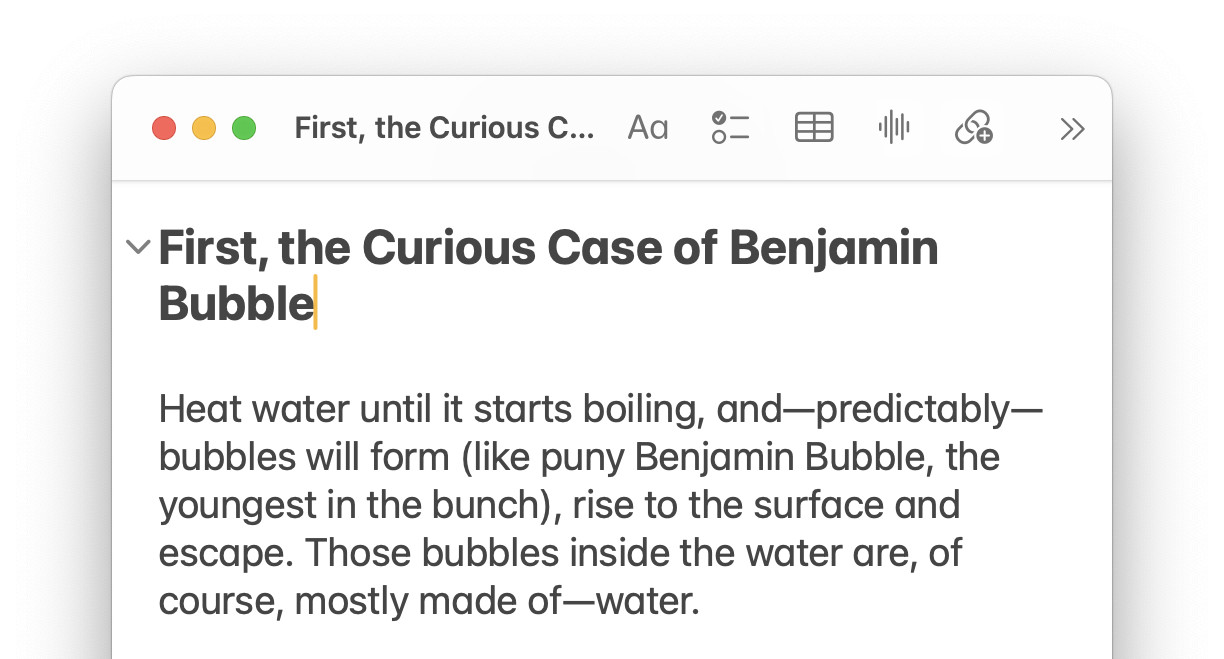
Click the rightward-pointing arrowhead (˃) that appears (permanently) to the left of a collapsed headline to expand its contents. You can also place the text cursor in the headline and press Command Option ⬅ (right arrow) for expanding.
Collapse everything around the note: How to Focus in Apple Notes for Mac
Enter Outline View in Apple Notes for Mac
To collapse all sections to an outline view (with only top headings visible):
- Press Command Option Shift ⬅ (left arrow).
Seeing more: Expand headings to reveal subheadings below them as needed for more insight into your outline.
Using the menu: In the menu, you can select View | Collapse All Sections.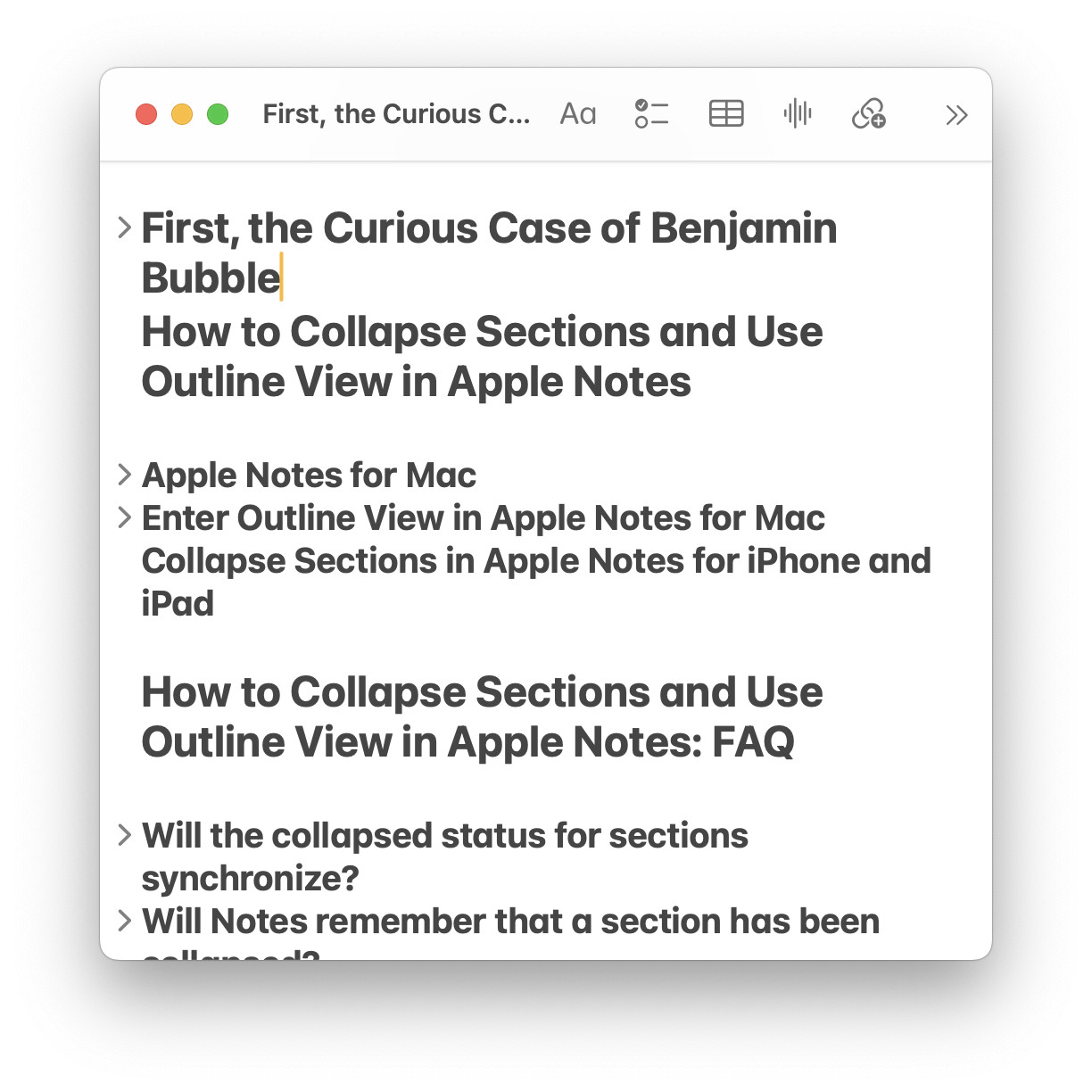
You can always expand sections and subsections as needed, of course, either individually or in bulk; to expand all sections, press Command Option Shift ⬅ (right arrow) or choose View | Expand All Sections from the menu.
Tamed a note and mastered its structure?
Tips help fuel these email and tech how-tos.
Collapse Sections in Apple Notes for iPhone and iPad
To hide text. beneath a heading using Apple Notes for iPhone and iPad:
- Tap in the heading or subheading under which you want to collapse text.
- Now tap the downward-pointed arrowhead that appears to the left of the heading.
Expansion: To unhide the text, click the rightward-pointed arrowhead that has appeared in place of the download-pointing one; you need not tap in the heading first.
Their word: Apple include information on organizing note content in iPhone User Guide.
Collapsing and expanding link previews: How to Change Link Display (Hide Previews) in Apple Notes
How to Collapse Sections and Use Outline View in Apple Notes: FAQ
Will the collapsed status for sections synchronize?
Yes.
Collapsing sections affects the display of the note as you are looking at it on the current device. When you make an editing change to the note, that display information is remembered and synchronized together with the your edit.
The mere action of expanding or collapsing text is not synchronized.
Will Notes remember that a section has been collapsed?
Yes and no.
Information about outline mode and which sections are collapsed do not save separately, but display information is saved together with other edits (such as adding a new line).
Can I collapse a note to its title?
No.
The most you can collapse a note is to the headings, generating an outline view. At least the top-level headings and the title are always visible.
So a note with just a title and text cannot be collapsed?
Yes.
A note needs at least one heading under which to collapse the body content that follows it.
But, at the same time…
You can, of course, set up a note that forgoes the title to use a single top-level heading instead, followed by sub-headings with body text beneath. Then, you can collapse all text (and subheadings) to the single heading.
Can I collapse a list?
While you cannot collapse a list in a note (whether it is numbered, unnumbered or a checklist) in Apple Notes directly, you can collapse it to a heading, of course:
- Insert a heading or subheading immediately before the list, then collapse that heading.
Can I use outline view in Apple Notes on iCloud.com?
No.
Accessing iCloud Notes using a browser and iCloud.com, you cannot collapse text into headlines or use outline view.
(Tested with Apple Notes 4 on macOS as well as Notes for iOS 18 and 26; first published May 2025, last updated June 2026)