
Worried an innocent click might send your vacation photos to your boss? You never use the seemingly random assortment of people who inhabit the macOS sharing sheet anyway? Find out here how to remove contact suggestions from the Mac sharing sheet ⤓ for good.
On This Page
How to Remove Contact Suggestions from the Sharing Sheet on a Mac
Time needed: 3 minutes
To prevent the macOS sharing sheet on a Mac from displaying contact suggestions:
- Open System Settings on the Mac.
- Go to the General category.
- Select Login Items & Extensions.
- Now click I for Sharing under Extensions.
No “Sharing”: If you do not see Sharing initially, go to the By Category tab.
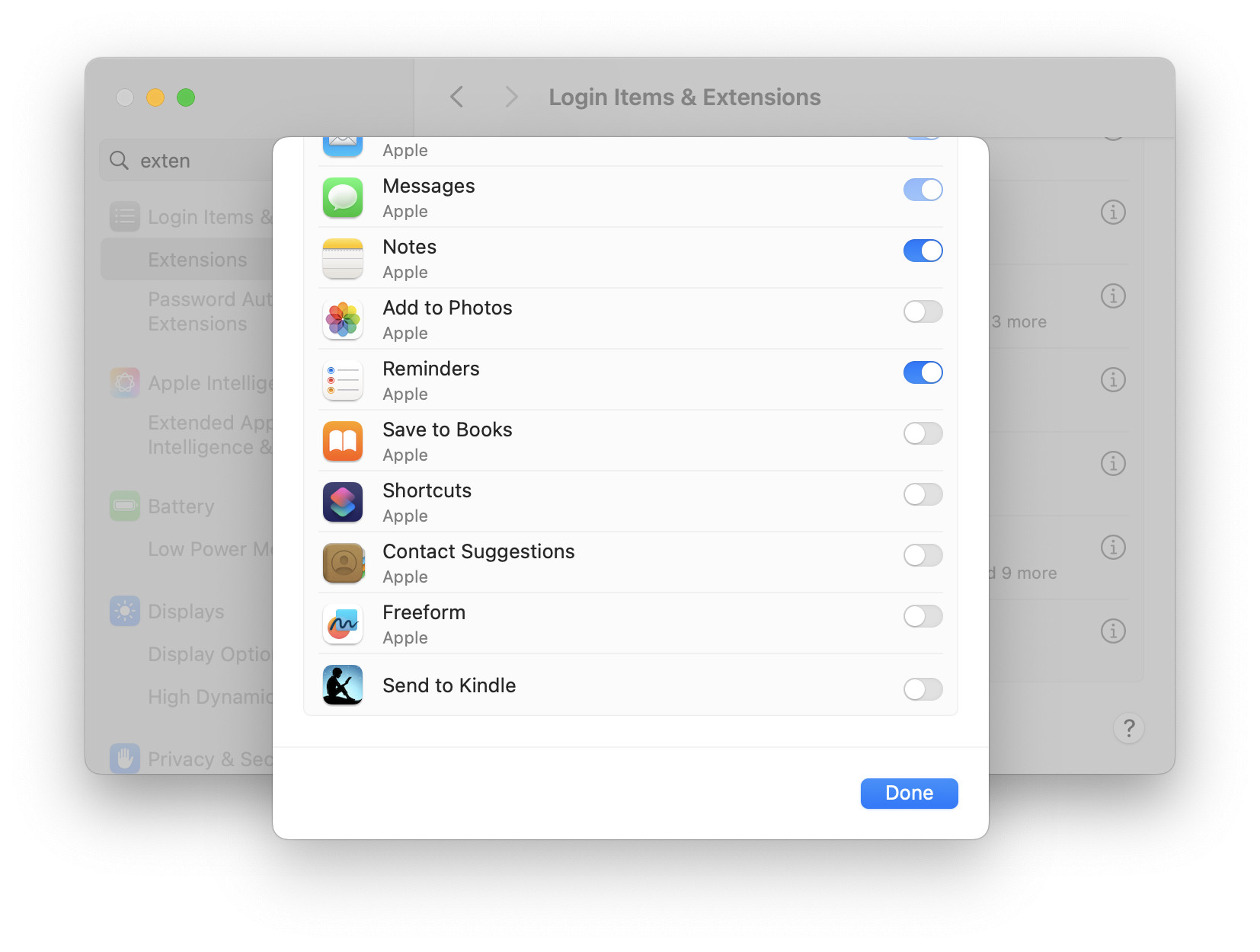
- Turn off Contact Suggestions
- Click Done.
Their word: Apple include information on the sharing menu in the Mac User Guide.
No longer spilling the sharing beans?
Tips help fuel these email and tech how-tos.
How to Remove Contact Suggestions from the Sharing Sheet on a Mac: FAQ
Can I remove an individual contact from sharing suggestions?
No.
The sharing sheet will always show the contacts macOS suggests — typically the people you most recently messaged.
On an iPhone or iPad? How to Remove Contact Suggestions for Sharing on iPhone
Another irritation? How to Stop Quick Notes from Popping Up Unwanted on a Mac
(Tested with macOS Tahoe 26.0–26.5 and Sequoia 15.5; first published July 2025, last updated May 2026)