

Frustrated by a cluttered share sheet and always afraid you might share a post or photo with the wrong person accidentally? Find out here how to remove contact suggestions for sharing on iPhone and iPad ⤓ — either to hide individual contacts or all suggestions altogether.
On This Page
How to Remove Contact Suggestions for Sharing on iPhone and iPad
Turn Off All Contact Suggestions for Sharing
Time needed: 2 minutes
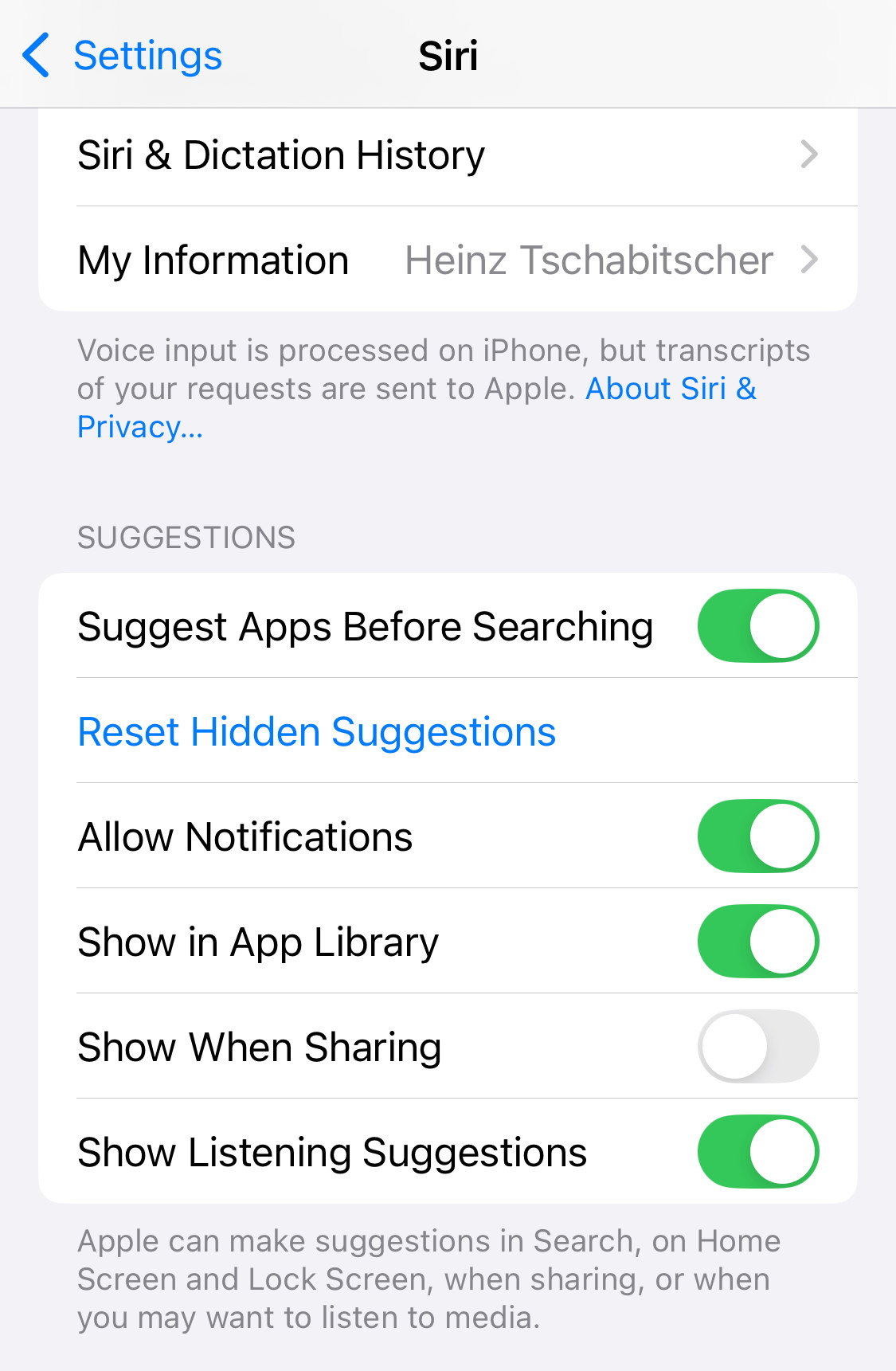
To disable contact suggestions on the share sheet altogether on iPhone and iPad:
- Open the Settings app on the iPhone or iPad.
- Open the Siri (or Apple Intelligence & Siri) category.
iOS < 18: In earlier versions of iOS and iPadOS, the category is called Siri and Suggestions.
- Turn off Show When Sharing under Suggestions.
On a Mac? How to Remove Contact Suggestions from the Mac Sharing Sheet
Remove Individual Contacts from the iOS Sharing Sheet
To have iPhone or iPad not suggest a particular contact for sharing even when you have messaged them recently:
- Open the share sheet.
Here’s how: Tap the sharing button anywhere, for example on this very page. - Tap and hold the contact you want to remove.
No contacts: If you see no contact suggestions, see above for the setting to enable contact suggestions. - Select Suggest Less from the context menu that appears.
Why “Less”: While iOS will remove the contact from the currently open share sheet immediately, the contact may return.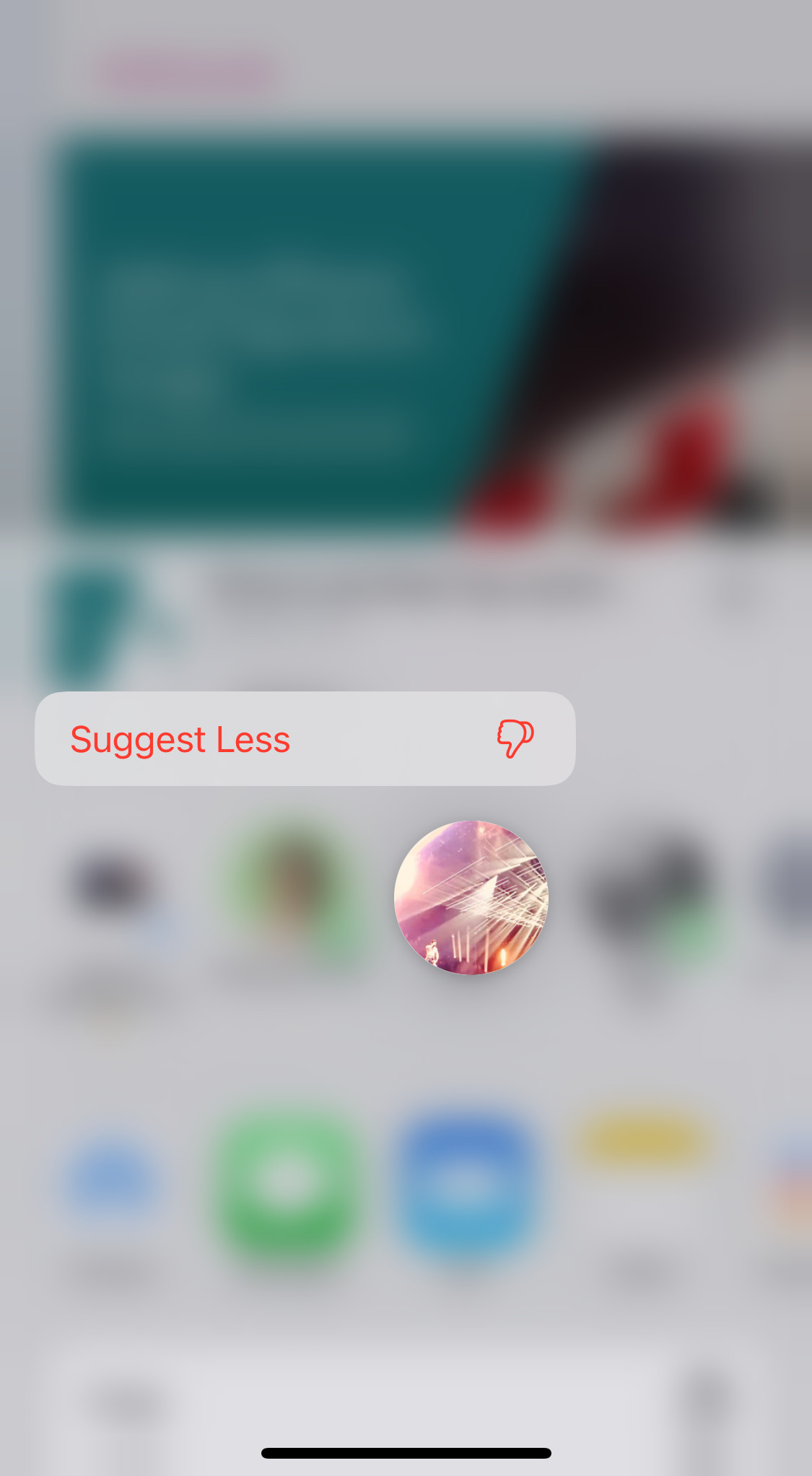
No more oversharing?
Tips help fuel these email and tech how-tos.
How to Remove Contact Suggestions for Sharing on iPhone and iPad: FAQ
Will removing contacts from sharing on one device also remove them elsewhere?
No.
The setting for Siri contact suggestions for sharing is local to the device and will not synchronize.
Why do contacts return after I have told my iPhone to suggest them less?
Contact suggestions for sharing are dynamically created. Even after you have marked a contact to be suggested less, it may return when you have recently communicated with them.
The only way to reliably remove contacts from suggestions is disable the feature altogether.
(Tested with iOS 18 and 26; first published July 2025, last updated August 2026)