

Ended with three versions of the same person in your Fastmail address book, one with the phone number, one with the latest email address and one with an obscure nickname? You can bring order to your contact chaos. Find out here how to merge contacts in Fastmail ⤓.
On This Page
How to Merge Contacts in Fastmail
Time needed: 2 minutes
To combine multiple address book entries (because you added a sender twice with different email addresses, for instance) into one contact in Fastmail:
- Open Fastmail Contacts.
Here’s how: Click the Fastmail menu button in the top left corner, then select Contacts.
- Check all contacts you want to merge.
Here’s how: Click the avatar in front of the first contact, then do the same for all contacts you want to merge with it.
Order matters : The first contact you select will keep its name; any differing names from further contacts will be lost. - Click More in the Fastmail Contacts toolbar.
- Select Merge from the menu that has appeared.
Here’s what happens: The selected contacts will be replaced with one consolidated address book entry.
Undo: If you merged the wrong contacts or in the wrong order, press Z to undo.
Their word: Fastmail include information on using contacts in Fastmail help.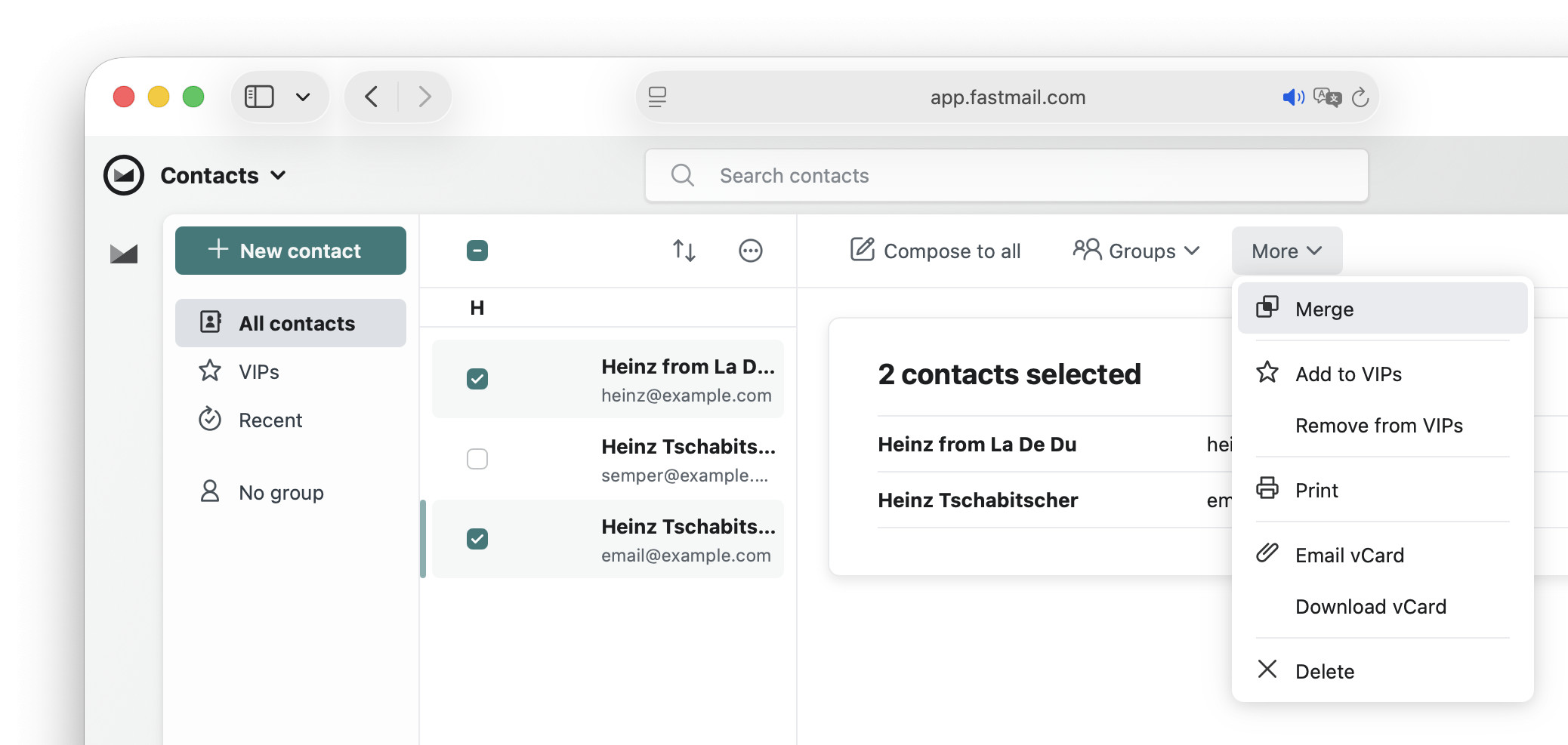
All in one?
Tips help fuel these email and tech how-tos.
How to Merge Contacts in Fastmail: FAQ
Will I get a notification about conflicts?
No.
Fastmail Contacts will keep all information where possible; multiple
- email addresses,
- addresses,
- notes and
- URIs
will all be retained. The fields themselves will not merge, but the new contact will have the information from all merged contacts.
For fields that allow only for one value, Fastmail Contacts will keep only the information from the contact selected first when. merging:
- name,
- nickname,
- vocational info and
- birthday.
Can I undo merging contacts in Fastmail?
Yes, but only immediately.
To undo merging contacts in Fastmail:
- Press Z immediately after merging.
Using the mouse: You can also click Undo in the Merged <number> contacts banner that appears after merging.
What happens if one of the contacts is a VIP but others are not?
If any of the contacts you merge has VIP status in Fastmail, the resulting merged contact will be a VIP.
(Tested with a desktop browser; first published November 2025, last updated July 2026)