

Looking to insert one of those tiny characters floating elegantly — for a footnote, a chemical formula, or an ordinal number perhaps? Superscript characters appear simple in Word, but what if you want to change their size or floating hight? Find out here how to make superscript characters in Microsoft Word ⤓ for Windows, Mac, iPhone, Android and online — and how to customize their display.
On This Page
How to Make Superscript Characters in Microsoft Word
Word for Windows, Word for Mac and Word Online
Time needed: 2 minutes
To turn any character into a superscript (smaller and raised above the baseline) with Microsoft Word for Windows, Word for Mac and Word online:
- Highlight the character you want to make a superscript.
- Go to the Home tab on the ribbon.
- Click Superscript in the Font section.
Word online keyboard shortcut: In Word online, you can also press Ctrl Shift + (Windows, Linux) or Command Shift + (Mac) to render characters superscript.
Their word: Microsoft include information on superscripting text in Word help.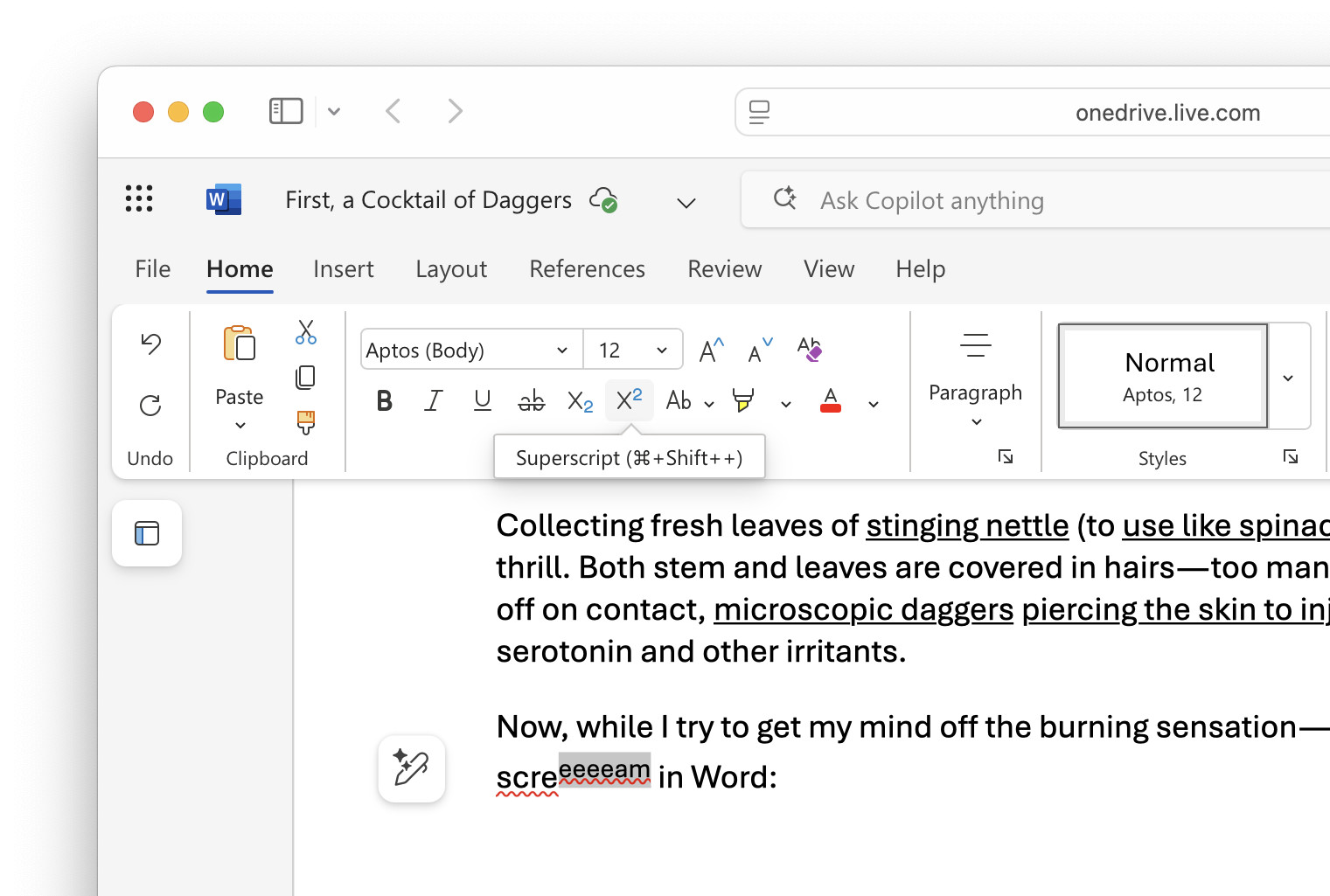
Super-scripted success?
Tips help fuel these email and tech how-tos.
Inputting Superscript Characters in Word for iPhone and Android
To make superscripted versions of characters in Word for iPhone and Android:
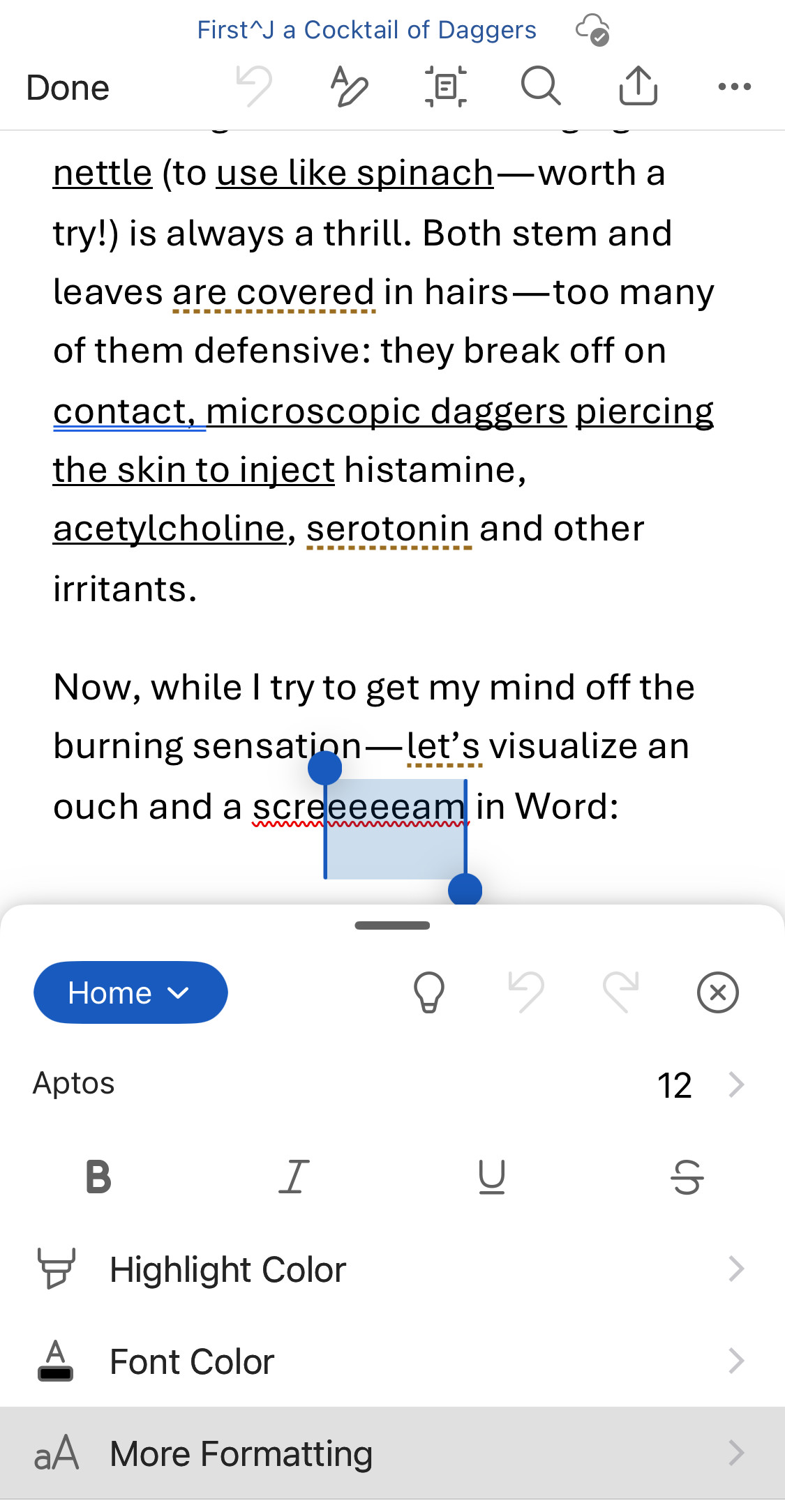
- Highlight the character or characters you want to make superscripts.
- Tap the three dots menu button in the formatting toolbar.
Here’s where: You can find the button in the toolbar above the keyboard. - Go to the Home section.
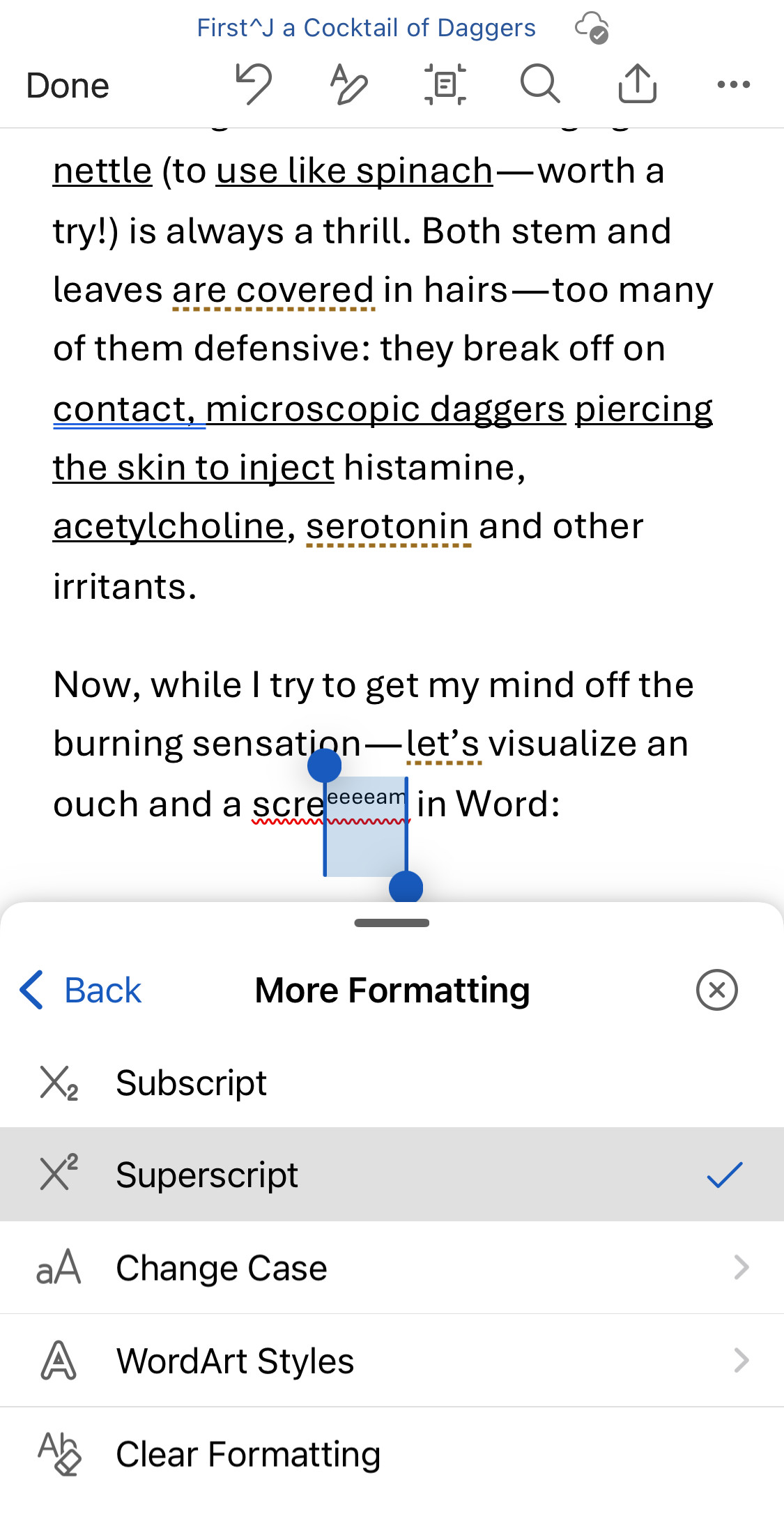
- Select More Formatting.
- Now select Superscript.
Other processing software for words and characters:
How to Insert Superscript Characters in Google Docs
How to Insert Superscript Characters in Apple Pages
How to Make Superscript Characters in Microsoft Word: FAQ
Can I also insert dedicated Unicode superscript characters instead of shifting the baseline?
Yes.
You can use superscript Unicode characters instead of changing the formatting for regular characters, of course, using the operating system’s input method:
How to Input Superscript Letters on a Mac
How to Insert Superscript Letters on Linux
How to Insert Superscript Letters on Windows
Superscript Unicode letters can have superscript formatting in Word, too.
Can I change the size and baseline shift of superscript characters in Word?
Yes.
To customize superscript characters in Word for Windows and Word for Mac:
- Select the characters you want to raise above the baseline.
- Go to the Home tab on the ribbon.
- Click the expansion button for Font.
Word keyboard shortcut: You can also press Ctrl D (Windows) or Command D (Mac) to open the Font options dialog. - Go to the Advanced tab.
- Select Raised for Position:
- Enter the amount by which you want to raise the characters.
Example: Use 3 pt for superscripting for a 12 pt-typeface.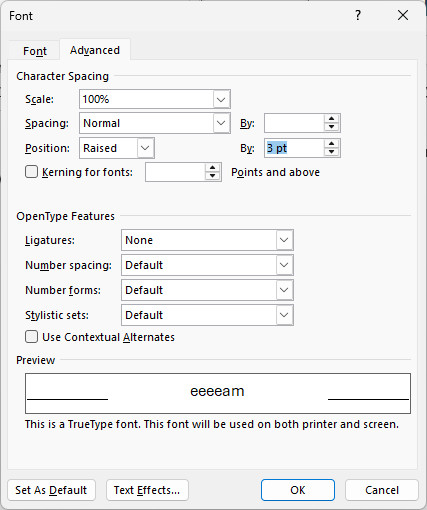
- Go to the Font tab.
- Choose a reduced size for the typeface under Size:.
Example: Choose 8 for superscripts to a 12 pt-text. - Click OK.
(Tested with Word for Windows 2507–2606 and Word for Mac 16.100; first published August 2025, last updated August 2026)