

Looking to break up text in tables or long strings of numbers — exactly where you want? Wish you could insert invisible breaks that keep your Word docs neat without leaving any visible gaps? Find out here how to insert and use zero-width space for optional hyphenation and non-breaking invisible space in Word for Windows and Mac.
First, When Water Boiled at 0 ℃
Setting up a scale for temperatures, one way to avoid negative numbers is to start with zero degrees low… very low perhaps, like William Thomson, Baron Kelvin.
One can also start high, of course — and count up from zero as the temperature goes down. Anders Celsius apparently took this approach following Joseph-Nicolas Delisle when first he proposed his scale. Water boiled at some 0 ℃ and froze at 100 degrees.
Now that we have mostly steered clear of zero in the realm of temperature, let’s see if we can embrace it for whitespace:
How to Insert and Use Zero-Width Space in Word
Zero-Width Space as Optional Line Break
Time needed: 2 minutes
To insert a zero-width space character to enable a line break at the point with Microsoft Word for Windows and Word for Mac:
- Position the text cursor where you want the optional line break to occur.
Here’s where: An optional line break is most useful in long strings of text that do have opportune points of breaking that Word does not recognize, e.g. URLs or data in tables.
- Go to the Insert tab on the ribbon.
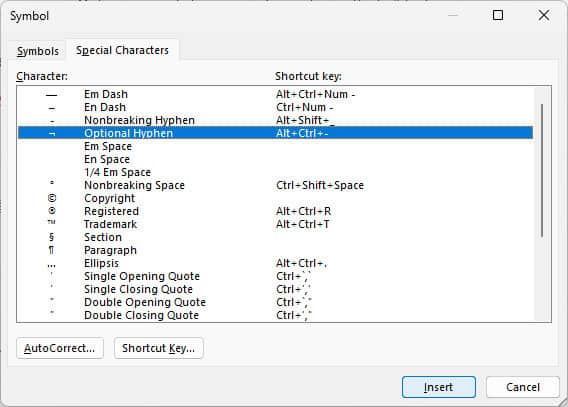
- Select Symbol | More Symbols… (Windows) or Advanced Symbol (Mac).
- Go to the Special Characters tab.
- Highlight Optional Hyphen.
No-hyphen break: On Windows, Word’s Symbol dialog also contains access to the non-breaking zero-width space (see below); highlight No-Width Optional Break to insert it instead.
- Click Insert.
Word keyboard shortcuts: You can also press Ctrl Alt - (hyphen) on Windows and Command Option - (hyphen) on a Mac to insert the optional hyphen in Word.
- Now click Close.
Non-Breaking Zero-Width Space
To insert a zero-width space at a point where no line break should occur in Word for Windows and Word for Mac:
- Turn on math AutoCorrect rules for regular text; see below.
Here’s why: Word includes an expansion rule for the zero-width non-breaking space only for mathematical contexts (where one is admittedly most likely to use them) across platforms.
Non-breaking space: You can also insert visible protected, non-breaking whitespace in Word, of course. - Type
\zwspwhere you want the zero-width space character to appear. - Press Space.
Here’s what happens:\zwspwill be replaced with a zero-width non-breaking space followed by regular whitespace character (from pressing Space). - Now press Backspace to delete the regular whitespace c character.
Enable Mathematical AutoCorrect Outside Mathematical Contexts in Word
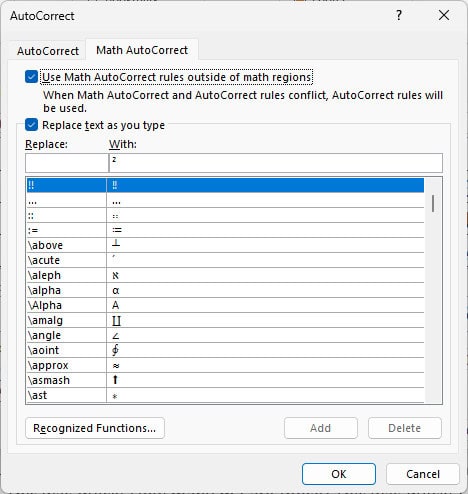
To turn on expansion of math text replacements for regular text in Word:
- Go to the Insert tab on the ribbon.
- Select Symbol | More Symbols… (Windows) or Advanced Symbol (Mac).
- Now click AutoCorrect….
- Go to the Math AutoCorrect tab.
- Check Use Math AutoCorrect rules outside of math regions.
- Click OK.
How to Insert and Use Zero-Width Space in Word: FAQ
What is the difference between “Optional Hyphen” and “No-Width Optional Break?”
When an optional hyphen is an opportune point for a line break, Word will break the line and insert a hyphen for continuation. Otherwise, the character is invisible and does not affect the word or flow of text.
When a no-width optional break is at an opportune point for a line break, the line will break without a hyphen. The character is invisible, but will break words into, e.g., for the spelling checker.
| Optional Hyphen | No-Width Optional Break | |
|---|---|---|
| Breaks line if opportune | ✔ | ✔ |
| Inserts hyphen at break | ✔ | ➖ |
| Invisible | ✔ | ✔ |
| Keeps word intact | ✔ | ➖ |
| Breaks spelling checker | ➖ | ✔ |
Can I insert a zero-width space or optional hyphen in Word online or the Word app?
No.
You cannot insert zero-width spaces using Word online in a browser or the Word apps for Android and iPhone.
Yes.
You can paste a zero-width space or zero-width non-breaking space (word joining) Unicode character, of course. Use the table below to copy these characters:
Zero-width space | |
Zero-width non-breaking space |
(Tested with Word for Windows Version 2411–2509 and Word for Mac 16.92–16.102; first published December 2024, last updated October 2025)