

Need to open a folder quickly on your Mac without clicking endlessly or hunting through folder names? Finder’s “Go to Folder” command is your secret for zooming straight to any folder path. Find out here how to go to any folder path fast using the Mac shortcut “Command Shift G” ⤓ along with other handy keyboard tricks to navigate folders (even hidden ones) in macOS Finder.
First, If the Weight of the World Pushes a Train
If the weight of the world pushes a train, it needs no engine to propel the wheels.
This is the idea behind Brunel’s adoptation of the wonderfully named “atmospheric engine” for railways: as one evacuates the tunnel in front of a train, the air pressure pushes that train forward — without a heavy engine or coal, and very, very fast.
Speaking of fast… how about pushing macOS Finder to go places very, very fast — without heavy mouse clicks or searching?
How to Use the “Go to Folder” (Path) Finder Shortcut on a Mac
Time needed: 1 minute
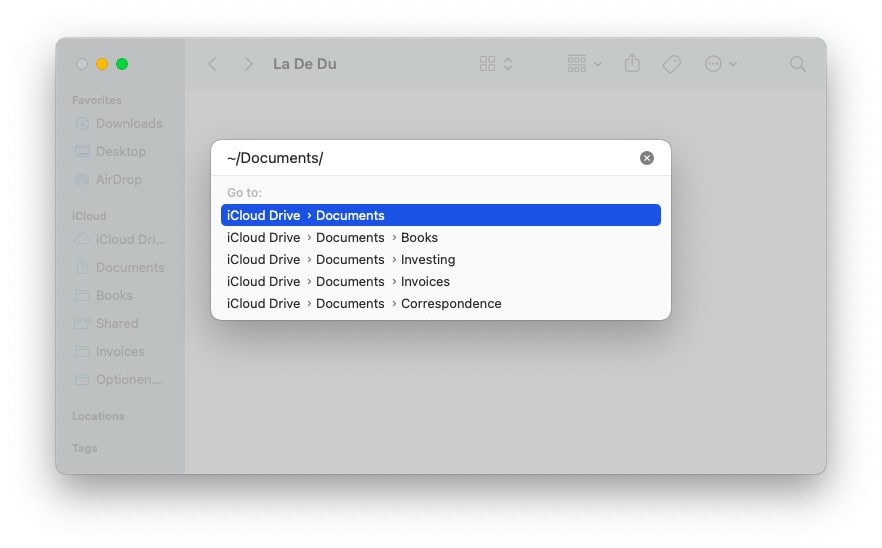
To go to a specific folder quickly on a Mac using macOS Finder:
- Open a new Finder window or tab.
Open Finder shortcut: You can set up a keyboard shortcut on your Mac for opening Finder.
- Press Command Shift G.
- Now type the folder you want to open.
Home shortcut: Type
~for your home folder.
Folder name auto-completion: PressTabto complete a folder name. Wait for a selection of auto-completions to appear and select one.
Copy and paste: You can also paste a folder path, of course.
Open hidden folders: To go to a hidden folder, type its name; Finder will even auto-complete (hidden) folders that start with a dot. - Press Enter.
Their word: Apple include information about opening Finder folders in the Mac User Guide.
In the folder flow?
Tips help fuel these email and tech how-tos.
Navigate to Adjacent Folders using Shortcuts
To navigate to neighboring folders, use the following keyboard shortcuts:
- Up one folder level to the one that holds the current one: Command ↑
- Back in the browsing history to the previously open folder: Command [
- Forward in the browsing history to the next folder: Command ]
- Move the folder highlight: ←, ↓, ↑ and →
- Open the currently highlighted folder: Command O
A place to go: How to Create a New Folder on a Mac
Open Popular Folders Fast with Finder Shortcuts
Finder also knows a host of keyboard shortcuts that take you straight to many an oft-used folder:
| Folder | Path | Shortcut |
|---|---|---|
| AirDrop | Command Shift A | |
| Applications | /Applications | Command Shift A |
| Computer | Command Shift C | |
| Desktop | ~/Desktop | Command Shift D |
| Documents | ~/Documents | Command Shift O |
| Downloads | ~/Downloads | Command Option L |
| Home | ~ | Command Shift H |
| iCloud Drive | Command Shift I | |
| Network | Command Shift K | |
| Recents | /System/…/myDocuments.cannedSearch | Command Shift F |
| Utilities | /Applications/Utilities | Command Shift U |
How to Use the “Go to Folder” (Path) Finder Shortcut on a Mac: FAQ
How can I go to a hidden folder in Mac Finder with “Command Shift G”?
To open a hidden folder fast in macOS Finder:
- Press Command Shift G.
- Type the path up to the hidden folder.
- Now type
.(a dot).
Full path: You can, of course, also type or paste the entire path right away. - Press Tab to have Finder auto-complete the folder name.
- Now press Enter.

Is there a “Home” Shortcut for Mac Finder?
Yes.
To go to your account’s “Home” folder (which contains Downloads, Documents, Pictures, and other directories stored locally on your Mac) fast:
- Press Command Shift H.
(Tested with macOS Tahoe 26.0–26.4, Sequoia 15.1–15.4, Sonoma 14.0–14.5, Ventura 13.3, Monterey 12.3, and Big Sur 11.5; first published June 2018, last updated April 2026)