

Do you feel the quiet drag and burden of notes long past their usefulness slowing down Apple Notes speed and weighing on your mind’s peace? Unsure where to start the purge and cleaning? Find out here how to find old (and no longer needed) notes in Apple Notes on Mac, iPhone and iPad ⤓.
On This Page
How to Find and Purge Old Notes in Apple Notes
Using Search
Time needed: 2 minutes
To quickly find notes that you have created long ago in Apple Notes for Mac, iPhone and iPad:
- Go to the search field.
Notes for Mac: Click the magnifying glass (🔍) or press Command Option F.
Notes for iOS: Go to Folders view, then scroll up until the Search field is revealed. - Type
before <date>.Here’s why: This is a way to use the creation date search operator.
What dates you can use: You can use years, months, weekdays or full dates, for instance, as well as relative dates withago.
Examples: Typebefore Marchfor notes created before the previous March,before June 2021for notes preceding June 2021 orbefore 01/01/06for anything before January 1, 2006.
Relative date example: Typebefore 3 years agofor anything roughly older than 3 years. - Select the Before entry from auto-completion entries under Suggested Searches.
Iconic: Choose an entry that has the calendar icon in front; only these suggestions use the search operator, not text matching.
Now that: You can now delete notes individually, of course, or in bulk.
Their word: Apple include information on searching for notes in the Notes User Guide.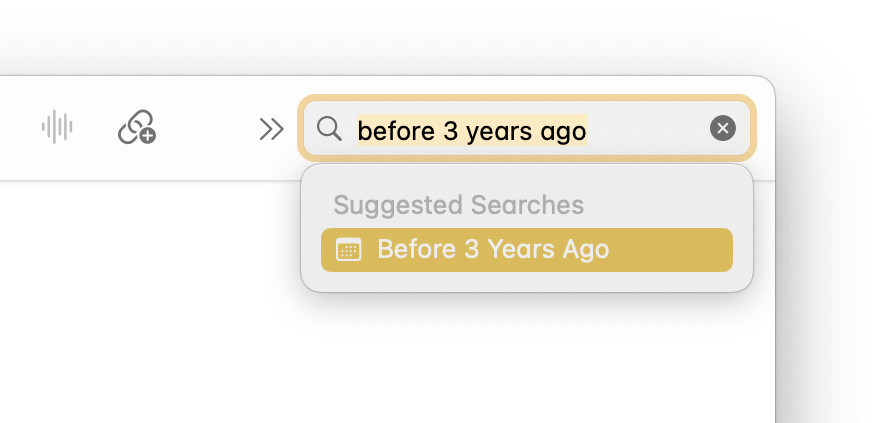
On lighter Notes already?
Tips help fuel these email and tech how-tos.
Using a Smart Folder
Notes for Mac
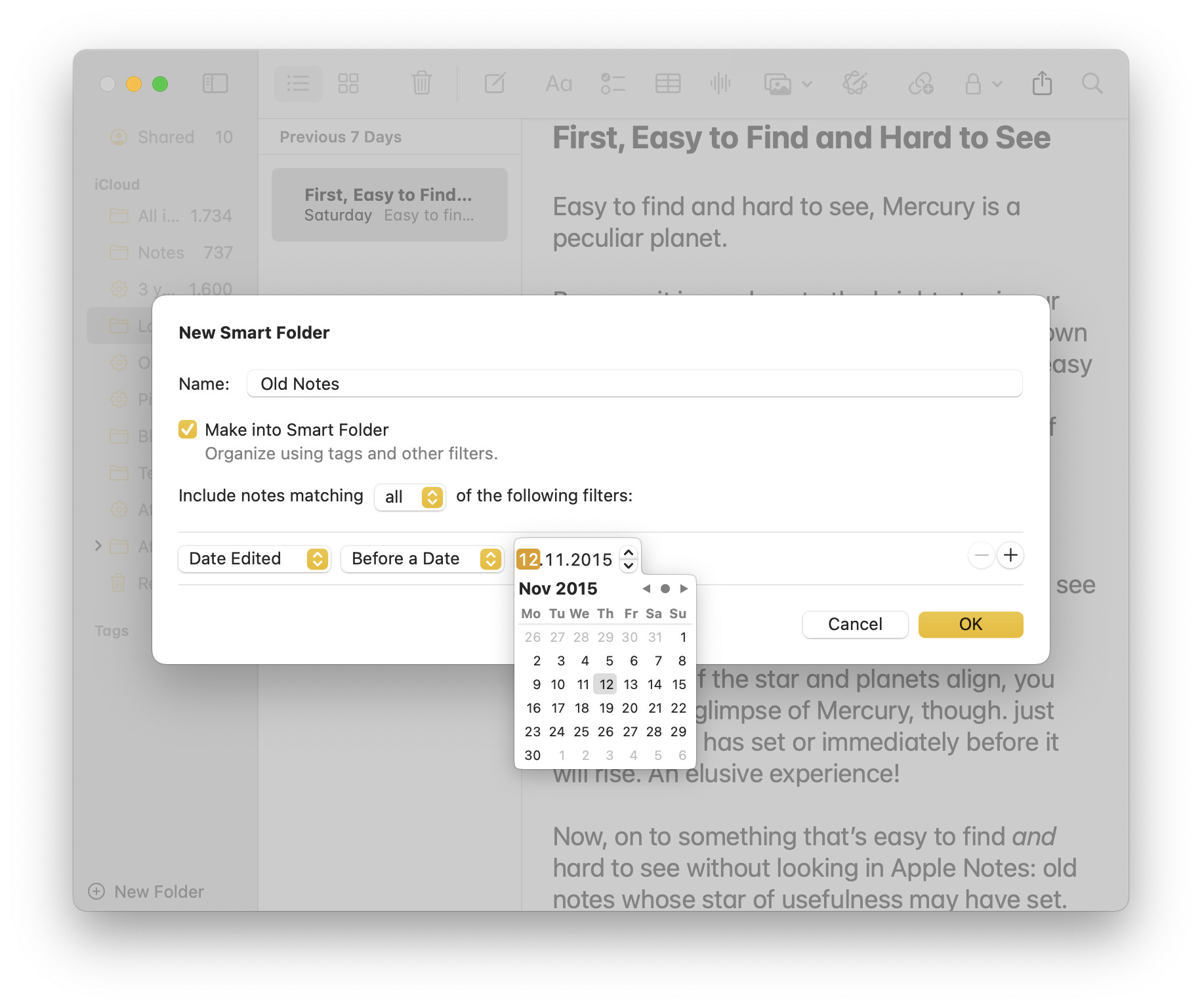
To set up a Smart Folder in Apple Notes for Mac that collects notes you have not edited in a long while (or created a long time ago):
- Click New Folder in the Apple Notes folder list.
Notes keyboard shortcut: You can also press Command Shift N to create a new folder. - Type a name for the new search folder over New Folder.
Example: You can make it descriptive like “Not edited since 2015”. - Check Make into Smart Folder.
- Select Date Edited as the filtering criterion.
Creation: Choose Date Created instead to match all notes created before the target date, even if they have been opened and modified later. - Choose Before a Date from the Today drop-down menu.
- Now pick a specific day from the date picker.
Relative dates. You can only enter a specific date here, not a date relative to today. - Optional: Add further filtering criteria to match only certain notes last edited before the date.
- Click OK.
Notes for iPhone and iPad
To add a Smart Folder that shows notes not changed in a long time with Notes for iPhone or iPad:
- Go to the Folders list in Notes.
Here’s how: Swipe in from the left until you are at the Folders list. - Tap the new folder button in the lower left.
- Type the name you want to use for the Smart Folder over New Folder.
Example: You can use the simple “Old Notes”, for instance. - Tap Make into Smart Folder.
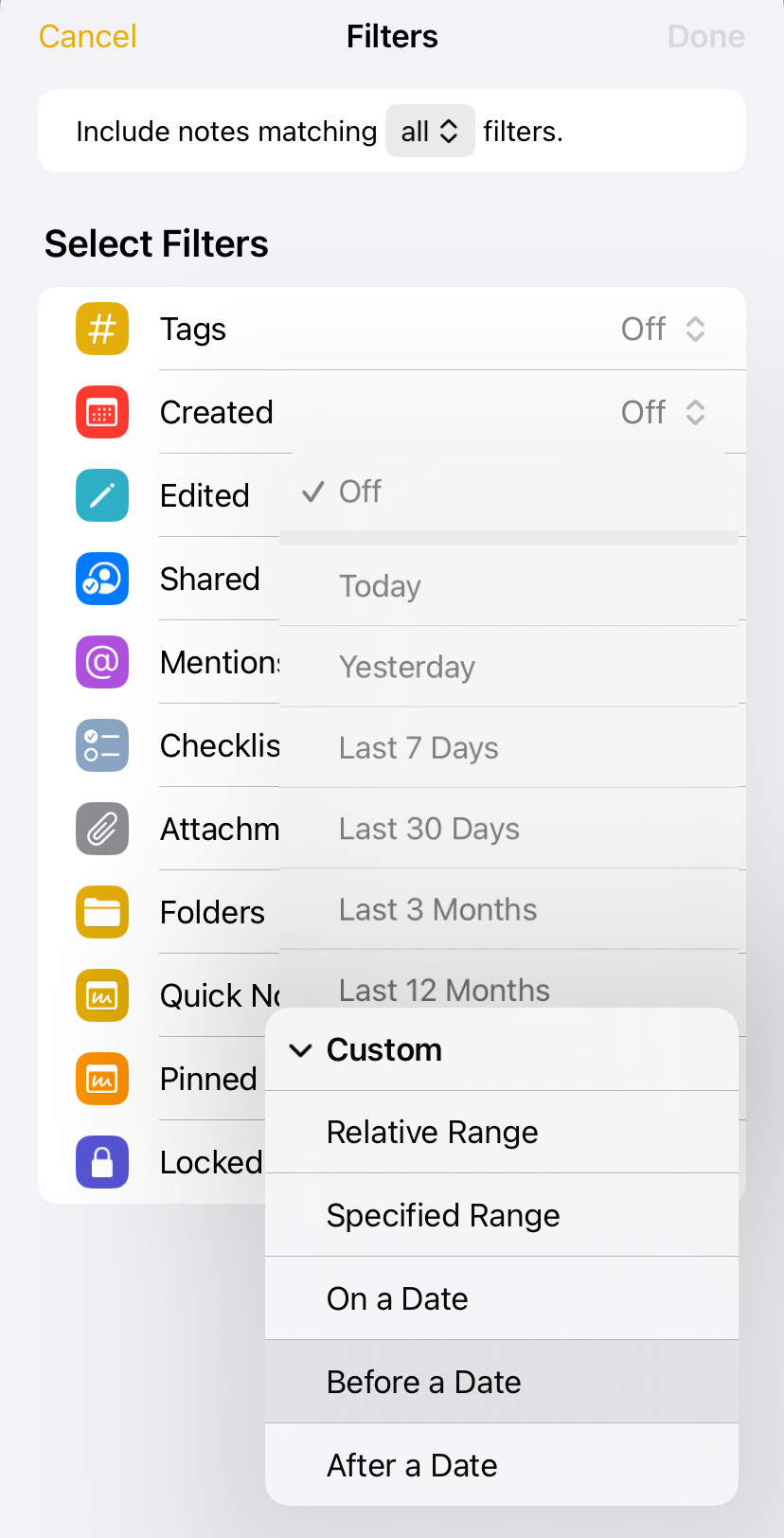
- Now tap Edited.
Created before: You can also select Created for filtering, of course, to find notes created before a certain time (and possibly edited more recently). - Select Custom.
- Choose Before a Date.
- Pick the cutoff day before which a note must have last been edited to appear on the list.
Navigation: Tap the month or year to quickly change the year.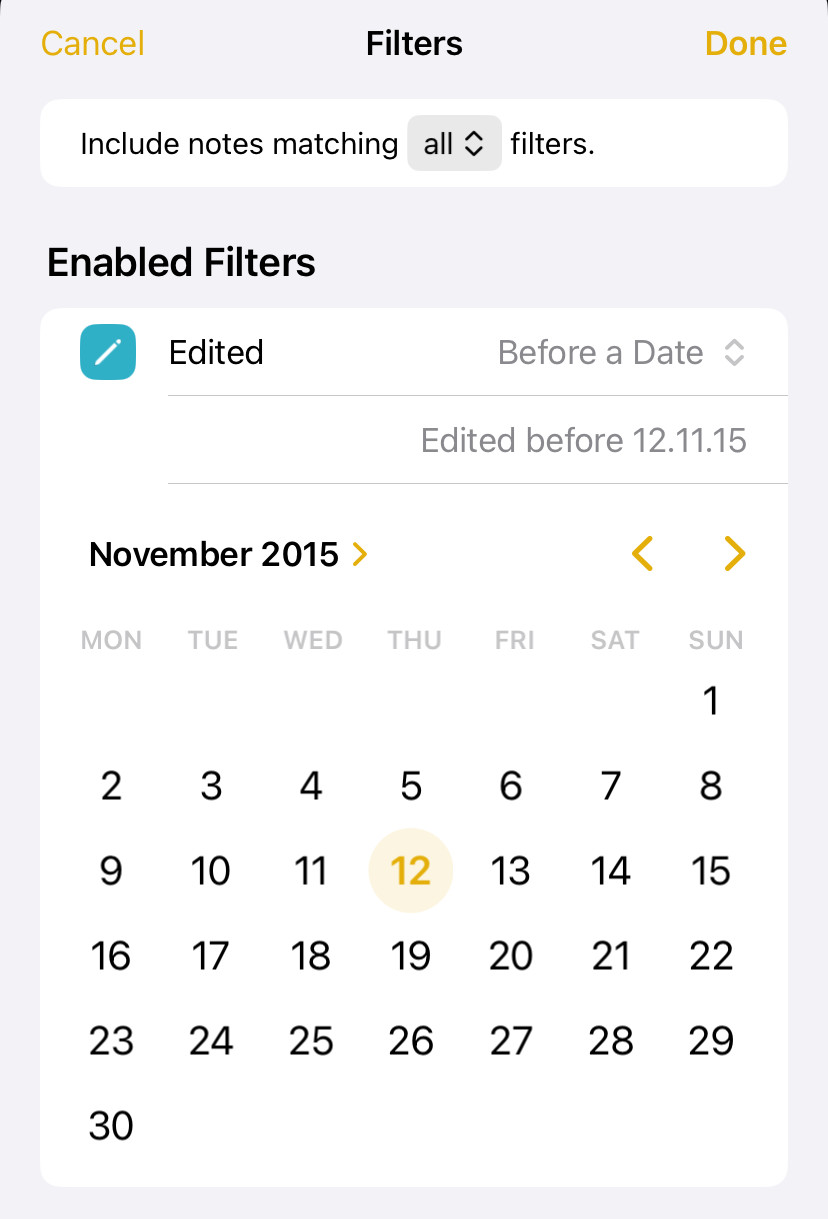
- Optional: Add more criteria under Other Filters.
- Tap Done.
- Tap Done again.
Find out fast: How to See the Creation and Last Edited Date in Apple Notes
(Tested with Apple Notes on macOS Tahoe 26, Sequoia 15 as well as iOS 18 and 26; first published November 2024, last updated September 2026)