

Wonder what’s taking up all the space in your Gmail account? Looking to sort Gmail emails by size? Wondering if Gmail won’t be faster with fewer messages clogging the interface and email clients? Find out here how to search Gmail to find large emails and attachments, and how to work around Gmail’s inability to directly sort mail by size.
First, the (Two) Greatest of the (Two) Great Lakes
Between the two greatest of Africa’s Great Lakes, two are the greatest.
Lake Victoria appears biggest on a map — and with a surface area of 26 600 square miles (68 800 m²) is the largest by far.
Lake Tanganyika is narrow but long and deep — and with 4 500 cubic miles (18 900 m³) is the most voluminous. (In terms of volume, Lake Victoria comes in only third after Lake Malawi).
Now, let’s find the largest among the largest emails and attached files in Gmail; there will hardly be a precise order, though.
How to Search Gmail by Size: Find Large Emails and Attachments
Time needed: 5 minutes
To find emails that contain large (or lots of) attachments using Gmail in a desktop browser, a mobile browser and the Gmail apps for Android and iOS:
- Click in the Search mail field.
Here’s where: The Search mail field is at the top of the Gmail interface.
Gmail keyboard shortcut: You can also press / (slash) to focus the Gmail search field.
Desktop and mobile: Searching for large attachments works in desktop Gmail, in the Gmail apps for iPhone and Android and Gmail in a mobile browser. - Type
has:attachment larger:45MBto find the emails with the largest emails with included attachments.Gmail shortcut: You can go to https://mail.google.com/#search… to open the search above quickly.
- Press Enter.
- Find the big emails in search results.
- Vary the size in the larger: Gmail search operator.
Which to pick: Use
has:attachment larger:20MBfor all big attached files, for instance.
Largest attachment size: The attachment size limit for received emails in Gmail is 25 MB.
Sort by size: You can narrow results and add an upper limit to somewhat sort files by size; see below.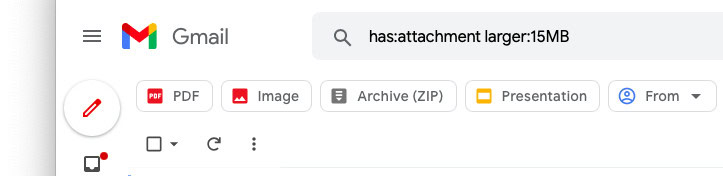
- Act on the search results.
Example: Delete all the huge emails in Gmail in bulk.
Looking for PDF, Word, or ZIP files? How to Search Attachments (by File Type) in Gmail
Find Large Gmail Emails without Attachments
To find big emails that do not have any files attached:
- Search for
-has:attachment larger:500KBin Gmail.
Other sizes: Do replace 500KB with different message sizes, of course, usingMBfor megabytes andKBfor kilobytes.
(Emails that do not contain attachments rarely exceed 500 KB.)
Gmail shortcut: You can also open the Gmail search link to run the search.
Other criteria: Using Gmail search operators, you can combine message size with other criteria, of course, such as finding all big emails older than 12 months.
Stopping new large emails: How to Block Emails by Size or Attachment in Gmail
How to Find Large Emails and Attachments in Gmail: FAQ
Can I sort Gmail by size?
No.
You cannot sort emails in Gmail on the web by their size.
Yes.
You can search by size bracket in Gmail itself, though, or use an IMAP email program to sort by size.
Find Gmail Email Sorted by Size Brackets
To search for emails sorted by size brackets in Gmail:
- Search first for
larger:45MBin Gmail to find the biggest emails with and without attachments. (See above.) - Search next for
larger:750KB smaller:1001KB. - Then search for
larger:700KB smaller:751KB. - Continue with brackets reducing sizes (
larger:650KB smaller:701KB,larger:600KB smaller:651KB, etc.).
Sort Gmail Emails by Size in an IMAP Email Program
To sort emails in Gmail by size, use an email program:
- Set up Gmail using IMAP in a desktop email program.
- Make sure Show in IMAP is enabled for the All Mail folder.
- Now ensure there is no folder size limit.
- Open the [Gmail]/All Mail folder in the email program to see all emails in your Gmail account.
- Sort the folder’s messages by size.
Could I search for large attachments in basic HTML Gmail?
Yes.
The searches for large emails and attachments worked in Basic HTML Gmail just as well.
(Tested in a desktop browser; first published October 2021, last updated October 2025)