

Is your Gmail storage bursting at the seams because of oversized attachments? Want to stop new messages from making matters worse? Find out here how to block emails by size or attachment in Gmail ⤓.
On This Page
How to Block Emails by Size or Attachment in Gmail
⚡ Quick Fix
Select Show search options in the Gmail search field, set Size to greater than your desired limit (e.g., 15 MB), click Create filter, check Delete it (or choose a different action), then select Create filter again.
Time needed: 5 minutes
To have Gmail automatically delete incoming emails that exceed a certain size:
- Open your Gmail account in a desktop browser.
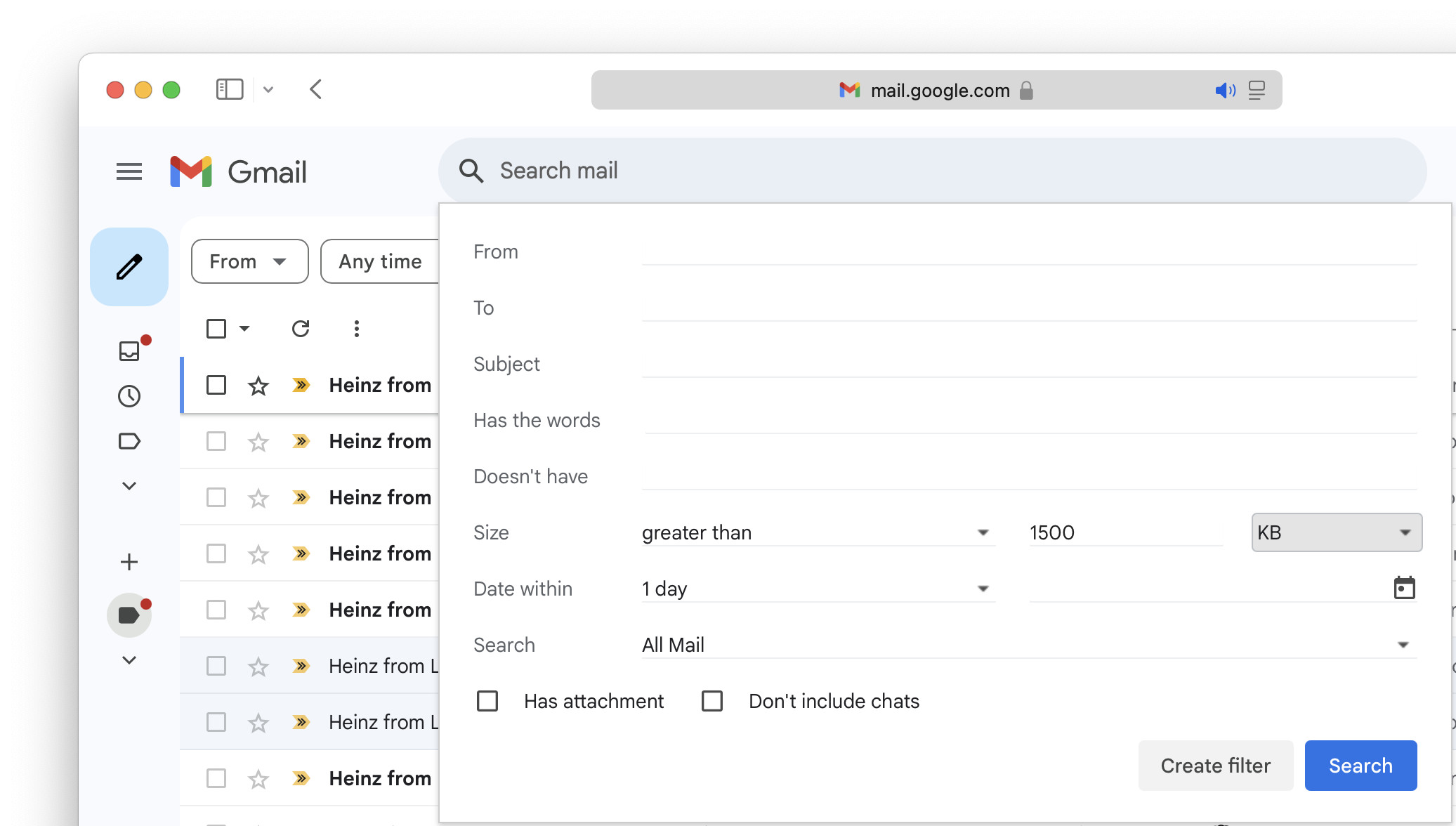
- Click Show search options in Gmail’s search field.
Here’s what it looks like: The search options button sports settings levers and appears inside the Search mail field.
- Choose greater than under Size.
- Pick a unit for measuring message size: MB, KB or Bytes.
- Enter the maximum size for messages allowed.
Which size to pick: To block large emails in general but not simple PDF files, for instance, choose something like 1500 KB.
Block attachments no matter their size: Instead of choosing a maximum message size, you can also block all emails with attachments at Gmail: check Has attachment. - Click Create filter.
- Check Delete it under When a message arrives that matches this search:.
Less extreme: You can pick a different action, of course, so you will not lose important mail; you can mark large emails with a star (Star it), for example, or a label (Apply the label:).
Let them know: Using Gmail email templates, you can have Gmail notify senders about their oversized emails; see below. - Click Create filter.
Caution : With the Delete it action active, new emails that exceed the given size will disappear to the Gmail Trash without further notification to you or the sender.
Notification: You can have Gmail alert senders about their overly large email; see below.
Their word: Google include information on setting up filters in Gmail help.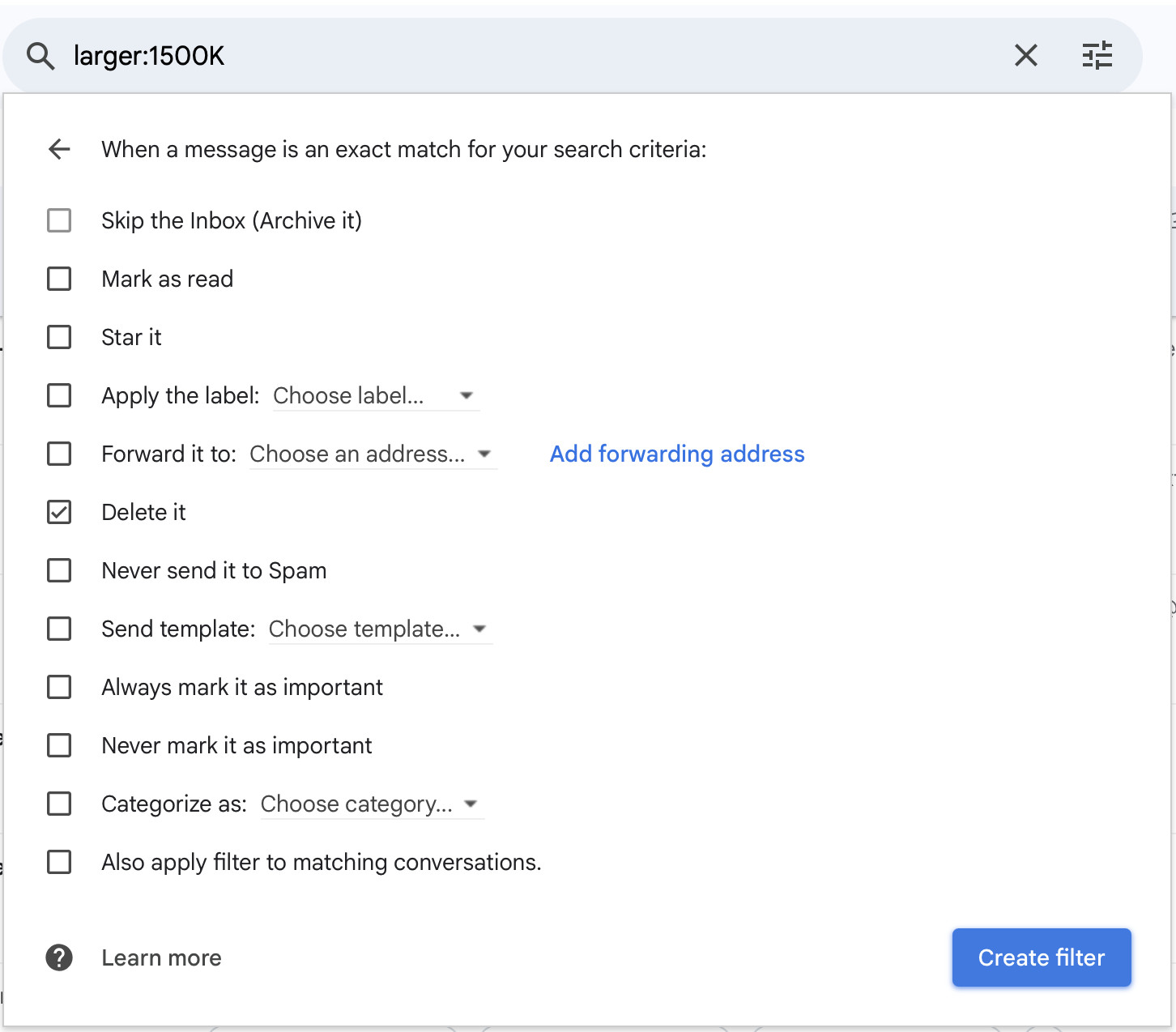
Gmail inbox spared from oversized attachments?
Tips help fuel these email and tech how-tos.
How to Block Emails by Size or Attachment in Gmail: FAQ
Are senders notified when a large email is blocked?
No, not automatically.
If you set up the rule in Gmail to move large messages to the Trash, Gmail will not notify senders.
Tackling an oversized Gmail account: How to Find Large Emails and Attachments in Gmail
Can I set up Gmail to alert senders to their oversized email?
Yes.
To set up the large email blocking filter in Gmail so it also replies with a notification to the original sender:
- Create a new template in Gmail for the message you want to send in reply.
Example: See below for sample text to use in your template. - Click the Settings gear icon in Gmail.
- Select See all settings.
- Go to the Filters and blocked addresses tab.
- Click Edit for the filter that you created for blocking large emails.
- Now click Continue on the filtering criteria screen.
- Check Send template in addition to the present actions.
- Select the large email blocking template you created before from the Choose template… drop-down menu.
- Click Update filter.
Notification Reply Example
I’m afraid your email has been automatically deleted because it exceeded my size limit of 1,500 KB.
It’s nothing personal — just a digital diet to keep my inbox svelte and email accounts from bursting.
I’m still eager to read from you, of course! Please consider:
- Trimming your message to that svelte 1,500 KB (or less!) or
- sharing large documents via a big file sending service.
Looking forward to your trim and fitting email!
(Tested with Gmail in a desktop browser; first published March 2025, last updated October 2026)