

Dreading to open Apple Notes because you’ll be greeted with an assortment of many years of digital note-taking clutter? Looking to clean up Notes, maybe faster than one note at a time? Find out here how to delete a note in Apple Notes on Mac, iPad, and iPhone (and how to remove notes in bulk, too).
First, Twenty Tangled Twigs of Thyme
I just played a game of Mikado with some twenty twigs of thyme in a hot and steamy pot. Eventually, I got the thyme untangled from the pasta sauce.
Is there a better way?
Of course: using a sachet d’épices, I could have gotten all the aroma into the sauce and the twigs out of it in no thyme… or time. (A bouquet garni — bundling up all the herbal twigs — would also work, of course.)
Now that we’re at it… does removing a note from Apple Notes resemble a bouquet garni or a game of Mikado? Let’s find out:
How to Delete a Note in Apple Notes
Delete a Note or Select Notes
Apple Notes for Mac
Time needed: 2 minutes
To delete a note in Apple Notes on a Mac:
- Open or highlight the note you want to delete.
The note: With a note open, check the note is in focus instead of the folder; it should be set off in the accent color and the deletion button in the toolbar should be active and clickable.
Not just one: Hold down Command while you click notes to expand or contract the selection.
I want it all: See below for deleting all notes in a folder. - Press Backspace.
Delete: The key usually appears as ⌫ but can also be labelled delete.
Safety net: For 30 days after deletion, you can recover the note or notes from the Recently Deleted folder; see below for permanently deleting a note.
Using mouse or trackpad: You can also click the deletion button in the toolbar.
With the menu: Selecting Edit | Delete Note (or Edit | Delete <number of notes> Notes from the menu also deletes, as does click on the highlighted notes with the right mouse button and choosing Delete from the context menu.
Swiping: Finally, you can also swipe over the trackpad from the right to delete the note under the cursor.
Not sure what to delete? How to Find Old (Unneeded) Notes in Apple Notes
Apple Notes on iPhone and iPad
To delete a note in Apple Notes for iOS and iPadOS on iPhone and iPad:
- Go to the folder or Smart Folder that shows the note you want to delete.
- Swipe over the note from the right to the left to reveal the swiping menu.
- Tap the trashcan (🗑️) to delete the note.
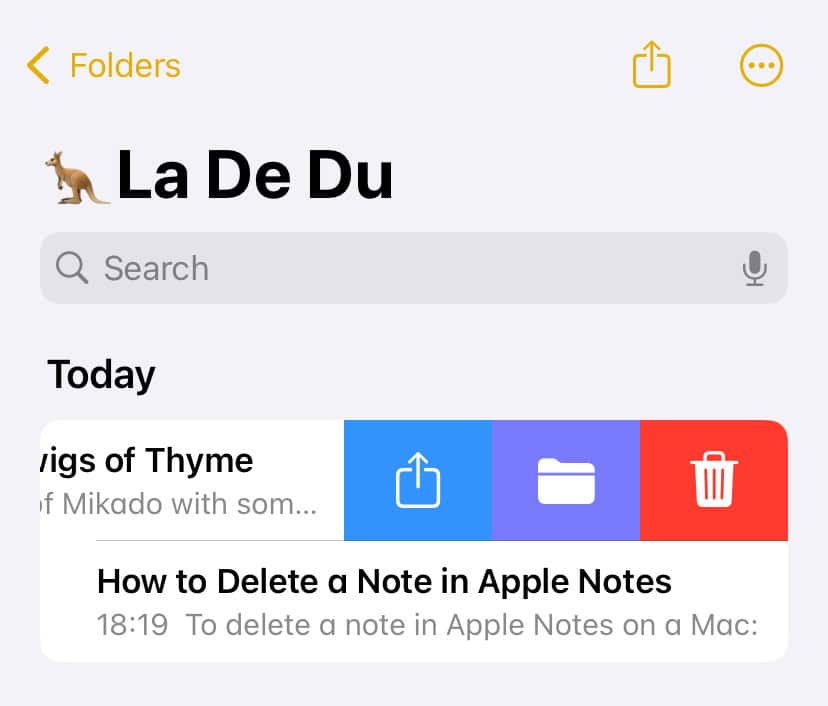
To delete multiple notes in a folder:
- Swipe over the notes you want to select with two fingers from top to bottom (or bottom to top)
Just what I want: You can now use the checkboxes to add or remove notes.
Menu alternative: Instead of swiping, tap the three-dots menu and choose Select Notes. - Tap Delete.
Delete All Notes in an Apple Notes Folder
Apple Notes for Mac
To quickly delete all notes in an Apple Notes folder, Smart Folder or search results:
- Go to the folder or Smart Folder whose notes you want to delete or use the Search field to find the emails you want to remove in bulk.
- Select one of the notes.
- Press Command A.
Using the menu: You can also select Edit | Select All from the menu. - Now press Backspace.
Via mouse or trackpad: Click the Delete button in the toolbar.
Using the menu: In the Apple Notes menu, select Edit | Delete <number of selected notes> notes.
Apple Notes for iPhone and iPad
To delete all notes in a folder using Apple Notes on iOS or iPadOS:
- Open the folder or Smart Folder that collects the notes you want to delete in bulk.
Search: To mass-delete notes from in search results, create a Smart Folder for the search first, then delete the notes from that folder. - Tap the three-dots menu in the top right.
- Choose Select Notes from the menu that has appeared.
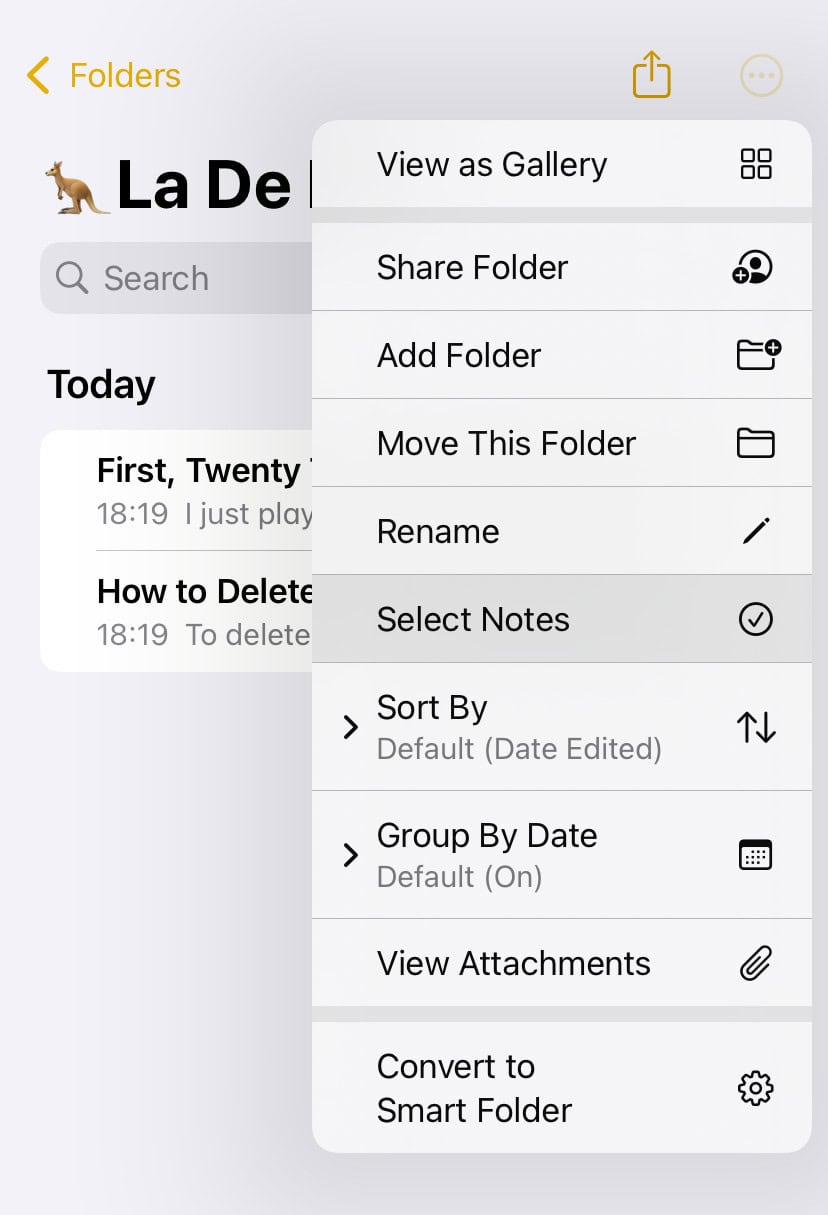
- Now tap Delete All.
Do not select: If you select any note, Delete All will turn into Delete; it will return once all notes are deselected, though.
Permanently Delete a Note in Apple Notes
To delete a note from recovery in Apple Notes for Mac, iPhone and iPad:
- Go to the Recently Deleted folder.
- Delete the note (or notes) you want to permanently remove.
- Click Delete (on a Mac) or tap Delete Note or Delete Notes (on iPhone and iPad) to finally delete the note.
How to Delete a Note in Apple Notes: FAQ
Can I delete more than one note at a time by swiping?
No.
Swiping will always only delete the note under either your finger or the mouse cursor.
Can I delete a note that is open in its own window on a Mac?
No.
Lamentably, you cannot delete a note while the focus is on it as a separate window. To delete the note, find it in the main Notes window and delete it there.
Notes keyboard shortcut: Press Command 0 (zero) to switch to the main Apple Notes window.
On iPhone and iPad, you can tap the trashcan icon with the note open, of course.
Can I recover a deleted note?
Yes.
You can typically recover deleted notes in Apple Notes for 30 days.
(Tested with macOS Tahoe 26.0 and Sequoia 15.1–15.4 as well as iOS 16–18 and 26; first published November 2024, last updated October 2025)