

Tired of Apple Notes automatically turning links into bulky displays of odd headlines and cropped images that clutter your notes and distract your focus? Maybe you’d rather turn your sad list of bland URLs into neat and compact previews instead. Find out here how to change link display in Apple Notes ⤓ — whether you want to show full previews, shrink them to smaller thumbnails, or hide previews entirely to display links as simple text.
On This Page
How to Change Link Display (Hide Previews) in Apple Notes
Time needed: 1 minute
To change how a link is displayed in a note with Apple Notes for Mac, iPhone and iPad:
- Bring up the context menu for the website link in Apple Notes.
Here’s how: Click on the link or link preview with the right mouse button (Mac) or tap and hold the link (iPhone and iPad).
- Select Show Link Preview to have a link display with headline and preview image.
Caution : When you turn on the preview for a link that has custom linked text (including a link that appears within a block of text), the text will be replaced with the preview.
Big or small: You can shrink link previews to a smaller size; see below.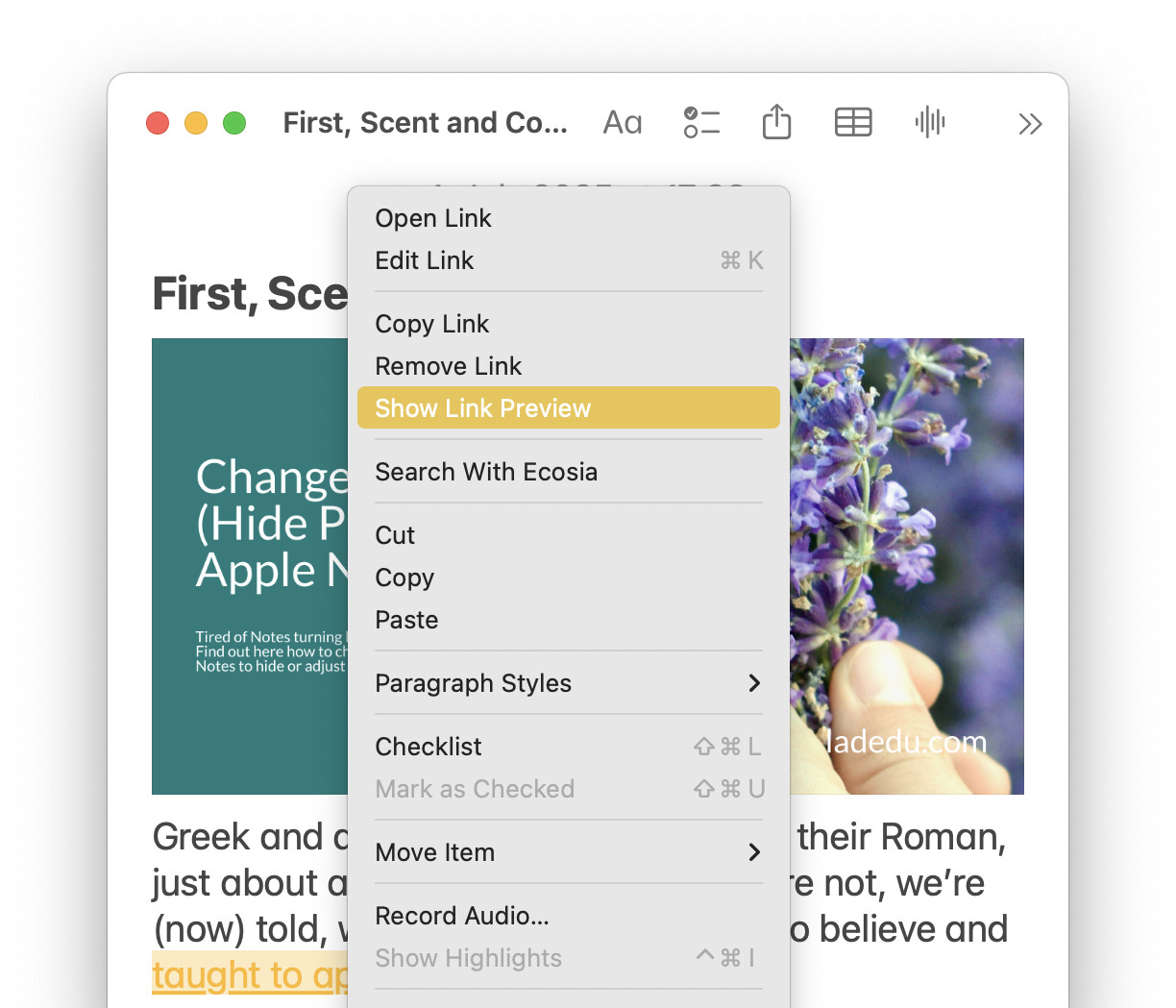
- Select View As | Plain Link from the menu to hide a link preview.
The text: Notes will use the linked page’s title as the link text.
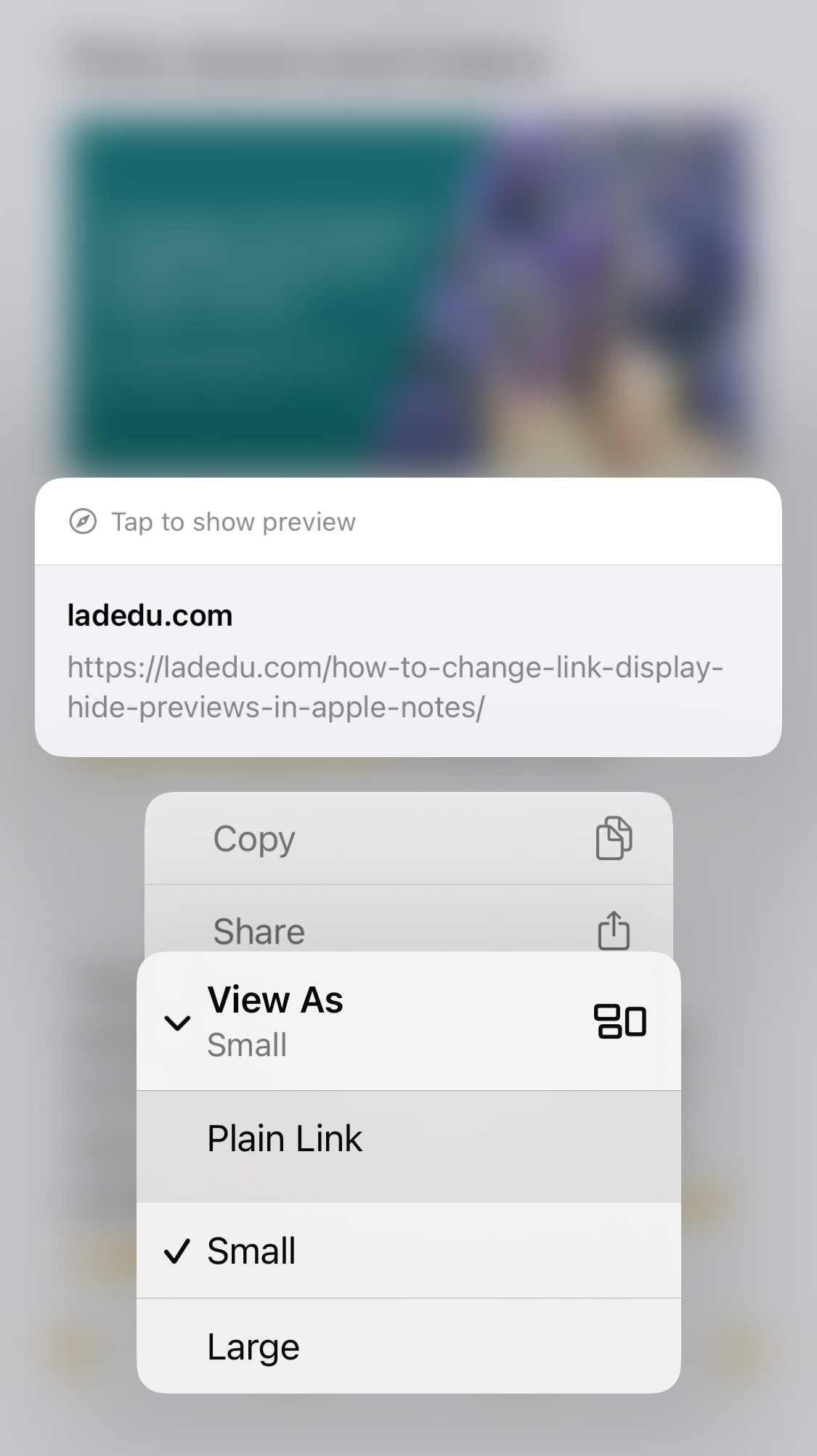
Choose Between Large and Small Link Previews in Notes
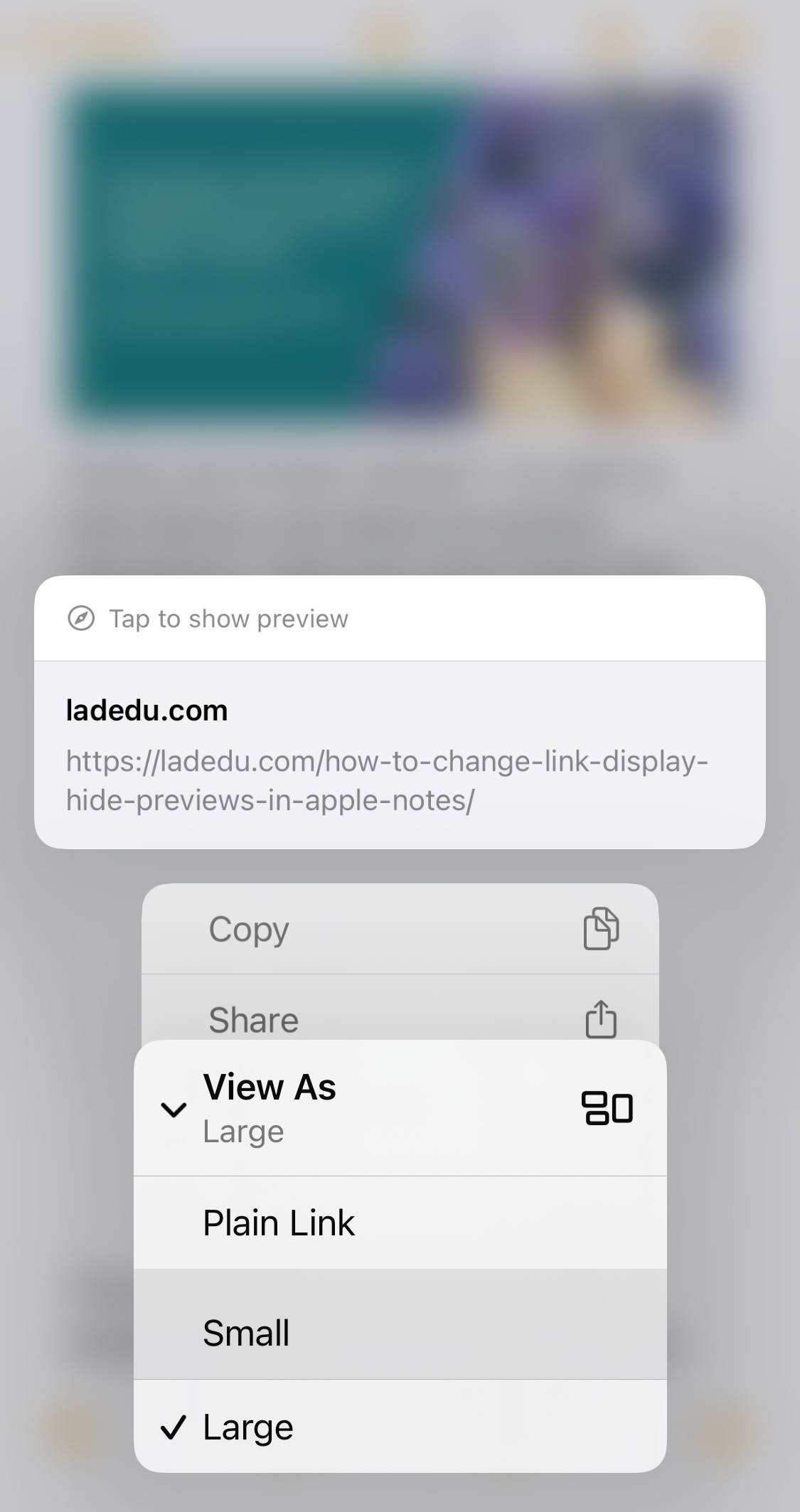
To change how big the preview image is in the link display:
- Bring up the context menu for the link; see above.
- Select View As | Small for small previews on the right of or View As | Large for large preview images on top of the link title.
Previews too big, notes window too small? How to Focus in Apple Notes for Mac
How to Change Link Display (Hide Previews) in Apple Notes: FAQ
Can I change multiple link previews at once?
Yes.
To change all the link previews in a note:
- Open the note.
- Mac: Select View | Attachment View | Set All to Small or View | Attachment View | Set All to Large from the menu.
iPhone and iPad: Tap the three dots menu and select Attachment View | Set All to Small or Attachment View | Set All to Large.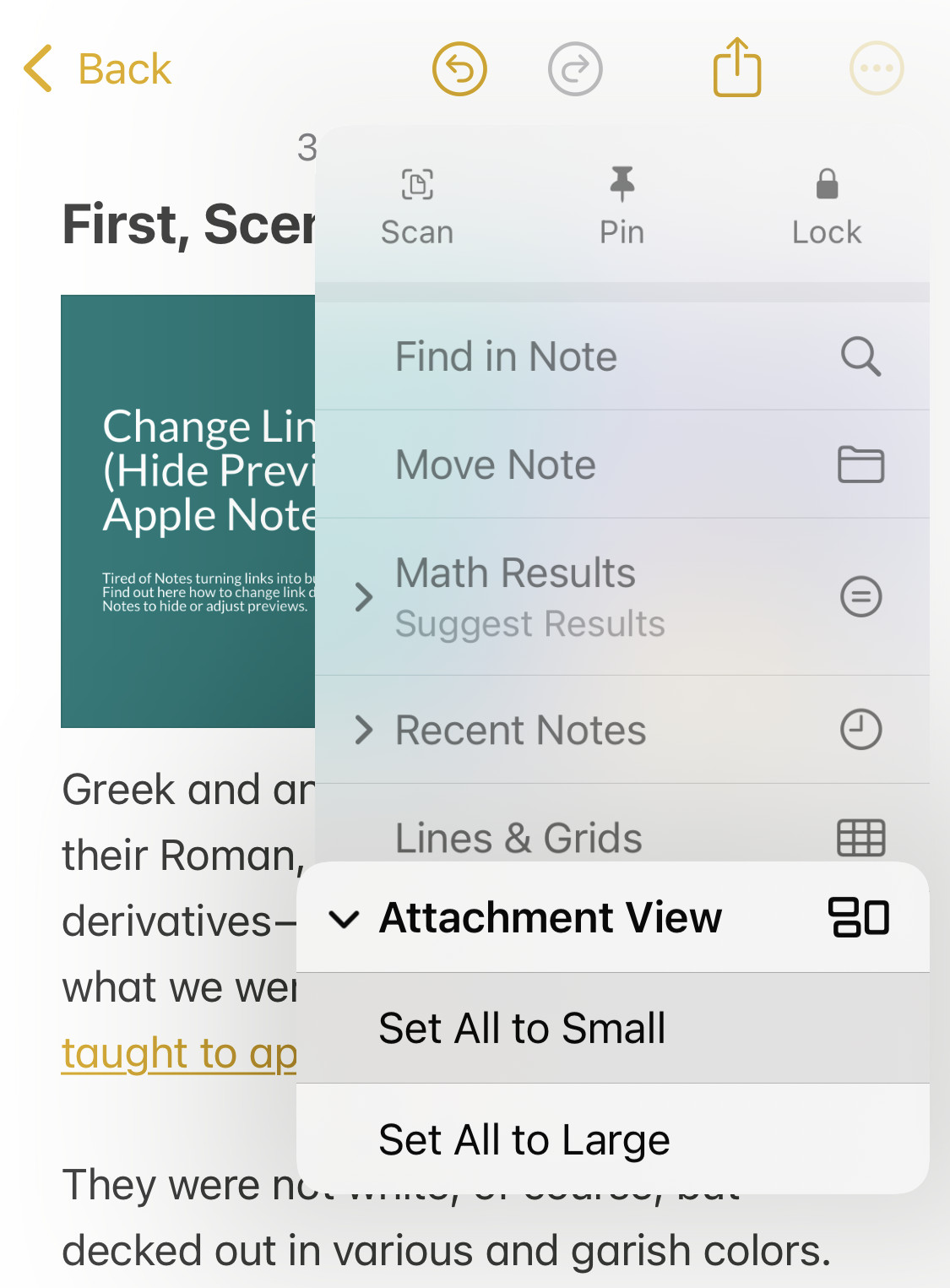
In Apple Notes for Mac, you can also highlight multiple notes and choose from the menu items above to change attachment previews for all links in the highlighted notes.
Can I change the default preview display for links added using the “Share” button?
Yes, in a way.
Apple Notes will use the last-used display option for new links added through the Share button.
Can I change the preview display in iCloud Notes at iCloud.com?
No.
While Apple Notes in a browser at iCloud.com will display links as text or previews (if set in Notes for macOS, iOS or iPadOS), you cannot change the display option at iCloud.com.
(Tested with Apple Notes 4 for macOS Tahoe 26 and Sequoia 15 as well as Notes for iOS 18 and 26; first published July 2025, last updated June 2026)