

Is your Linux machine stuck in the wrong time zone — throwing off cron jobs, calendar reminders and other scheduled events? Gearing up for a trip halfway around the globe and want to preview events in local time? Find out here how to change the time zone easily on Linux ⤓ using Gnome or KDE.
On This Page
How to Change the Time Zone on Linux (Gnome, KDE, Command Line)
Change the Time Zone Using Gnome
Time needed: 2 minutes
To change the time zone used on Linux using the Gnome desktop environment:
- Open the Gnome Settings application.
Here’s how: Select the settings gear icon in the menu bar’s quick settings menu, for example, to open settings.
- Go to the System category.
- Select Date & Time.
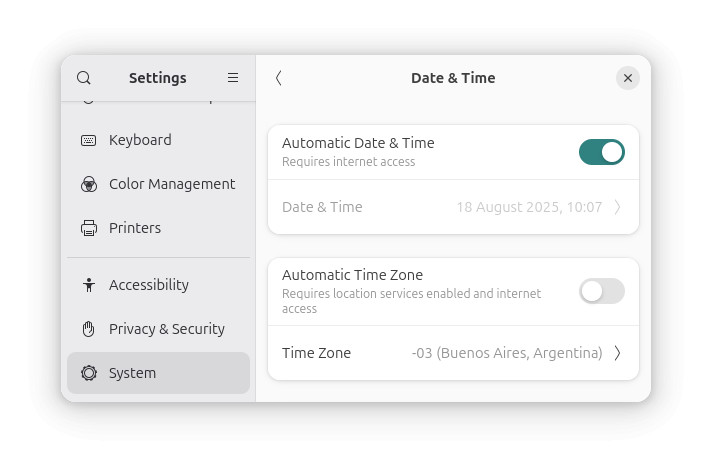
- Turn off Automatic Time Zone.
Here’s why: Automatic time zone selection will pick the time zone that fits your Linux machine’s physical location — just what we typically want to override.
- Click Time Zone.
- Select the location that matches the desired time zone.
Search: Use the Search cities field to find locations; you can search by city and country name.
Time zone: You cannot search by time zone name or abbreviation.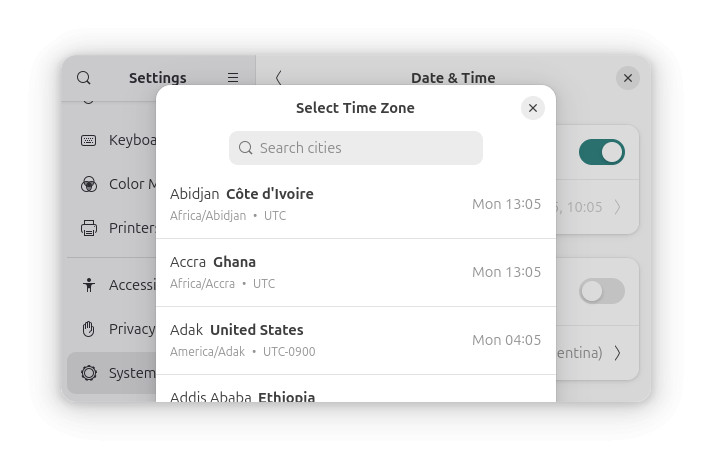
On a Mac? How to Change the Time Zone on a Mac
On Windows? How to Change the Time Zone in Windows
Change the Time Zone Using KDE Linux
To pick a time zone for your Linux machine using KDE:
- Open KDE System Settings.
- Select the Date & Time category (under Langauge & Time).
- Go to the Time Zone tab.
- Select the desired time zone and location in the list.
Finding: Use the Search… field to search for anything in the list, primarily regions, areas and cities, but also the contents of the comments section.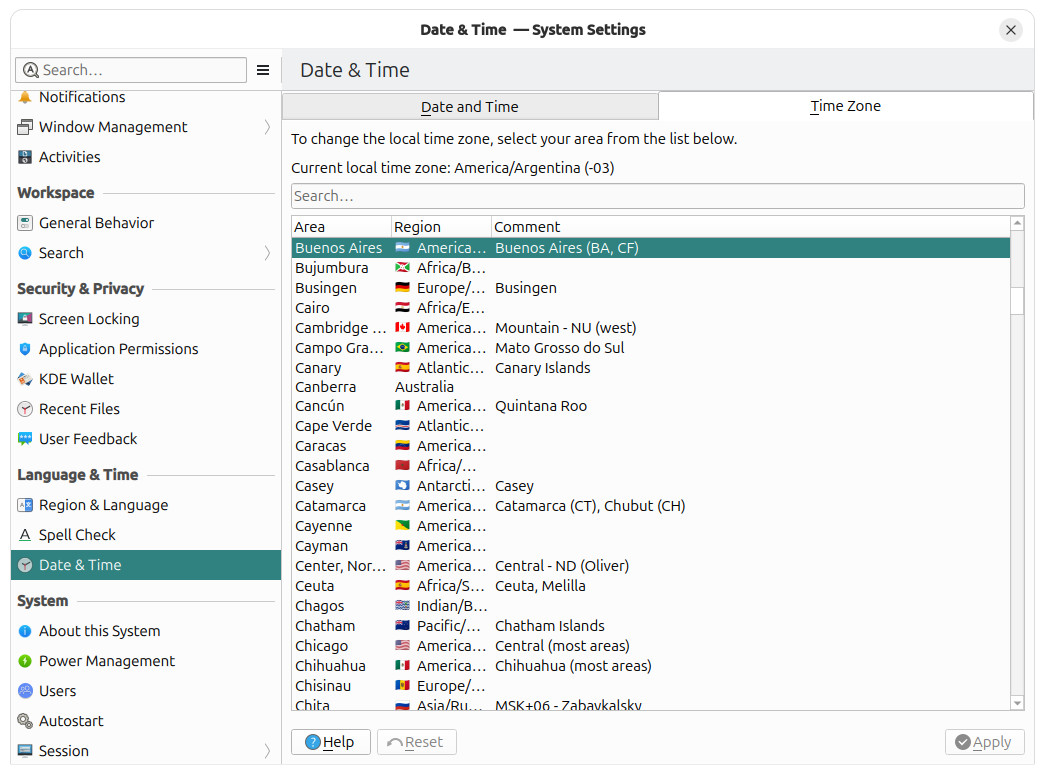
UTC±: Searching forUTC, you can pick any time zone offset in half-hour intervals (independently from locations).
System clock’s in sync now with the sun and the trains?
Tips help fuel these email and tech how-tos.
How to Change the Time Zone on Linux: FAQ
Can I set the time zone using the Linux command line?
Yes.
To change your Linux system’s time zone from the command line and timedatectl:
Quick Fix
timedatectl list-timezones
sudo timedatectl set-timezone America/Argentina/Buenos_Aires
Detailed Instructions
- Switch to a console or open your favorite terminal emulator.
- Type
timedatectl list-timezones.
Here’s why: The timedatectl application offers an interface to time zone information from the command line; with the list-timezones argument, it displays the time zones available to choose. - Press Enter.
- Now press / (forward dash).
Here’s why: The list of available time zones has typically opened in a screen reader such as less; the / command opens the reader’s search. - Type the term you are trying to find.
Here’s what: You can search for country names, locations, continents, some time zone names as well as, typically,GMTfor generic UTC offsets. - Press Enter.
Forwards and back: Press N for the next result and Shift N for the previous result. - Remember the time zone you want to set.
Copy: Do copy the name to a clipboard, of course. - Press Q.
Here’s why: This quits the reader. - Now type
sudo timedatectl set-timezone <time zone name>.
Time zone: Replace <time zone name> with the time zone you previously copied (or remembered).
Here’s why: This command sets the time zone using timedatectl using sudo so it can be applied to the system as a whole.
Example: Typesudo timedatectl set-timezone America/Argentina/Buenos_Airesto choose ART, for instance. - Press Enter.
- Type the root password for your Linux machine followed by Enter.
Their word: You can find more information on timedatectl and its options in the man page.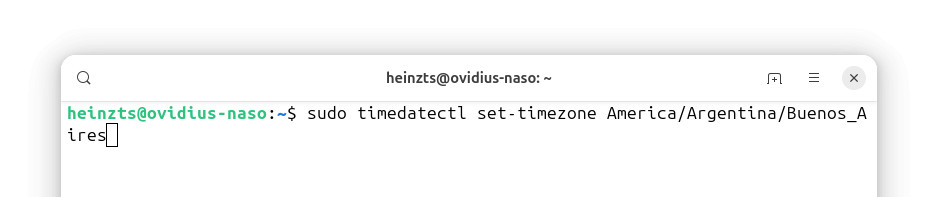
Verify Time Zone Settings from the Command Line
To check and verify your time zone settings:
- Run
timedatectl statusfrom the Linux command line.
Here’s what you’ll see: You can check the current local time, UTC and the current system time zone.
On Windows? How to Change the Time Zone in Windows
(Tested with Gnome 48–50, KDE 6 and systemd 257; first published August 2025, last updated September 2026)