

Tired of the same old blue staring at you from every corner of your Mac’s Finder? Feeling like a fresh look is long overdue? Find out here how to change the default folder color on a Mac ⤓ and deck out your directories in a hue that’s more “you.”
On This Page
How to Change the Default Folder Color in Mac Finder
Time needed: 2 minutes
To change the default color of folders (folders that have neither a color assigned through a label or sport a custom folder icon) in Finder on a Mac:
- Open System Settings on the Mac.
Here’s how: Select System Settings… from the Apple logo () menu, for example.
- Go to the Appearance category.
- Open the menu for Folder color.
No “Folder color”: With Tinted selected for Icon & widget style, Icon, widget & folder color appears in place of Folder color, and changes to the color apply to icons as well as folders.
- Choose the desired default color for folder icons from the list.
Adding a color: You can choose a custom color in addition to those preset in the menu, of course; see below.
Their word: Apple include information on changing appearance settings in the Mac User Guide.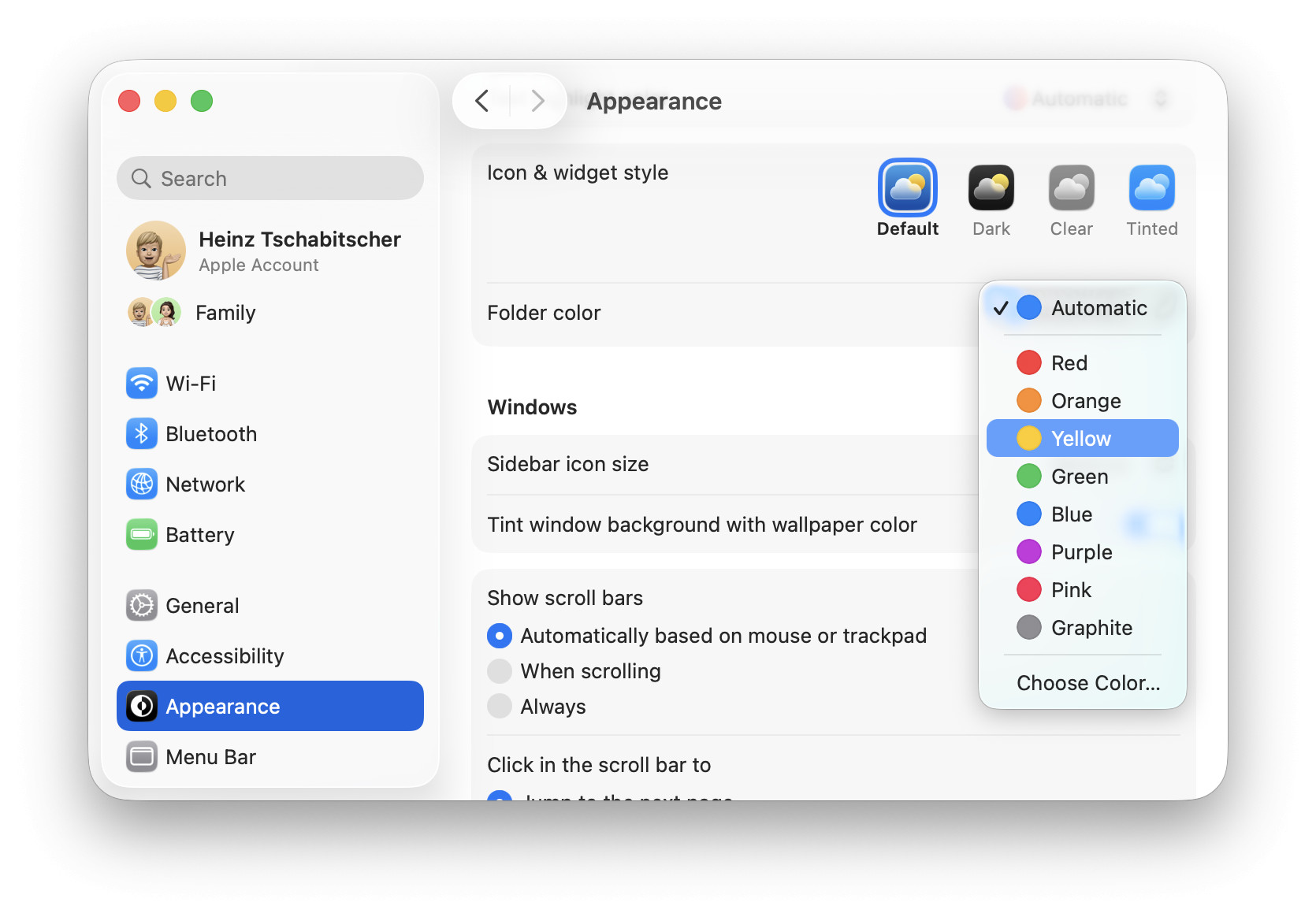
Fluorescent folder fuchsia?
Tips help fuel these email and tech how-tos.
Use a Custom Color for Folders on a Mac
To pick a custom color for folder icons on a Mac:
- Ideally, make the color you want to use visible on screen.
Here’s how: Create a new image in Mac Preview, then add a shape — say, a rectangle — with the desired fill color; you can also use an online palette editor, of course, such as Colors.co.
Here’s why: For choosing a custom folder color, System Settings offers only a basic color picker. - Open the Appearance category in System Settings; see above.
- Select Choose Color… for Folder color (or Icon, widget & folder color).
- Use the spectrum and translucency setting to select a color.
Existing color: Click Color Picker to select the color from the image you prepared earlier.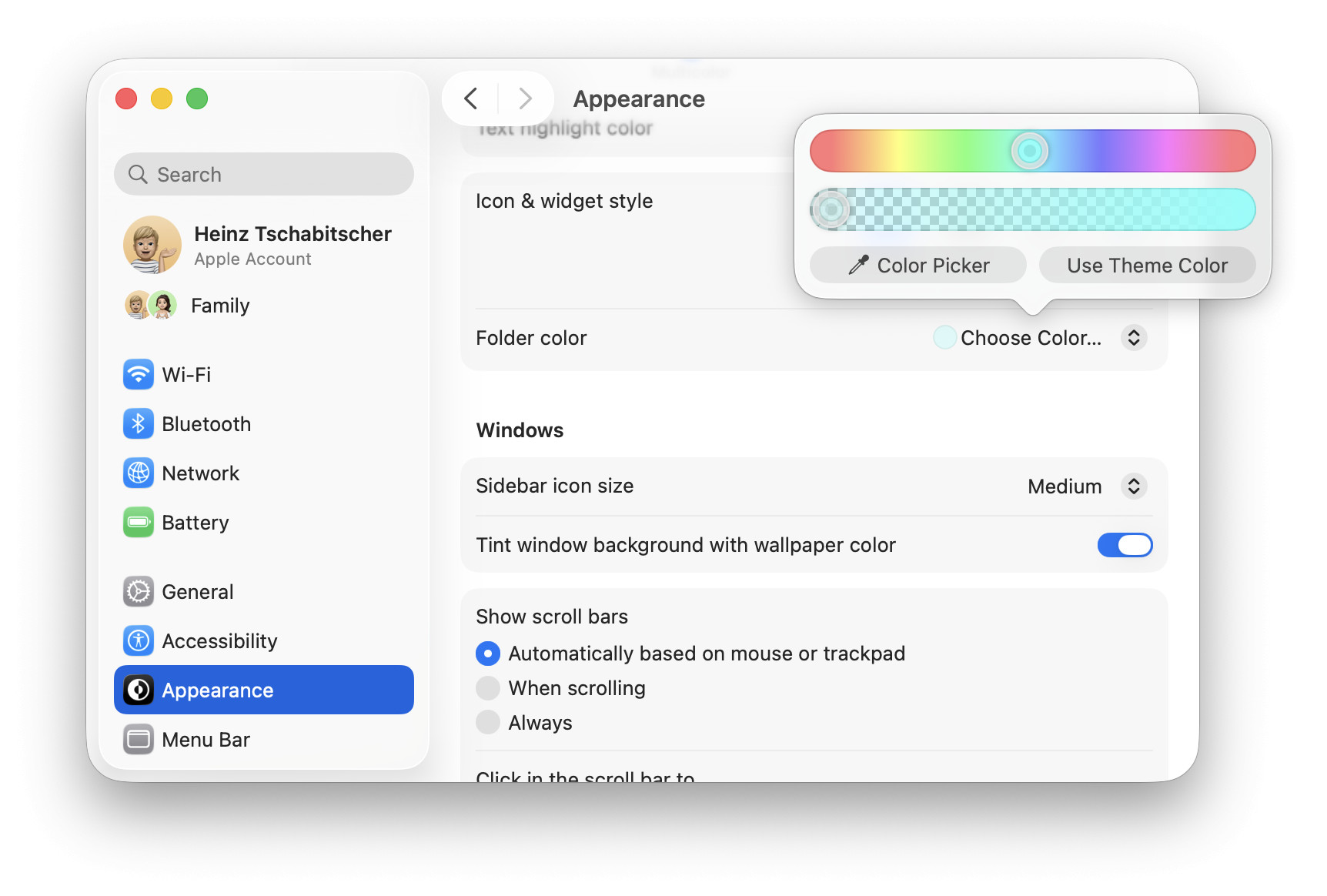
More colors:
How to Change the Mouse Cursor Color on a Mac
How to Change the Default Folder Color in Mac Finder: FAQ
Does changing the default folder color also affect folders with custom icons?
No.
The default folder color in Finder applies to all folders that have neither a custom icon nor a particular color assigned through a label.

How do I reset the folder color to the macOS default?
You can reset both the default color and any individual folder’s color.
To reset the system default folder color:
- Choose Automatic for Folder color in appearance system settings; see above.
To reset the color of an individual folder to the system default:
- Remove colors from tags applied to the folder or
- set a custom folder icon that matches the default folder icon in your default color.
Remove custom icon: To reset the folder icon to the default, select Get Info… from the folder’s context menu, highlight the current icon and press Backspace.
How does the default folder color interact with tags and custom icons?
The hierarchy of icons and folder colors is the following:
- Custom folder icon.
When a custom folder icon is set, it will always display. - Tag color.
If a folder is labelled with a color tag and has no custom icon, it will be tinted to match the tag - Default folder color.
When neither colored tag nor custom icon are present, the default folder color is used.
(Tested with macOS Tahoe 26.0–26.5; first published October 2025, last updated May 2026)