

Important emails are getting lost in a sea of messages waiting to be read later? Why not filter key emails out of your inbox to a special folder, or have iCloud Mail file unimportant messages to a “read later” folder — or both? Find out here how to automatically move emails in iCloud Mail ⤓.
On This Page
How to Automatically Move Emails in iCloud Mail
⚡ Quick Fix
Click the Settings gear icon in the mailbox list, select Settings and go to the Rules category. Click + to add a new filter, set your criteria under Message, then choose Move to Folder for the action.
Time needed: 5 minutes
To set up iCloud Mail at iCloud.com to sort incoming emails to specific folders automatically:
- Open iCloud Mail in a browser.
- Click the Settings gear icon atop the list of folders.
No folder list: If you do not see the list of email folders on the left, click Show Mailboxes (next to the search field near the top left corner) first.
- Select Settings from the menu that has appeared.
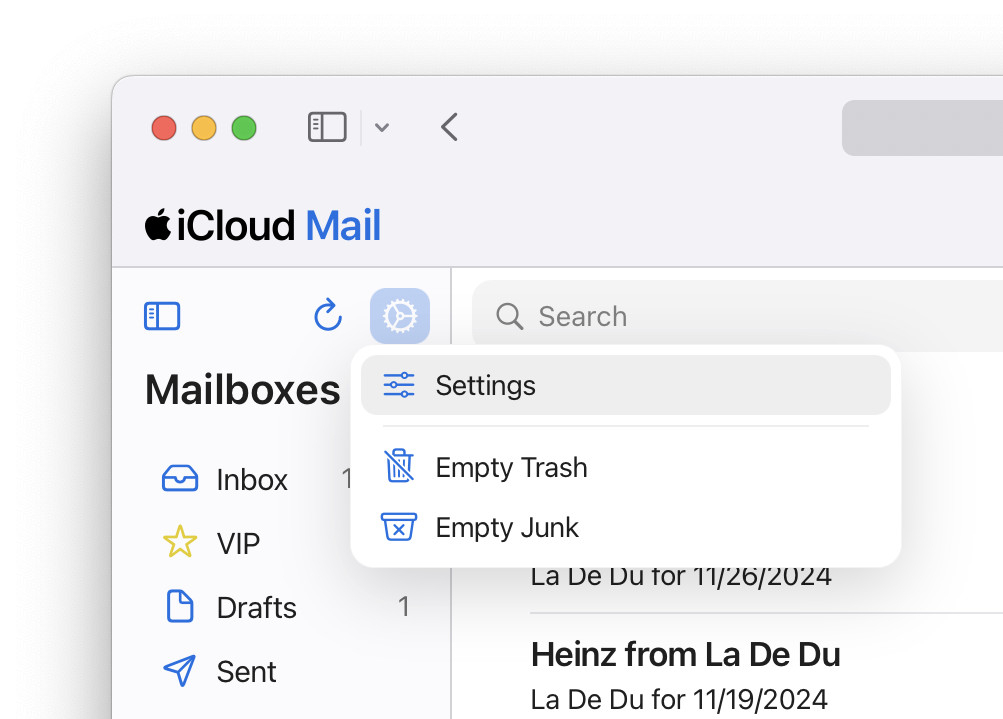
- Go to the Rules category.
- Click +.
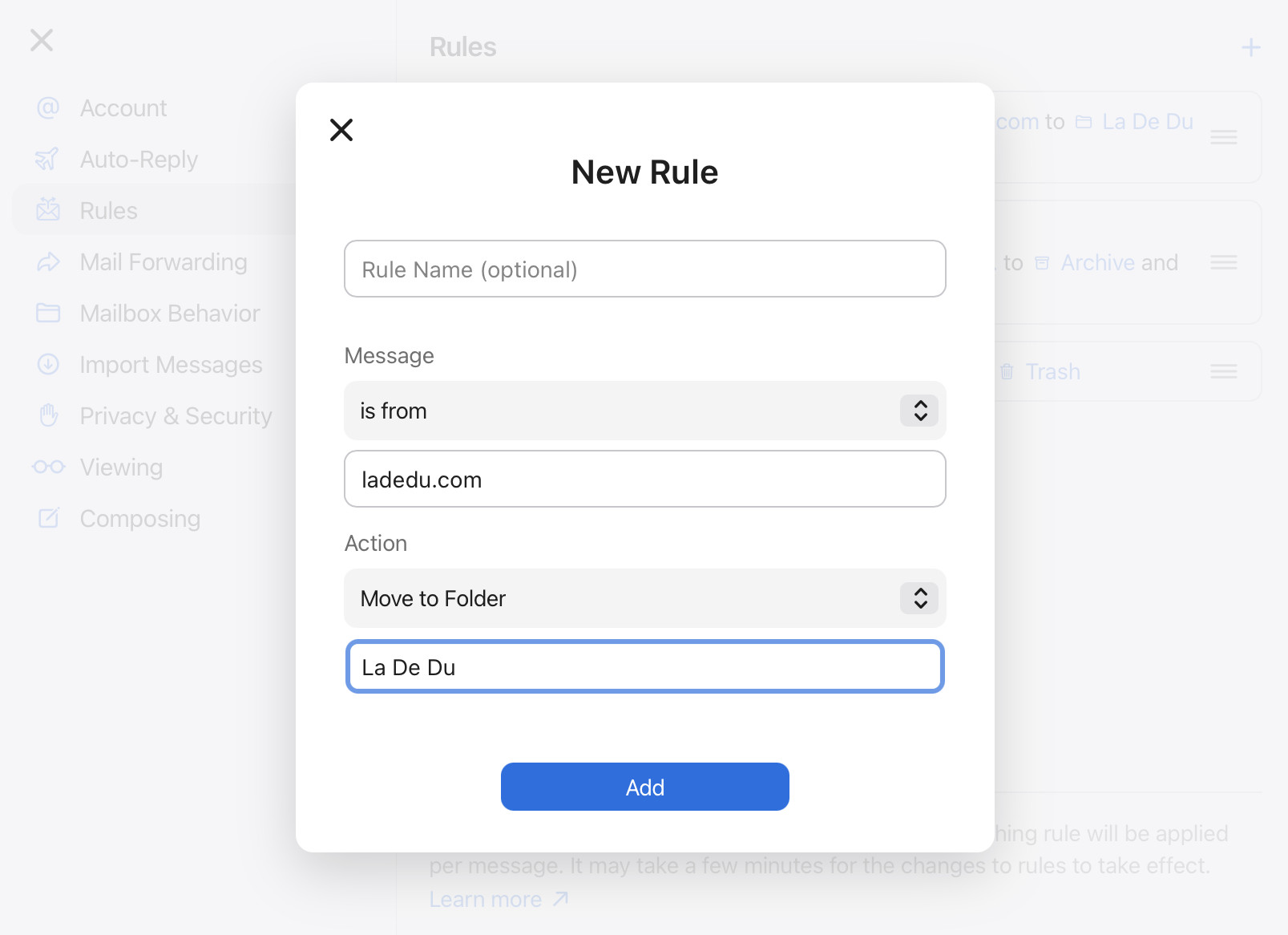
- Choose the criterion to identify the emails that should be moved automatically under Message.
Here’s how: Select the criterion from the is from list, then enter the value to be matched.
Example: To move all emails from somebody with an email address “@ladedu.com”, choose is from and enterladedu.com. - Select Move to Folder for Action.
Marking read: Select Move to Folder and Mark as Read instead to have iCloud Mail move emails and mark them read in the same step.
- Click Choose a Folder… under Action.
- Highlight the folder to which you want the emails moved.
- Click Done.
- Now click Add.
The name: You can type a name that will let you recognize the filter over Rule Name; without a name, the rule will simply not show a name (the rule criteria and action are always visible).
- Move the rule further up if necessary.
Here’s when: iCloud Mail processes rules from top to bottom as displayed on the Rules screen. Only the first rule that matches an email is executed.
Here’s how: Use the handle to the right for a rule to move it up or down the list; you can use three-finger dragging on a Mac, for example.
Example: If you set up one rule to move all emails from a domain to one folder and another to move all emails from a particular sender at the domain to another folder, do place the more specific rule (for the individual sender) higher up in the list.
Their word: Apple include information on inbox rules in the iCloud User Guide.
Automatically move to inbox categories: How to Classify a Sender for iCloud Mail Inbox Categories
How to Automatically Move Emails in iCloud Mail: FAQ
Can I automatically move all emails from a domain?
Yes.
The filtering rules in iCloud Mail that look for email addresses accept both full addresses and domain names.
Can I set up iCloud Mail to automatically archive certain emails?
Yes.
To add a rule that automatically archives particular emails in iCloud Mail:
- Set up a new rule with Move to Folder and Mark as Read as its action with the desired criteria.
- Choose Archive as the folder for moving the filtered emails.
Can I disable a rule without deleting it?
No.
To disable a rule from taking action temporarily:
- Optionally, move it to the bottom of the list.
- Change its criterion in a way that makes sure no emails match it and that is obvious to remove to re-enable the filter.
Example: Edit the domain in the rule criterion fromladedu.comtoladedu__TEMPORARILY_DISABLED__.com, for instance; this makes the rule match the (most likely non-existent domain “ladedu__TEMPORARILY_DISABLED__.com”).
Will the rules work if I access iCloud Mail through IMAP?
Yes.
Once set up in the iCloud Mail on the web, the rules are executed as new emails arrive at your iCloud Mail account. If you access iCloud Mail through IMAP in an email program (such as Mail on a Mac or iPhone, Outlook or Thunderbird), you will find emails automatically sorted to the folders there.
Can I set up rules that move outgoing email, too?
No.
iCloud Mail rules operate on incoming emails only. With iCloud Mail alone, you cannot set up filters that automatically move emails after you have sent them. Your email program may offer such rules, of course.
iCloud Mail now on the way to taming your inbox for you?
Tips help fuel these email and tech how-tos.
(Tested in a desktop browser; first published November 2024, last updated October 2026)