

Juggling Outlook and your iPhone (or iCloud.com) to avoid missing appointments? Wonder why your kayaking trip shows up on one but not on the other? Find out here how to add iCloud calendar to Outlook for Windows and bring the schedules together.
First, Grow a Barometer in Your Front Yard
Also known as the shepherd’s weather glass, the scarlet pimpernel has a reputation for closing its bloom’s petals when air pressure drops; and dropping air pressure, of course, has a reputation for bringing rain.
So, always consult your garden’s own barometer before you leave the house.
Now that we’ve got the weather down and covered, how about adding a few more calendars (from iCloud) to our schedules (in Outlook)?
How to Add iCloud Calendar to Outlook for Windows
Time needed: 5 minutes
To set up iCloud Calendar in Outlook for Windows using the iCloud for Windows app:
- Find and install the iCloud app for Windows in Microsoft Store.
- Open iCloud for Windows.
- Type your iCloud Mail email address (or the email address you use with your Apple ID) under Apple ID:.
- Enter your iCloud password under Password:.
- Click Sign In.
- If prompted, authorize access using a trusted device.
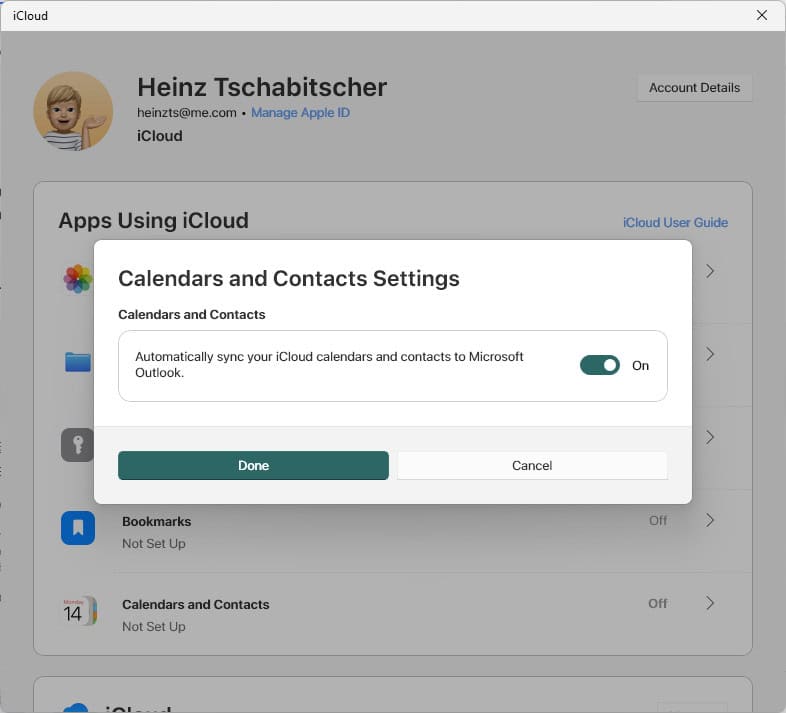
- Select Calendars and Contacts.
Other services: You can, of course, also set up other iCloud services such as bookmark and password synchronization or iCloud Drive access in Windows Explorer.
- Turn on synchronization.
- Click Done.
- Wait for Outlook to set up Outlook options.
What will happen: iCloud will download contact pictures, for instance, and synchronize calendar items.
- Now click Close.
iCloud has added all your iCloud calendars to Outlook for Windows in the iCloud folder.
How to Sync iCloud Calendar with Outlook for Windows: FAQ
Will changes I make in Outlook automatically show up on iCloud.com, my iPhone, etc.?
Yes.
All changes automatically synchronize and are pushed to all other devices using iCloud: iPhones, iPads, macOS computers or Outlook on another PC also using iCloud for Windows, for instance.
Adding Outlook to your iPhone? How to Log In to the Outlook App Using a QR Code
Can I add only specific calendars?
No.
iCloud for Windows always adds and synchronizes all iCloud calendars. You can easily hide a calendar in Outlook, though:
- Go to Calendar in Outlook.
Outlook keyboard shortcut: Press Ctrl 2 to switch to Outlook Calendar. - In the folder list, uncheck the calendar you want to hide.
No folder list: If you do not see the folder list, click the Click to expand Folder Pane icon atop the collapsed folder pane.
Important: If you delete a calendar in Outlook, this will also delete the calendar in iCloud and all devices that synchronize with iCloud.
All the added iCloud calendars appear side by side; can I see them all together?
Yes.
Outlook lets you see calendars in one unified view instead of side by side.
How can I remove iCloud Calendar from Outlook?
To remove iCloud calendars (together with email, contacts, and tasks) from Outlook using iCloud for Windows:
- Click iCloud in the Windows taskbar.
- Select Open iCloud Settings from the menu that has appeared.
- Choose Calendars and Contacts.
- Turn off synchronization.
- Click Done.
(Tested with Outlook for Microsoft 365 Version 2510 and iCloud for Windows 11.6/15; first published December 2020, last updated November 2025)