
Want to make everything on your Mac’s screen bigger, say for a presentation, or zoom in on a detail while keeping an eye on the complete picture? Find out here how to zoom your screen on a Mac ⤓ using a magnifying glass or enlarging the full display.
On This Page
How to Zoom Your Mac Screen: Set up Magnifying Glass or Full Screen Zooming
Set up Full Screen Zoom on a Mac
Time needed: 4 minutes
To set up your Mac so you can enlarge everything displayed with full screen zoom:
- Open System Settings.
- Go to the Accessibility category.
- Select Zoom.
- Select Full Screen for Zoom style.
Split screen: You can also have the screen split and show the zoomed version only in the upper half; choose Split Screen for Zoom style.
- Choose how you want to turn on and change display zoom.
Keyboard shortcuts: Turn on Use keyboard shortcuts to zoom to enable Mac keyboard shortcuts for zooming in on the whole screen.
Mouse wheel and trackpad: Enable Use scroll gesture with modifier keys to zoom to use the scrolling gestures with scrolled and mouse wheel to zoom; pick the key to press while scrolling under Modifier key for scroll gesture.
Trackpad shortcut: Turn on Use trackpad gesture to zoom to turn on double-tapping the trackpad with three fingers to enable zooming.
Any and all: You can turn on any combination of zooming methods, of course, or all of them.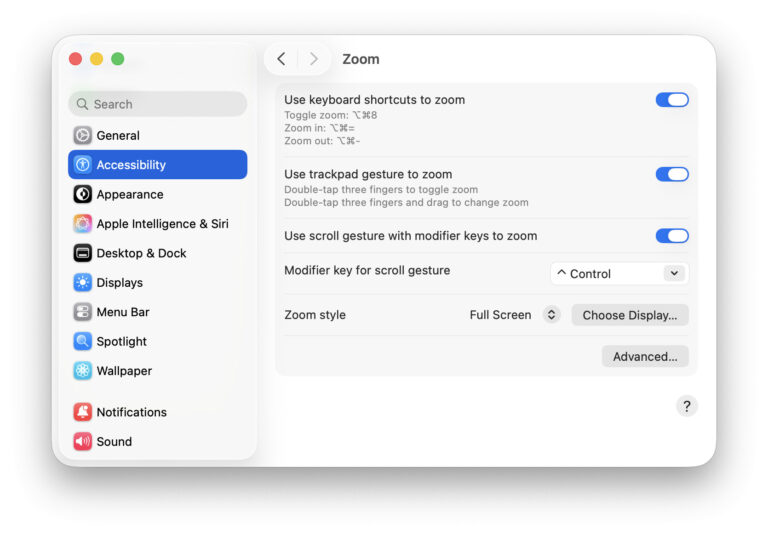
- Pick how you want to be able to navigate the screen.
Here’s how: Click Advanced… and choose either Continuously with pointer (the most natural), When pointer reaches edge (the least jiggly) and To keep pointer centered for Zoomed image moves in the Appearance section; click OK.
Their word: Apple include information on zooming the screen in the Mac User Guide.
Got the soft box and long lens zoom?
Tips help fuel these email and tech how-tos.
Set up a Magnifying Glass to Enlarge Part of the Screen
To add a magnifying glass (shaped as a resizable rectangle, much like a Fresnel lens) to your Mac mouse pointer:
- Go to the Zoom options in System Settings; see above.
- Choose how you want to zoom (keyboard shortcut, double-tapping the trackpad or gesture); also see above.
- Select Picture-in-picture for Zoom style.
- Click Size and Location.
- Adjust the magnifying glass (shaped more like Fresnel lens, of course) to the size and position you prefer.
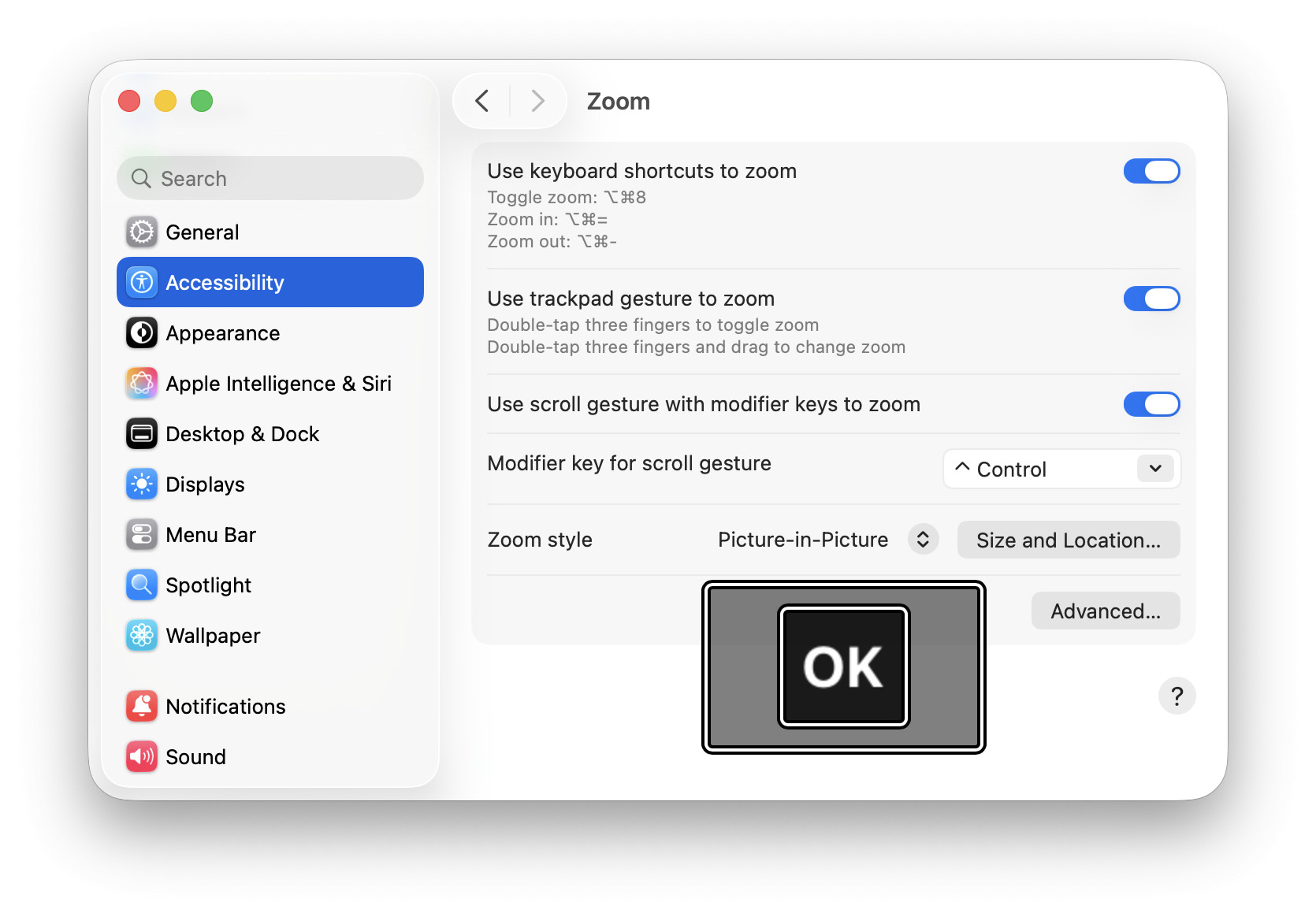
- Click OK.
- Click Advanced….
- Choose how the magnifying glass should follow the mouse under Zoomed image moves.
Magnifying just text: How to Zoom Text for Reading and Writing on a Mac
Zoom just to pick colors: How to Identify Any Pixel’s Screen Color with the Mac Color Picker
How to Zoom Your Mac Screen: Use Keyboard Shortcuts, Mouse and Trackpad
To zoom part of the screen using a magnifying glass or the whole screen on a Mac:
- Turn on zooming using the method you enabled in System Settings.
Here’s how: Hold down Command while scrolling down or double-tap with three fingers on the trackpad.
Keyboard shortcut: With the keyboard shortcut enabled, press Command Option 8 to toggle zoom. - Hold the Command key while scrolling down to zoom in and while scrolling up to zoom out further.
Keyboard shortcut: Press Command Option = to zoom in and Command Option - to zoom out. - Use the mouse or keyboard focus to move the selection shown on screen.
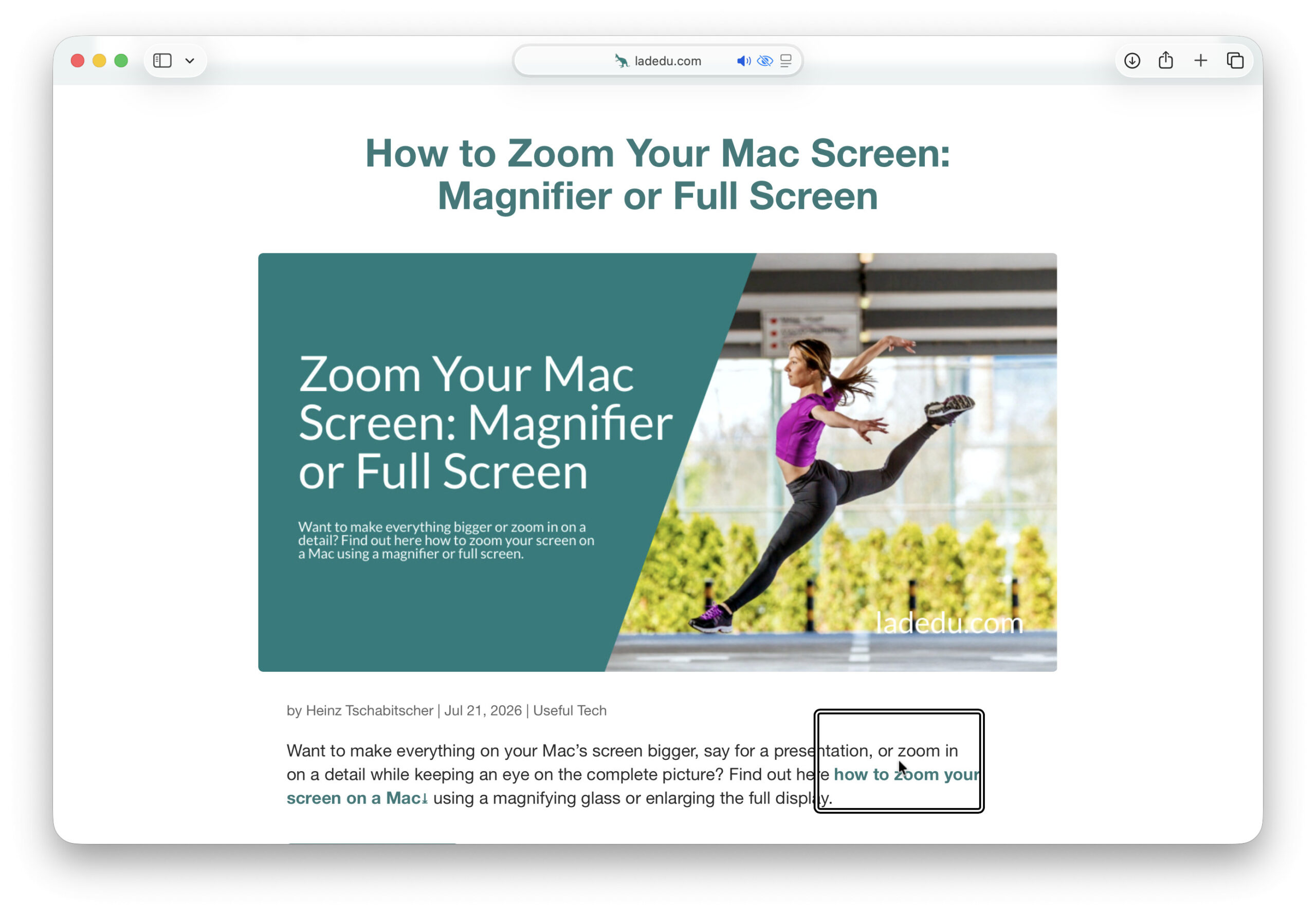
- Zoom out fully or use the Command Options 8 shortcut to turn off full screen zooming.
Mac Zooming Keyboard Shortcuts
| Action | Keyboard Shortcut |
|---|---|
| Toggle zoom | Command Options 8 |
| Zoom in | Command Option = |
| Zoom out | Command Option - |
| Switch between zoom modes | Command Option F |
How to Zoom Your Mac Screen: FAQ
Can I switch between full screen zoom and magnifying glass while zooming?
Yes.
To switch between the full screen zooming and using the magnifying glass using a Mac keyboard shortcut:
- Open the Zoom options in System Settings; see above.
- Click Advanced….
- Turn on Toggle between full screen and Picture-in-Picture under Shortcuts.
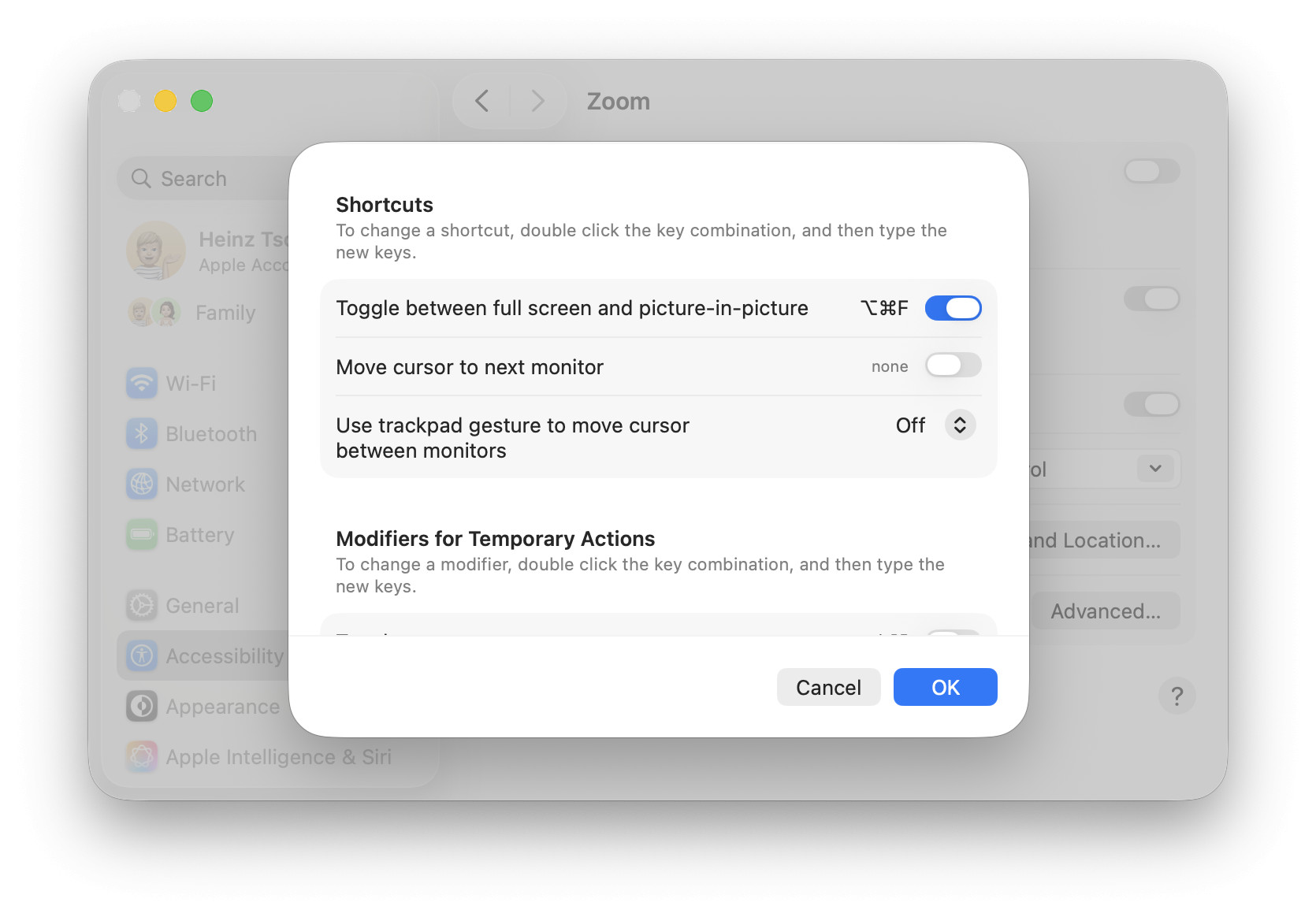
Now, to switch between the two zooming modes:
- Press Command Option F.
Can I have the magnifying glass or full-screen zoom follow the text cursor?
Yes.
To always zoom in on text input on your Mac:
- Go to the Zoom options in System Settings; see above.
- Click Advanced….
- Select When Typing or Always for Follow keyboard focus under Follow Focus.
The difference: When set to When Typing, zoom does not follow input focus when it is moved without your input, e.g., when a website opens and sets its input focus. - Click OK.
Can I change the size of the magnifying glass when it is enabled?
No.
You can adjust the magnifying glass (picture-in-picture zoom window) only in System Settings; see above.
Can I have the magnifying glass in a fixed position (not following the mouse)?
Yes.
To pick a fixed position for the macOS magnifier:
- Go to Zoom settings in your Mac’s System Settings; see above.
- Click Advanced….
- Turn on keep picture-in-picture window stationary under Appearance.
- Click OK.
(Tested with macOS Tahoe 26; first published July 2026)