

Struggling with tiny, hard to read text or overly styled editing environments that distract from your writing? Whether you’re composing an email, coding or growing the web, one of macOS’s hidden gems lets you enlarge text at will. Find out here how to zoom text on hover with your Mac ⤓ to read and write with full control over the font size, typeface and styling.
On This Page
How to Zoom Text for Reading and Writing on a Mac
Time needed: 4 minutes
To set up and use a hovering legible large font version for all text on a Mac for both reading and typing:
- Open System Settings.
- Go to the Accessibility category.
- Select Hover Text.
- Turn on Hover Text to enable having text display enlarged when you hover the mouse cursor over it.
- Turn on Hover Typing to enable a similarly enlarged text entry field for entering any text.
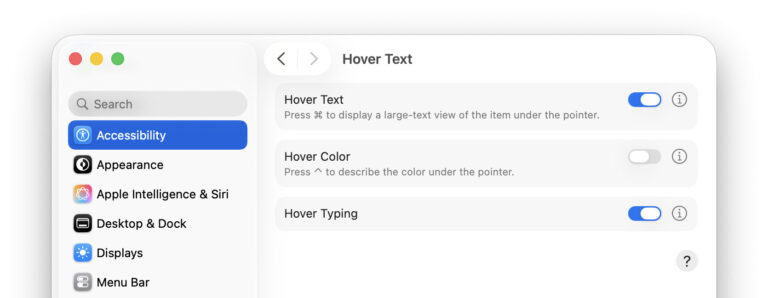
- Hold the Command key, then position the mouse cursor over any text to have it displayed enlarged.
Permanent zoom: You can also set up macOS to always display text zoomed in when the mouse cursor hovers over it; see below.
Facing the type: Using appearance settings, you can choose the typeface, font size, color and more for the hovering text; also see below.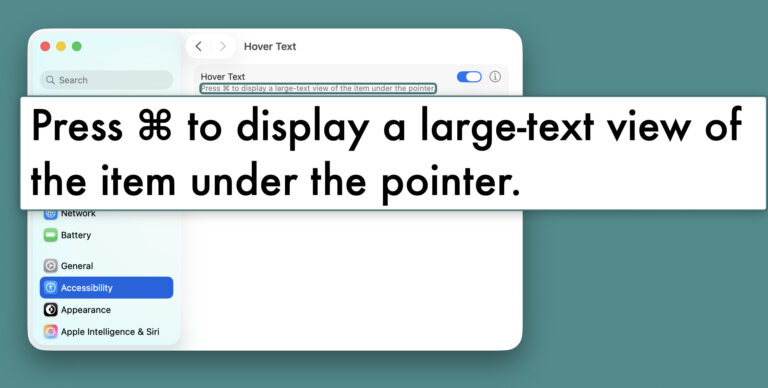
- Start typing any text to have an entry field pop up for composing in large text.
Position: You can pick where the text entry hovering window appears; see below.
Shortcuts: The Mac text editing keyboard shortcuts work in the zooming hover window, of course.
Their word: Apple include information on using hover text for reading, typing and identifying colors in the Mac User Guide.
Text legibling?
Tips help fuel these email and tech how-tos.
Change the Typeface, Font Size and Color of Zoomed Text
To pick the typeface, size, color and more formatting details for hover text and hover editing:
- Go to Hover Text options in System Settings; see above.
- Click i for Hover Text to configure formatting for zoomed text.
Typeface: Pick the desired typeface under Text font.
Size: Enter the font size in pt under Text size; the default size is 60 pt.
Element highlight color: If you pick a color here, macOS will highlight the zoomed text in the original app using a border in the color.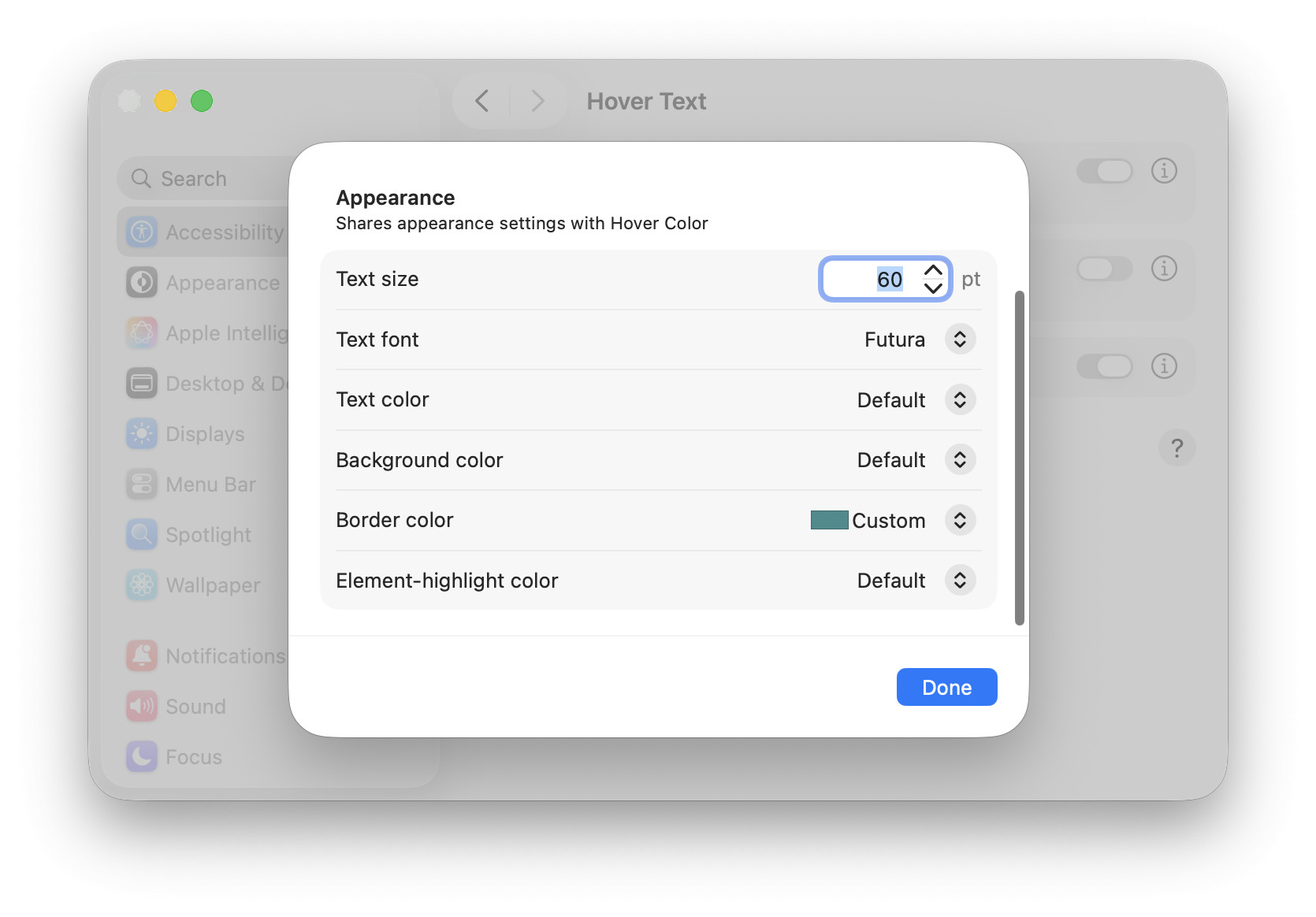
- Click i for Hover Type to change the appearance of the enlarged text entry field.
Typeface: Select the font under Text font.
Text size: Choose the size under Text size; the default is 60 pt again.
Position: Pick where you want the hovering text entry field to appear under Text-entry location; choose Custom and move the sample entry window to position it freely.
Looking for an everything zoom?
How to Zoom Your Mac Screen: Magnifier or Full Screen
Have Zoomed Text Permanently Enabled and Follow the Mouse
To turn on zoomed hover text permanently and display content under the mouse cursor as you move it:
- Open Hover Text options in System Settings; see above.
- Click i for Hover Text to open its settings.
- Turn on Triple-press modifier to set activation lock.
- Now triple-press Command to enable zoomed text permanently.
Unzoom: Triple-press Command again to disable permanent text zooming.
Different shortcut: If you have specified a different keyboard shortcut for text zooming, triple-press that key instead of the Command key, of course.
How to Zoom Text for Reading and Writing on a Mac: FAQ
How can I close the hover window?
To close the hovering window open for reading or editing text:
- Press Esc while typing.
- Release the key set up for hover text or use the shortcut to turn off permanent hover text.
Can I have zoomed text display formatting?
No, not in general.
The zoomed hover text always displays in the font, size and color you have specified. Only select formatting (such as bold face) and function (such as website links) is applied.
To zoom in on text as it is formatted on a Mac, you can use the macOS magnifying glass.
Will hover text for input work on hidden entry fields?
Yes.
If a text entry field on a website, say, with unfortunate formatting is hidden behind other content or interface elements, it will still display in full and foreground using hover text.
How can I scroll enlarged text if the hover window is not big enough?
Scroll using the mouse wheel or trackpad as if scrolling the text in the original app instead. Before scrolling that, the text in the hover window will scroll until its end is reached.
If the hover type text entry window is in the way, can I move it?
Not easily.
To position the window that shows the hovering text for typing elsewhere, change the respective option in System Settings. Even with Custom enabled, the position is fixed while you use hover typing, however, and can only be changed in settings.
You can always press Esc to close the window, of course.
Can I zoom in on text in pictures?
Yes.
Provided macOS’s text recognition can make out the text in an image or screenshot, you can zoom in on it using hover text.
(Tested with macOS Tahoe 26; first published July 2026)