

Want YouTube to pause after an hour of ASMR? Got ten minutes for a dash of inspiration? Find out here how to use sleep timers on YouTube ⤓ to have playback pause automatically so you can just watch, listen and relax.
On This Page
How to Use Sleep Timers on YouTube
Time needed: 1 minute
To set a sleep timer for a video or playlist in YouTube:
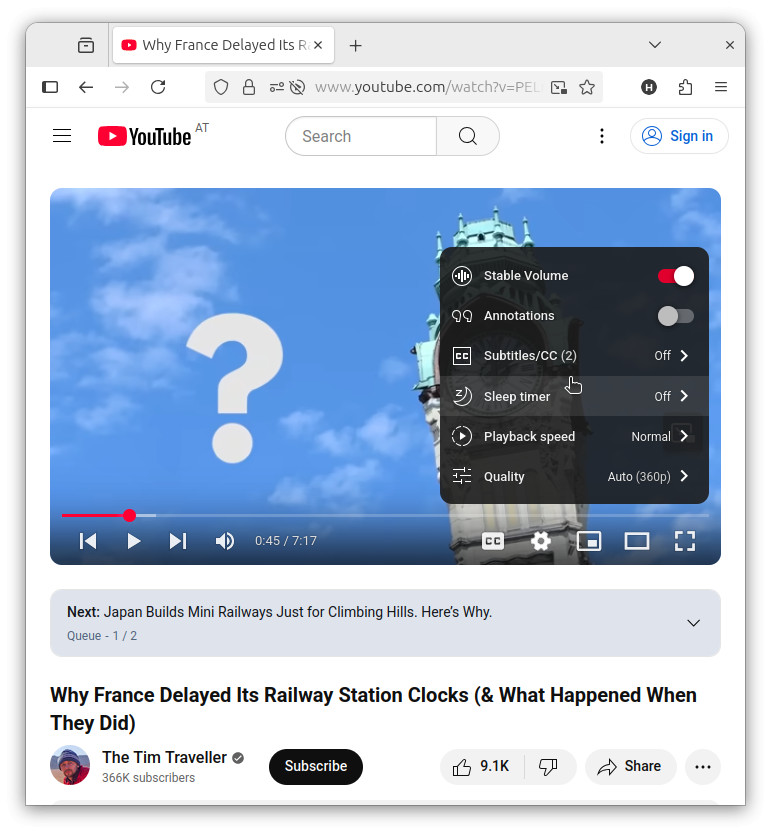
- Open the Settings menu for the video.
Here’s how: Hover with the mouse cursor over the video (on a desktop computer) or tap the video playback (on a portable device), then click or tap the Settings gear icon (⚙).
- Select Sleep timer.
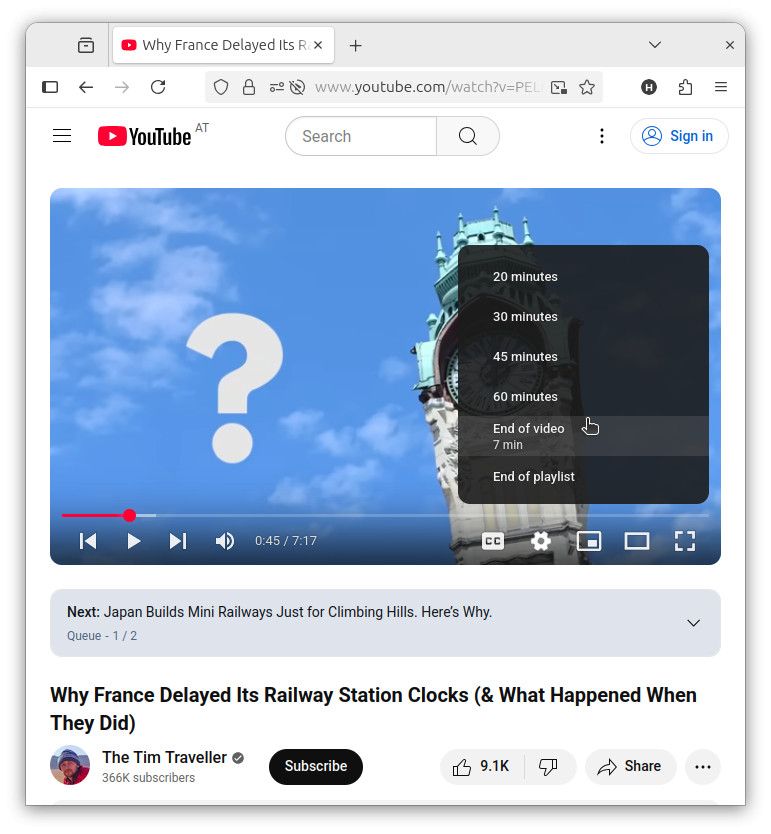
- Choose when you want YouTube playback to pause automatically.
“End of…”: In lieu of setting a time, you can also have playback continue until the end of the current video or playlist; while YouTube will display a time remaining for these events, the sleep timer will run until the event, not until the time runs out (see below).
Timer set for lights out?
Tips help fuel these email and tech how-tos.
Cancel or Change a YouTube Sleep Timer
To turn off auto-pausing for current playback:
- Open the Settings menu.
- Select Sleep timer | Off from the menu.
Change: You can also replace the current timer with a new endpoint right away, of course.
How to Use Sleep Timers on YouTube: FAQ
If I speed up or slow down playback, will the time remaining change?
No (with one exception).
The sleep timer always counts down in real time. Ten minutes of a podcast played at 1.75 its original speed is 17 and a half minutes of podcast time, and 10 minutes played at .5 its original speed will get you five minutes of playback; the timer will count 10 minutes in both cases.
The exception: YouTube sleep timers that count down to the end of the end of a video or playlist will adapt to the speed. If you change the playback speed of a video to 1.25 times the original speed with 10 minutes left, a timer that counts down till the end of the video will adapt to counting down 8 minutes.
Will a YouTube sleep timer continue counting if I pause a video?
Yes (with one exception).
Sleep timers run in real-world time and will continue counting down if video playback is paused.
The exception, again, is a timer counting down to an event connected to playback itself — the end of the video or playlist, for example.
What happens if the sleep timer has a longer duration than the video currently playing?
If you are viewing just one video or the last video in a playlist and autoplay is not enabled, playback will end at the end of the video.
If another video is coming up, either in the playlist or through YouTube autoplay, playback will continue until the sleep timer has run down or no more videos are queued.
Is there a YouTube keyboard shortcut for setting sleep timers?
No.
You can set sleep timers in YouTube only through the Settings menu.
Can I change an existing sleep timer in YouTube?
Yes.
You can always pick a new time (or event) for countdown, or disable sleep timing altogether with Off.
Can I pick a custom countdown for a YouTube sleep timer?
No, YouTube itself only offers the times available from the Sleep timer menu.
Yes, you can use browser add-ons (such as YouTube Sleep Timer) or third-party apps to choose different sleep times.
(Tested in desktop and mobile browsers; first published October 2025, last updated June 2026)