

Wish you could wield the organizational magic of Finder tags right from a Terminal prompt? Find out here how to use Mac Finder tags in Terminal to add, remove or reset tags for files and folders flexibly and list files by tag to boot.
First, Guided by the Light
It is the infamous blue light — the same pesky hue blamed for keeping people awake at night — that helps guide birds to their destinations by day.
In migratory birds’ eyes, pairs of short-lived radicals form and decay in rapid succession under blue light. Because their spin is swayed by magnetism, birds might thus “see” the Earth’s magnetic field and fly along faint, guiding patterns.
Now, basking in the blue light of your computer’s monitor, wish you could be guided to “see” Finder tags for files and folders in Terminal?
How to Use Mac Finder Tags in Terminal
Using the Third-Party Application “Tag”
Time needed: 5 minutes
To get easy access to Mac Finder tags on the Terminal command line using the “tag” application:
- Install tag.
Here’s how: You can install tag most conveniently using either Homebrew or MacPorts; you can also compile the application from the source code with Xcode.
- Use tag to examine a file’s tags.
Here’s how: Use
tag <filename>to see the tags currently applied to a file.
Example:tag "First, Guided by the Light.md"will list the tags assigned to the Markdown document.
Shortcut:tagalone will list all visible files in the current directory with all their tags.
- Apply tags with tag in Terminal.
Here’s how: Use
tag -a <tag,"another tag",tag3> <files and folders>to apple one or more tags to one or more files.
New tag: If the tag does not mach one you have previously set up on your Mac, tag will create the tag (without a color assigned).
Example:tag -a "La De Du",Reading *will apply both the La De Du and the Reading tag to all files in the current directory.
Nota bene: There is no whitespace that separates multiple tags; they are separated only with a comma; files are separated by whitespace.
- Remove individual tags from files using tag.
Here’s how: Use
tag -r <tag,"another tag",tag3> <files and folders>to remove a list of tags from a list of files.
Example:tag -r Reading "First, Guided by the Light.md"will remove the Reading tag from the Markdown document.
Escapism: You can either surround file and tag names that include whitespace with quotation marks or precede each whitespace character with a backslash character.
- List all files for a tag using tag in Terminal.
Here’s how: Use
tag -f <tag or tags>to list all files on the system that have all of the listed tags assigned.
Example:tag -f "La De Du",Readingwill list all files and folders that have both the La De Du and the Reading tag.
Just this folder: In the current folder, you can also usetag -m <tag or tags>to find matching files.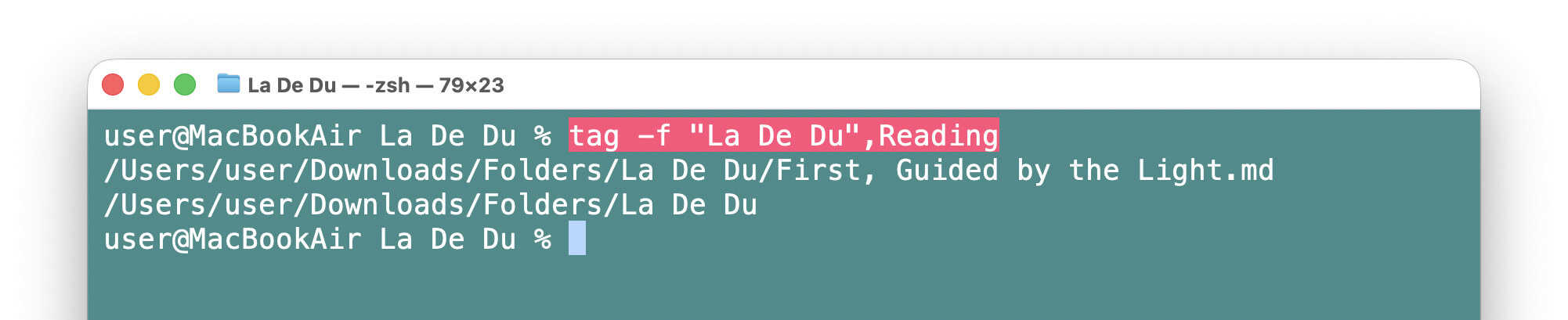
In Finder:
How to Tag Files and Folders on a Mac
How to View Tagged Files and Folders on a Mac
Examine Tags for a File Using “Xattr”
To use the xattr utility that comes with macOS for examining a file or folder’s tags:
- Use
xattr -l <files or folders>on the Terminal command line.
Here’s what happens: This command will print all file attributes; you can find the Finder tags under com.apple.metadata:_kMDItemUserTags: in encoded form (with the tag name at the end)..
Example:xattr -l First,\ Guided\ by\ the\ Light.mdwill list all attributes including tags for the Markdown file.
Just tags: To see just tags, you can usetag -p com.apple.metadata:_kMDItemUserTags <files or folders>.
Find Files by Tag Using “Mdfind”
To employ the standard macOS mdfind Terminal application to list files by tag:
- Use
mdfind 'kMDItemUserTags == "<tag>"'.
Example:mdfind 'kMDItemUserTags == "Reading"'will list all files with the tag Reading.
How to Use Mac Finder Tags in Terminal: FAQ
Can I strip all tags off of files with tag?
Yes.
To quickly reset tags for a file using tag:
- Use
tag -s * <file>to remove all tags from the specified files.
Why this works: The-scommand sets a file’s tags to the list given, and*specifies no tags in this case (it means all tags with other commands, though).
Example:tag -s * *will strip all files in the current directory off all tags.
Can I have tag work recursively through directories?
Yes.
Except for the finding command -f, you can add the switch -R to have tag go through directories recursively.
Example:
Can tag auto-complete tag names for me?
No.
You will have to enter or copy tag names manually; tag cannot auto-complete tag names.
(Tested with macOS Tahoe 26.0 and tag 0.10..0; first published October 2025)