

Clicked too fast, marking a task done in Apple Reminders only to realize it’s still to be done? Afraid marking a repeating task undone will mess up your schedule? Find out here how to undo a completed task in Apple Reminders for Mac ⤓ — either right away or using completed tasks view (in some 30 seconds).
On This Page
How to Undo a Completed Task in Apple Reminders for Mac
Using Completed Task View
Time needed: 1 minute
To mark a task undone again after completing it:in Apple Reminders for Mac:
- Show completed reminders in the list or search results in Apple Reminders.
Here’s how: Select View | Show Completed from the menu or press Command Shift H.
- Click in the task’s filled completion circle to remove the completion mark.
Apple Reminders keyboard shortcut: You can also highlight the task and press Command Shift C.
Here’s what happens: The original task appears again, undone; for repeating tasks, the task is restored without any information of repetition.
Not in completed: if the task does not appear with completed tasks view, you may be able to restore it from Recently Deleted.
Their word: Apple include information on marking tasks complete or incomplete in the Reminders User Guide.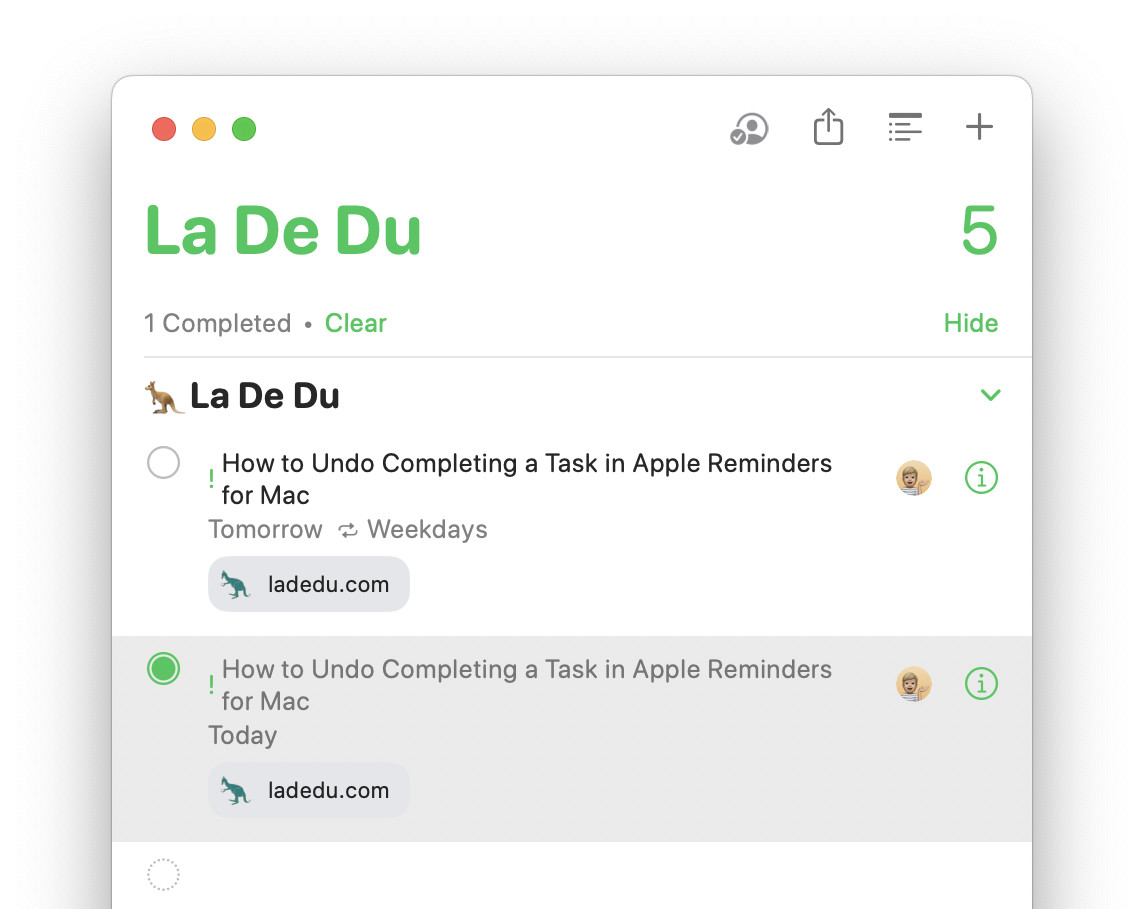
Undoing Completion Immediately in Apple Reminders
To undo completing a task immediately after you have marked it done in Apple Reminders for Mac:
- Press Command Z as the first action after completing a task in Apple Reminders.
Using the menu: You can also select Edit | Undo Completion Change from the menu.
Here’s what happens: This will undo the entire completion change; for a repeating task, the copy at the next due date is deleted, and all repetition information is restored to the original task.
Completed here: You can also view completed tasks for a list, of course.
All done undone?
Tips help fuel these email and tech how-tos.
How to Undo a Completed Task in Apple Reminders for Mac: FAQ
Will marking a repeating task undone create duplicates or mess up the schedule?
No.
When you complete a repeating task, all information about repletion is stripped from the task. A new task on the next due date with all the repletion information is created at the same time.
If you mark a task undone, the restored task does not have any repetition assigned; when you complete it again, no new task is created.
If you undo marking a task done (using Command Z), the duplicate task is deleted and repetition settings are restored to the original task.
(Tested with Apple Reminders 7.0 on macOS Tahoe 26.0–26.5 and Sequoia 15.5; first published July 2025, last updated June 2026)