

AutoCorrect in Word changed your carefully chosen words into something wild — and you only spot it paragraphs later, cursor deep in freshly crafted text? Find out here how to quickly undo an AutoCorrect text replacement in Word ⤓, even after you have kept typing (and using only the keyboard to boot).
On This Page
How to Undo AutoCorrect in Word after Typing More (Keyboard Shortcut Included)
Time needed: 1 minute
To revert a specific AutoCorrect text replacement in Microsoft Word for Windows and MS Word for Mac (even after you have continued typing for a while):
- Hover the mouse cursor over the blue underline that appears as you position it over the automatically replaced text, symbol or punctuation mark.
Here’s how: Move the cursor first over the replacement you want to undo, then slightly down to meet the solid blue underline.
Here’s what happens: An ABC context menu item will appear.
Using the keyboard: You can also navigate to the replacement using the text cursor; position it inside the replacement or immediately before or after it so that the blue underline appears. - Click the AutoCorrect Options context menu item.
Word keyboard shortcut: Press Alt Shift F10 (Windows) or Option Shift F10 (Mac) to open the context menu.
- Select Change back to <original text> from the menu.
Using the keyboard: Press the down arrow key (↓) to highlight the menu item, then press Enter to undo the text replacement using the keyboard alone.
Their word: Microsoft include information on turning off AutoCorrect altogether in Word help.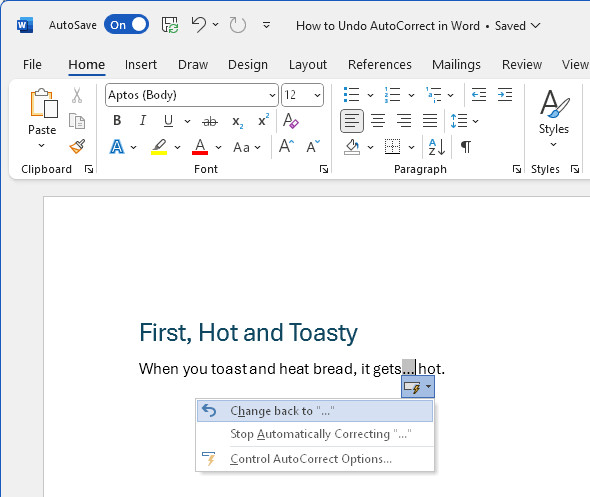
What’s done’s undone?
Tips help fuel these email and tech how-tos.
Undo Immediately
To revert a change made by AutoCorrect immediately after it happened in Word for Mac, Windows and on the web:
- Press Ctrl Z (Windows) or Command Z (Mac).
Here’s when: Do this before you have made any other changes — and, crucially, before you have continued typing; otherwise, that change will be undone instead of the text replacement (you can use the undoing keyboard shortcut repeatedly, of course, until the AutoCorrect replacement is also undone).
Redo: Press Ctrl Y (Windows) or Command Y (Mac) to undo what you have just undone.
Using the mouse: Click Undo AutoCorrect in the Word title bar to undo.
How to Undo an AutoCorrect Text Replacement in Word: FAQ
Can I undo a text replacement from a previous editing session (after closing Word)?
No.
You can only undo changes made through AutoCorrect replacements during the same editing session. If you close and re-open the document, you can no longer undo.
Changes made on other devices cannot be changed either; undoing is possible on the machine where the replacement happened.
How can I undo AutoCorrect actions in Word for the web?
In Word for the Web at Office.com, you can only undo AutoCorrect replacements immediately after they have happened.
To undo AutoCorrect in Word for the web:
- Press Ctrl Z (Windows and Linux) or Command Z (Mac) immediately following the replacement you want to do undo.
Using the mouse: Click Undo on the ribbon’s Home tab.
(Tested with Word 2504–2509 for Windows and Word 16.89 for Mac; first published October 2024, last updated July 2026)