
Struggling to type the lambda symbol on your Mac without swapping keyboards — for a math formula or to write code with flair perhaps? Find out here how to insert the lambda symbol (Λ, λ and more) on a Mac using keyboard text replacement and the emoji panel.
First, the Number 𝝠
The Romans famously used letters to write their numbers and to do the math that could muster. So did the Greeks.
To depict the numbers, the Ancient Greeks made use of all the letters in their alphabet, though — and three otherwise obscure ones to boot — with the Milesian or Ionic numerals.
To begin, let’s find out how to write the number 30:
How to Type the Lambda Symbol ( λ ) on a Mac Keyboard
Using Character Viewer or the Emoji Panel
Time needed: 2 minutes
To type the Greek letters uppercase lambda and lowercase lambda using a Mac keyboard and the macOS emoji panel:
- Position the text cursor where you want to insert the symbol for the letter lambda.
- Press 🌐︎ or Fn E.
Using the menu: You can also select Edit | Emoji & Symbols from the menu.
- Type
lamdaorgreek letter lamdain the Search field.No “Search”: If you do not see the Search field initially, scroll down to reveal it.
“Lamda”: Do spell lambda as “lamda” (as used with Unicode for the character) for this search. - Click the desired lambda character to insert it.
Using the keyboard: You can use the arrow keys to highlight the character, then press Enter to insert it.
Maths: Unicode includes many lambda variants for use in mathematical notation; you will find these with a search for just “lamda”.
Coding: For lambda functions (such as in the average-damping example from Structure and Interpretation of Computer Programs below), use the minuscule λ.
All λ collected and accounted for?
Tips help fuel these email and tech how-tos.
Using Text Replacement
To input lambda characters using the keyboard alone using text replacement on a Mac:
- Set up a key combination to expand to the desired lambda character; see below.
- Type the designated char combination where you want to input lambda.
- Follow up with a whitespace character or punctuation mark to complete inserting the letter lambda.
To set up a key combination for inserting lambda on a Mac:
- Open System Settings.
- Go to the Keyboard category.
- Select Text Replacement… under Text Input.
- Click +.
- Type the character sequence you want to use for entering the lambda character under Replace.
Example: Usellbdfor minuscule lambda, for instance. - Enter the desired letter lambda under With using the emoji panel (see above) or copying and pasting (see below).
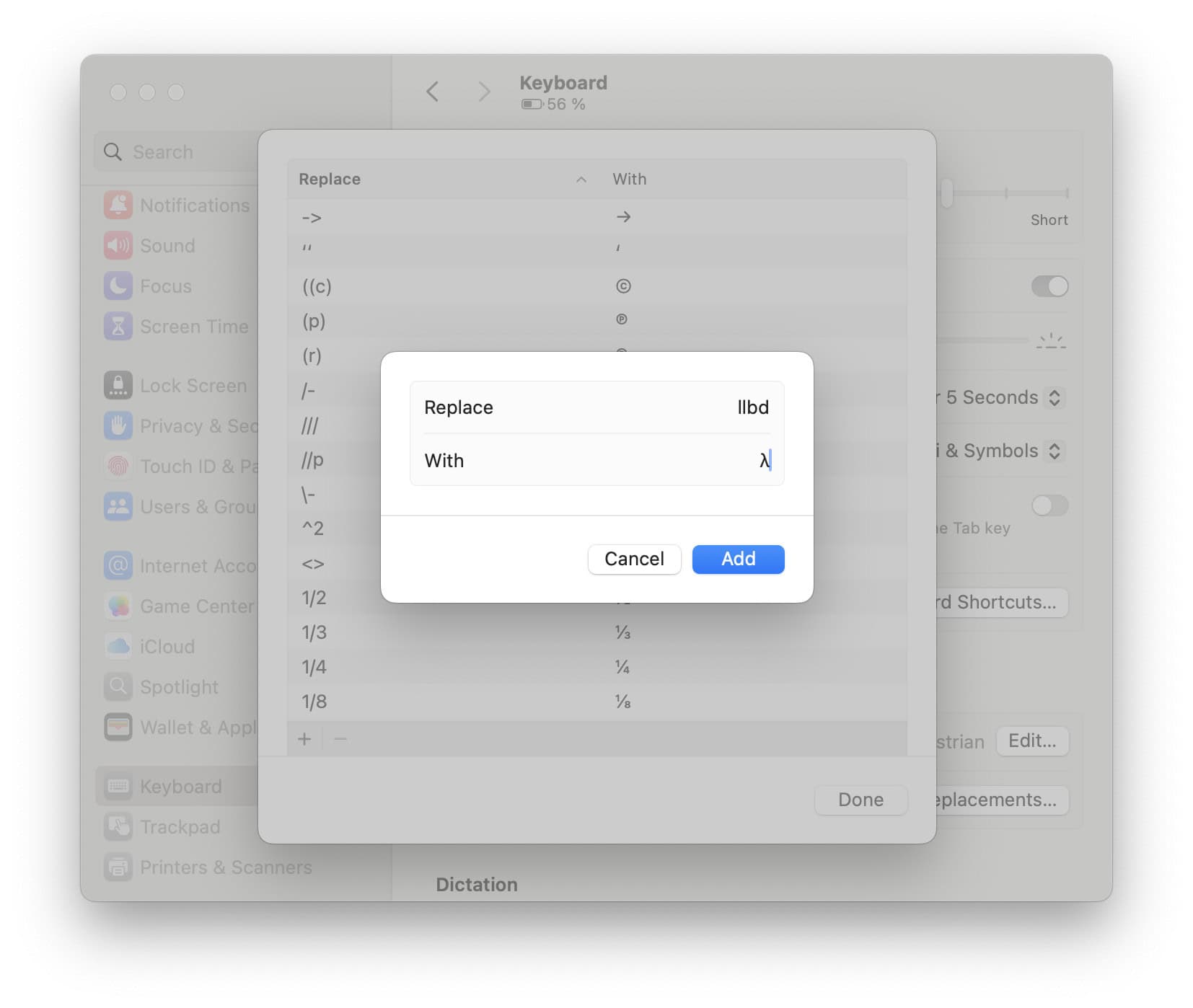
- Click Add.
- Now click Done.
Another Greek letter: How to Type the Symbol for Pi ( π ) on a Mac
Speaking of averages: How to Type ‘x bar’ on a Mac
How to Type the Lambda Symbol ( λ ) on a Mac Keyboard: FAQ
Can I type the lambda symbol with the keyboard alone?
Yes, using the Greek keyboard layout.
To type the Greek letters directly using the keyboard on a Mac:
- Add the Greek keyboard layout as an input source to macOS.
- Switch to the Greek keyboard, if but temporarily.
- Press Λ (L on a US-English keyboard) for λ (lowercase lambda) and Shift Λ for Λ (uppercase lambda).
Other keyboards layouts (notably the US-English one) do not include combinations for entering the letters lambda directly.
It’s also a number:
Greek Numerals ⇔ Decimal Numbers Converter
Can I use Unicode to insert the lambda symbol?
Yes.
To insert a lambda symbol using Unicode Hex input:
- Enable and switch to Unicode Hex Input on the Mac keyboard.
- Press and hold Option.
- Type 0 3 B B for lowercase lambda λ;
type 0 3 9 B for uppercase lambda Λ. - Release the Option key.
Can I also copy and paste the lambda character?
Yes.
Use the tables below to copy either the standard lambda characters or those designed for use in mathematical equations:
Uppercase Greek lambda Λ | |
Lowercase Greek lambda λ |
Mathematical bold capital lambda
𝚲
| |
Mathematical bold italic capital lambda
𝜦
| |
Mathermatical bold lowercase lambda
𝛌
| |
Mathermatical bold italic lowercase lambda
𝝀
| |
Mathermatical italic capital lambda
𝛬
| |
Mathermatical italic lowercase lambda
𝜆
| |
Mathematical sans-serif bold capital lambda 𝝠 | |
Mathematical sans-serif bold italic capital lambda 𝞚 | |
Mathematical sans-serif bold lowercase lambda 𝝺 | |
Mathematical sans-serif bold italic lowercase lambda 𝞴 |
(Tested with macOS Tahoe 26.0 and Sequoia 15.0–15.5; first published September 2024, last updated December 2025)