
Tired of putting straight and boring apostrophes where you could (and should) have proper curly ones? Want to shed the days of typewriter’s simple apostrophes and add a touch of elegance with proper curly apostrophes? Find out here how to type a typographic, curly apostrophe on a Windows keyboard (using a key combination, Quick Accent or the corresponding Windows “Alt” code).
First, a Night of Shouting and Screaming
When you come home from a night of screaming and shouting for your team, of chanting and singing for your colors, you are, of course, hobby-hoarse.
While you may have lost your voice, chances are you still can type on your keyboard — e.g., type something like You’ll ne’er walk…
Let’s do it with typographic correctness (as far as the apostrophe is concerned):
How to Type a Typographic (Curly) Apostrophe ( ’ ) on a Windows Keyboard
Using the United States-International Keyboard Layout
Time needed: 1 minute
To insert a typographically correct (“curly”) apostrophe ( ’ ) with the keyboard on Windows using the US-International keyboard layout::
- Enable and switch to the US-International keyboard layout.
Here’s how: After you have added the US-International keyboard layout, use the Windows Space keyboard shortcut to switch to that layout.
- Position the text cursor where you want to insert the curly apostrophe.
Here’s where: If you use the apostrophe to indicate possession, put it immediately after the word whose possession you denote and immediately before the ‘s’ (if needed); when you use the curly apostrophe to stand in for letters left out, put int where the missing letter or letters would have been.
Not my email: Do not use curly apostrophes in email addresses (where they are not allowed and make email potentially undeliverable).
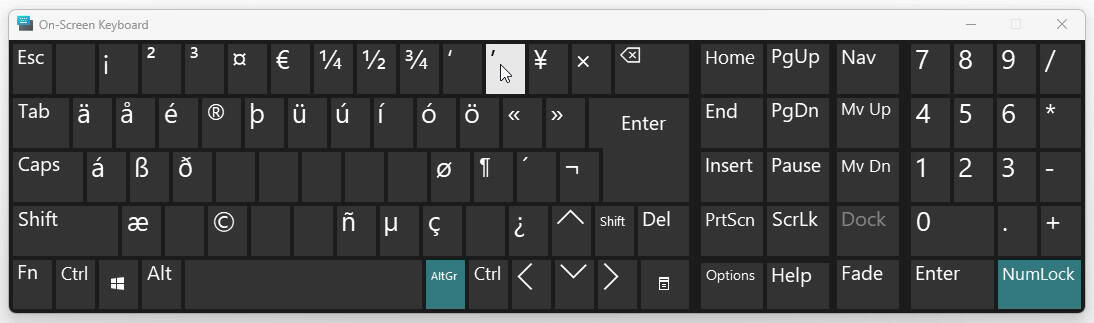
Example: I’m o’er the moon with Sarah’s ice cream. - Press AltGr 0 (zero).
Not “AltGr'”: Note that the shortcut AltGr ' (straight quotation mark) will insert the acute accent instead of a typographic apostrophe with the US-International keyboard layout.
🦘 Done typing? Automate it:
Grab Typography Fixer PRO ($3 one-time)
Instant unlock code delivery • private offline app
Using PowerToys Quick Accent to Insert a Curly Apostrophe
To input a proper typographer’s apostrophe on Windows with the help of MS PowerToys Quick Accent:
- Install Microsoft PowerToys (free and directly from Microsoft) and enable its Quick Accent feature.
- Put the text cursor where you want to insert the typographic apostrophe.
- Press and hold . (period).
- Immediately press ⬅ (left arrow).
Here’s what happens: A bar with alternative characters to insert will pop up. - Continue pressing ⬅ until ’ is highlighted.
- Let go of the . key.
Using the mouse: You can also click the curly apostrophe in the Quick Accent menu with the mouse to insert it.
Their word: Microsoft include information on Quick Accent in PowerToys help.
More uses of Quick Accent: How to Type Accents on Windows
Using the Windows “Alt” Code for a Curly Typographic Apostrophe
To produce a smart and curly apostrophe using its Windows “Alt” Code:
- Position the text cursor where the curly apostrophe should appear.
- Press 0 1 4 6 on the numeric keypad while you hold down the Alt key.
- Let go of the key Alt.
On a Mac? How to Type a Curly Apostrophe ( ’ ) on a Mac Keyboard
How to Type a Typographic (Curly) Apostrophe ( ’ ) on a Windows Keyboard: FAQ
Can I copy the typographic apostrophe for pasting?
Yes.
Use the table below to copy the apostrophe for pasting anywhere on Windows:
Typographic apostrophe ’ |
Can I use a straight apostrophe or single straight quotation mark instead of the curly apostrophe?
Yes.
Though perhaps not as appealing, you can typically use the single straight quotation mark ' (which is so much easier to produce) in place of a curly apostrophe.
Do note the typographic apostrophe’s advantages, though:
- Screen readers have an easier time interpreting curly apostrophes correctly and might stumble on straight quotes.
- Searching and replacing works more precisely if you use typographic apostrophes consistently.
- In a professional context, using proper punctuation — including proper apostrophes — always reflects well on the author.
🚀 Instant Alternative
No more Windows shortcuts. Typography Fixer PRO converts ' → ’ with Ctrl+F.
Get Typography Fixer PRO ($3) →Offline PWA • Lifetime access • No ads
(Tested with Version 24H2–25H2; first published March 2025, last updated December 2025)