

The blinking cursor on your Mac is driving you a little crazy and straining your eyes? You can save yourself the stress of having something blink at you — and a bit of battery life to boot! Find out here how to turn off cursor blinking for text input on a Mac ⤓ using macOS settings.
First, Three Letters Walk to a Bar
Your words are made up of beautifully scripted letters; your algebraic variables are, of course, made up of just those letters; your numbers, for good measure, are made up of — the same letters. What can you do to keep them apart?
Here’s what the Greeks did facing that predicament: they marked numbers with a bar stretching over all the letters that made up the number, e.g., ɷλε for 835.
What the bar did not do, of course, was blink:
How to Turn Off Cursor Blinking on a Mac
Time needed: 2 minutes
To disable (or enable) cursor blinking for most text input in macOS on a Mac:
- Open System Settings on the Mac.
Here’s how: You can click the Apple logo () in the menu bar, for example, and select System Settings… from the menu.
- Go to the Accessibility category.
- Select Motion.
macOS Sequoia and before: Select Display.
- Turn on Prefer non-blinking cursor.
Their word: Apple include information on cursor blinking in the Mac User Guide.
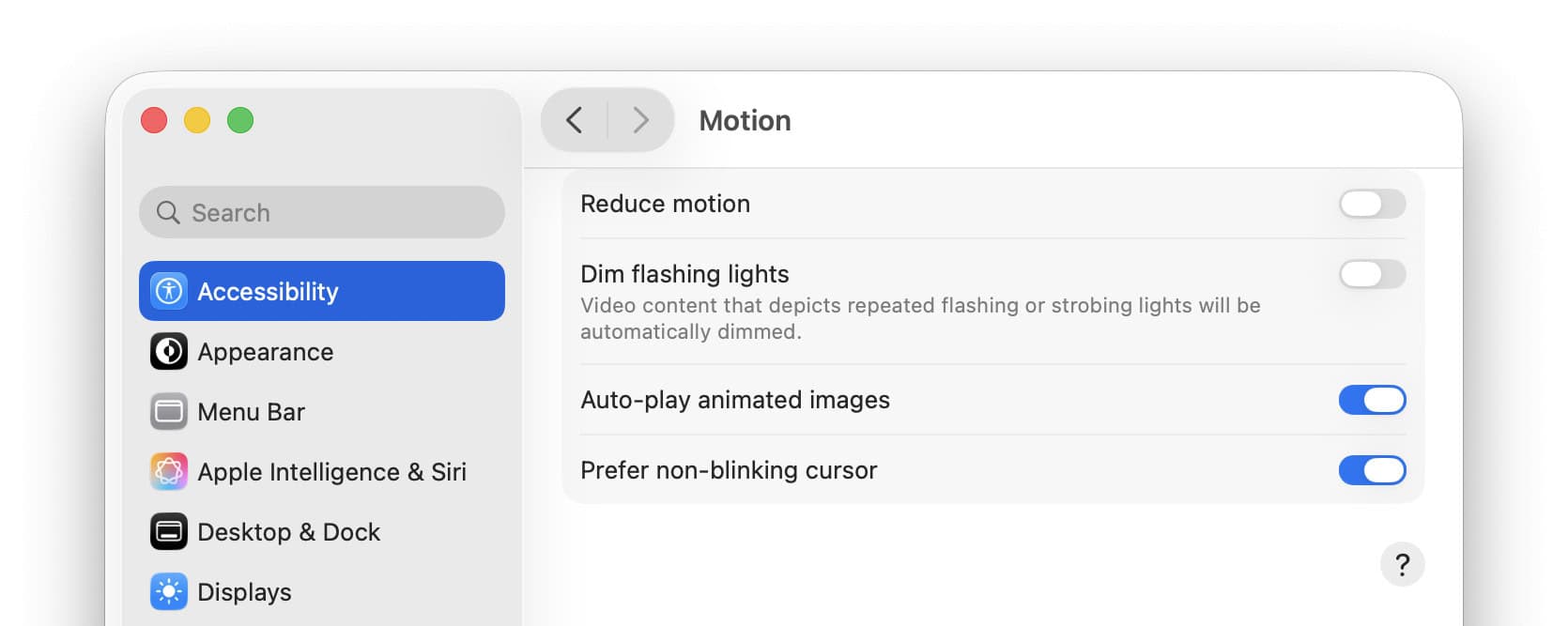
Cursor finally peaceful and still?
Tips help fuel these email and tech how-tos.
Turn Off Blinking in the Mac Terminal App
To prevent the cursor from blinking in a Terminal window on a Mac:
- Open app settings in the Terminal application.
Here’s how: Select Terminal | Settings… from the menu, for example.
Terminal keyboard shortcut: You can also press Command , (comma) to open settings. - Go to the Profiles tab.
- Highlight the terminal profile in use for the current window.
Default: The default profile for new Terminal windows shows Default under its name. - Disable Blink cursor (in the Cursor section).
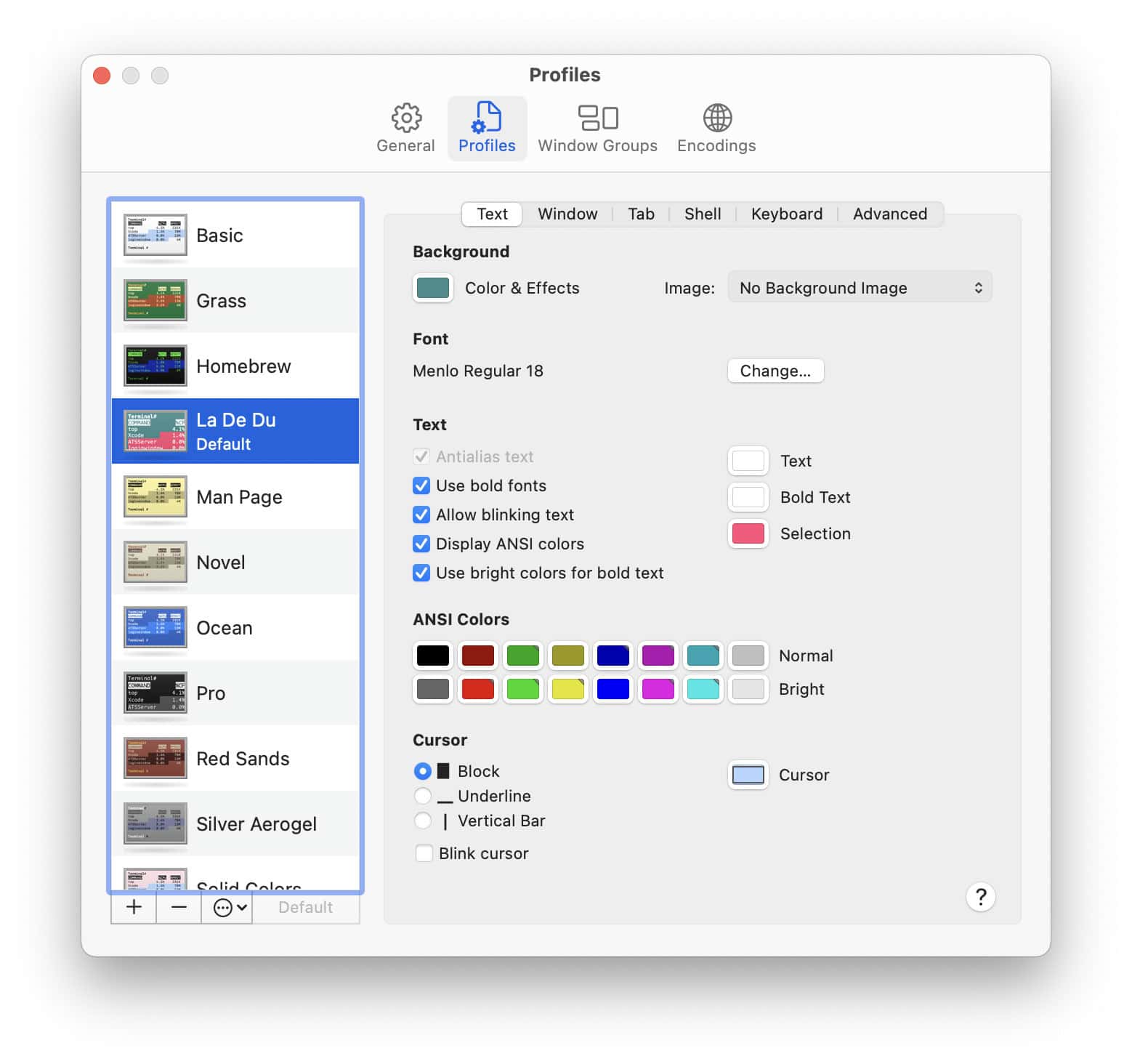
Other terminals:
How to Disable Cursor Blinking on Linux
How to Turn Off Cursor Blinking in Windows
How to Turn Off Cursor Blinking on a Mac: FAQ
Will all cursors stop blinking with “Prefer non-blinking cursor” enabled?
No.
While the setting will apply to most of the macOS user interface and applications, certain apps can use their own text cursor implementation or style it in particular ways.
The Terminal app, for instance, lets you change cursor shape and blinking independently from the overall setting (see above).
In Emacs, too: How to Disable Cursor Blinking in Emacs
(Tested with macOS Tahoe 26.0 and Sequoia 15.2–15.4; first published December 2024, last updated March 2026)