

Trying to keep a household on track with its members — or a team? Wish there ware a polite tool to delegate the nagging and checking? Wish you could update others on your progress without effort? Find out here how to set up a shared to-do list as a team in Microsoft To Do ⤓.
On This Page
How to Set up a Shared To-Do List in Microsoft To Do
Time needed: 2 minutes
To share a list of tasks in Microsoft To Do on the web and in MS To Do for Windows:
- Go to the list whose tasks you want to share with another person.
New or old: You can share existing lists or set up a new shared list, of course.
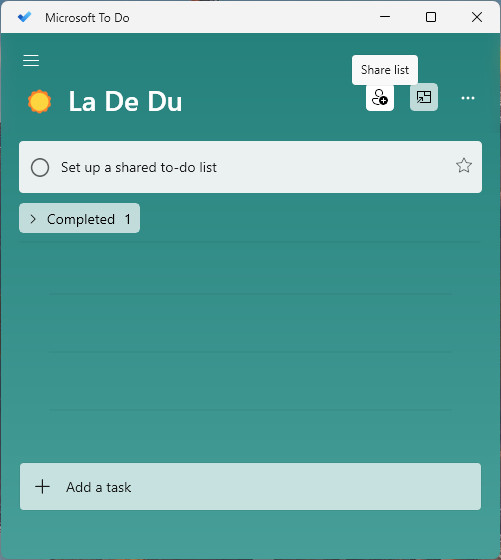
- Click Share or Share list.
- Now click Create invitation link.
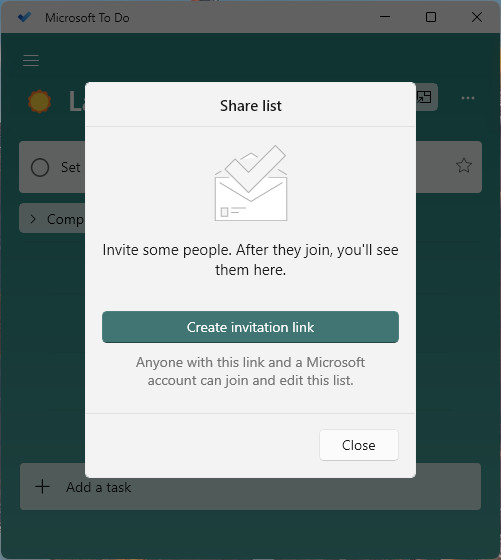
- Click Copy link.
- Share the link for others to join the list as a member.
Anyone: Every recipient of the link can join the list.
Other ways of sharing: You can also click Invite via email or use the sharing button to share the link for joining. - Click Close.
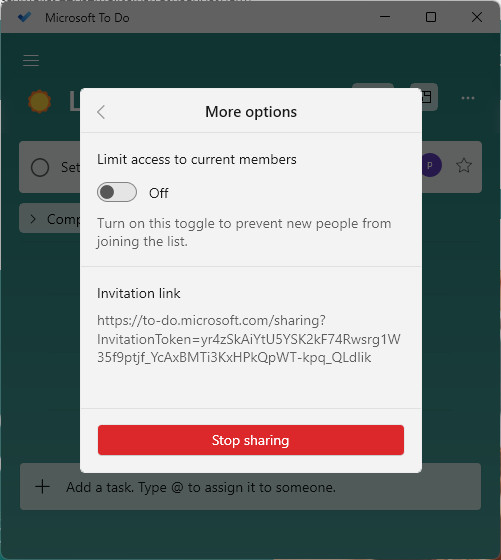
- Once all desired members have accepted the invitation: Limit the list to current members (see below).
Here’s why: Until you have locked the list to current members, everyone with the link shared before can get access to the list.
Now this: On shared lists, you can assign tasks to individual people.
Their word: Microsoft include information on sharing lists in MS To Do help.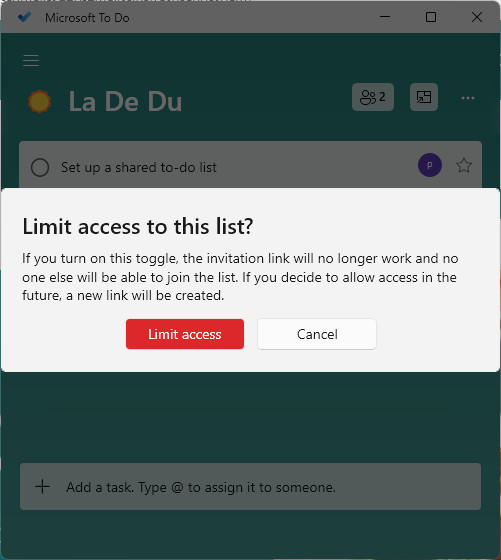
Everybody knows who does what by when now?
Tips help fuel these email and tech how-tos.
Share a List from MS To Do for Mac or iOS
To create a shared list in Microsoft Teams for Mac and iOS:
- Open the list you want to share.
- Click or tap the Share list button.
- Now select Invite Via… and send the invitation link as you please.
The link is it: Anybody with the link can join, so turn off sharing for new members after all have joined (see below).
Prevent New Members from Adding the List
To stop the sharing link from allowing new people to access and add the shared list:
- Click the sharing button for the list.
- Now click Manage access.
MS To Do for Mac: In the macOS app, click Limit Access to Current Members instead and skip the next step. - Turn on Limit access to current members.
- Click Limit access.
Stop Sharing a List (for All Members) in Microsoft To Do
To block further access to a list in Microsoft To Do:
- Go to the list you do not want to share any more.
- Click Manage access.
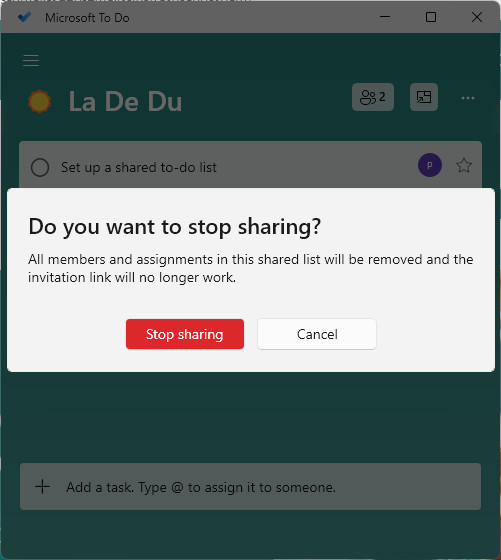
MS To Do for Mac: You can skip this step in the macOS app. - Click Stop Sharing.
- Now click Stop sharing again.
How to Set up a Shared To-Do List in Microsoft To Do: FAQ
Can I share “My Day”, “Completed”, “Planned” and other smart lists?
No.
Microsoft To Do lets you share lists that contain tasks directly. Smart lists that collect tasks (such as your My Day list, Planned and Completed cannot be shared.
Can I share tasks with people who do not have a Microsoft account?
No.
The shared list will appear in Microsoft To Do, and an account is necessary to access the application.
Can I remove a member from a list?
Yes.
To stop a person from accessing a shared list in Microsoft To Do:
- Click the sharing button in the list.
- Stop a previously shared link from working; see above.
- Click x (Remove member) for the person you want to stop from accessing the list.
- Now click Remove or Remove member.
Can I share more than one list at a time?
No.
MS To Do lets you share individual to-do lists, one at a time.
(Tested with Microsoft To Do 2.114–2.176; first published October 2024, last updated August 2026)