

Think an email and what’s in it is out of your hands and control as soon as you hit “Send”? You are right — mostly right: with “Confidential Mode,” Gmail lets you send emails that expire and can optionally only be opened with authentication (whether you send sensitive information or just like the idea of email fit for a spy). Find out here how to send a self-destructing email in Gmail ⤓ (in a desktop browser as well as the Gmail apps).
On This Page
How to Send a Self-Destructing Email in Gmail
Gmail in a Desktop Browser
Time needed: 2 minutes
To send a self-destructing email message that can only be opened until a preset expiration date (and, optionally, only with verification via text message code):
- Start a new email in Gmail.
Here’s how:
Gmail keyboard shortcut: With Gmail keyboard shortcuts enabled, you can press C to start a new email. - Click Toggle Confidential Mode.
- Choose when the message will self-destruct under SET EXPIRATION.
- Optional: To have recipients verify their identity when they open the message, select SMS passcode under REQUIRE PASSCODE.
Here’s how that works: For each recipient, you’ll enter a phone number; when they open the message, Google sends them a code via text message they need to enter to read the email’s text.
- Click Save.
- Enter the subject for the email.
Important: The email‘s subject will always be (and remain) visible to all recipients.
- Compose and eventually send the email as you normally would.
Files: Files you send as attachments will also be accessible only as long as the message (and with the same authentication requirements).
SMS passcode: With text message authentication enabled, enter a phone number for each recipient after you click Send, then click Send again.
Their word: Google include information on confidential emails in Gmail help.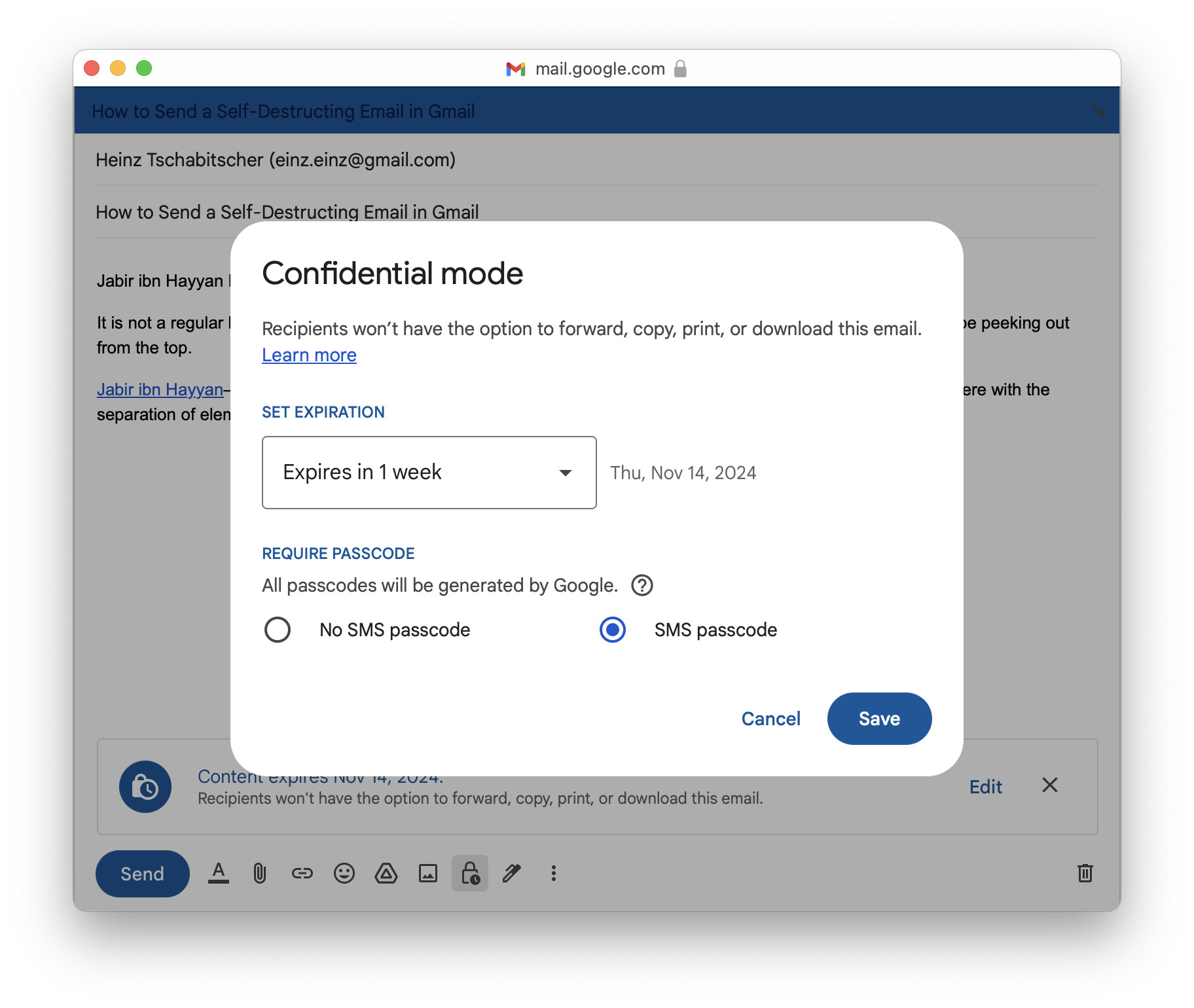
Confidential: This message…
Tips help fuel these email and tech how-tos.
The Gmail App for iOS or Android
To send a self-destructing email using the Gmail apps for Android and iOS:
- Compose the fleeting email you want to send.
Subject: Remember that the email’s subject will be visible to any recipient without authentication and even after the email expires. - Tap the three-dots menu for the email.
- Select Confidential mode.
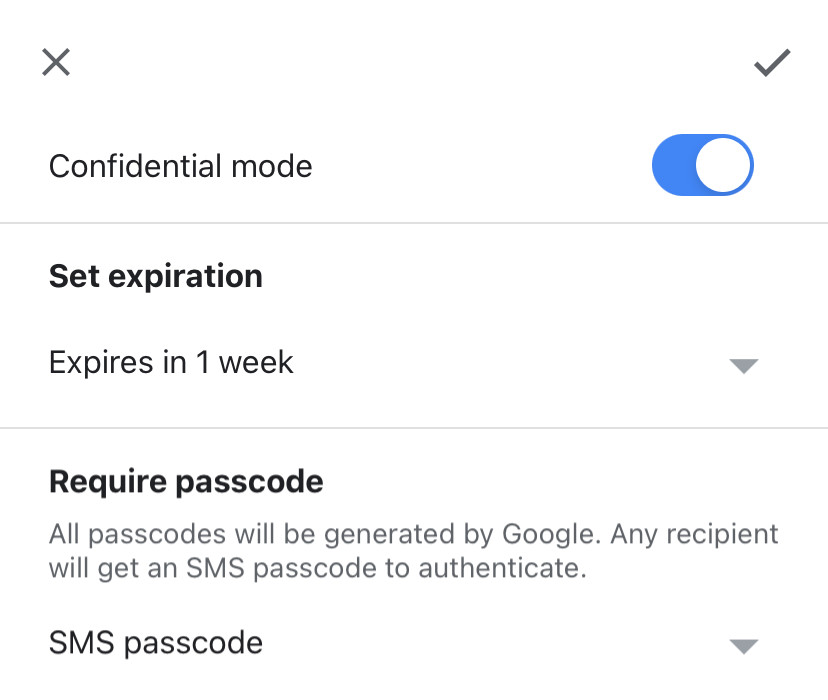
- Enable Confidential mode.
- Choose the expiration date under Set expiration.
- Optional: Set Require passcode to SMS passcode to require recipients to confirm their identity with a text message sent to a preset number to open the email (before it has expired).
- Tap the checkmark (✓).
- Send the email.
- With SMS authentication enabled, tap Add missing information if you are prompted and enter a phone number for each recipient.
Here’s why: They will receive a code to authenticate for opening the email at that phone number.
Also ephemeral: How to Send a Self-Destructing Message in WhatsApp
How to Send a Self-Destructing Email in Gmail: FAQ
Will Gmail prevent screenshots, photos or copying of the email text?
No.
As long as a recipient has access to the contents of a self-destructing email, they can
- make a screenshot,
- take a photo or
- copy text from the web page source
to extract, save and possibly pass on your sensitive content.
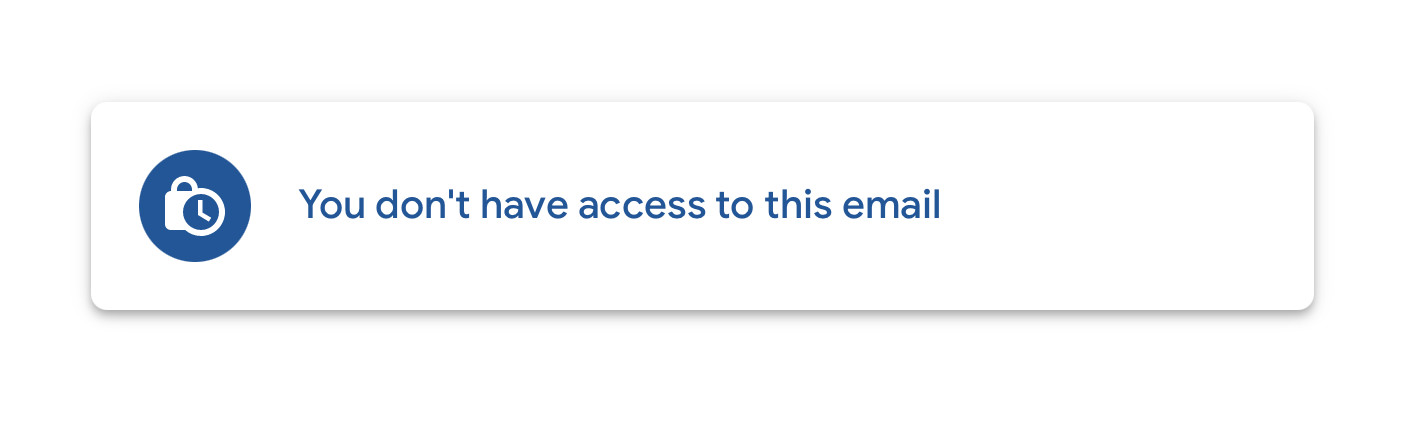
What will recipients see when access has been expired or revoked?
They will see a message that access is prevented (no matter the reason why accessing the email is not or no longer possible): You don’t have access to this email.
Can I access expired emails I have sent in Gmail?
Yes.
The messages will remain in the Sent Mail folder with its contents intact.
Can I revoke access before an email self-destructs?
Yes.
To prevent anyone from opening your confidential email starting right away:
- Go to the Sent Mail folder in Gmail.
- Open the message you want to make inaccessible immediately.
- Click or tap Remove access.
Can I extend access beyond the self-destruction date?
No.
While you can restore access to an email if you have manually revoked it before, access will still expire with the originally set expiration date. You cannot extend that date, and once the date has passed, you cannot restore access.
To make an email accessible beyond or after that date, send it again.
Can I choose a custom expiry date or send an email that never expires but always requires authentication?
No, not with Gmail confidential mode.
Every email sent with Gmail’s confidentiality mode must have an expiry date past which it will not be accessible and more.
For some control over the expiry date:
- Choose Expires in 5 years when you send the email.
- Revert access at your desired time.
(Tested with Gmail in a desktop browser and the Gmail app for iOS 6.0.24; first published November 2024, last updated June 2026)