

Want to know the weather for the place you’re going, not where you currently are? Whether you’re planning a trip or want to chat about the weather knowingly with a remote colleague, Apple Weather can help. Find out here how to find, see and save multiple locations in Apple Weather for Mac ⤓.
On This Page
How to See Weather for Multiple Locations in Apple Weather for Mac
View Weather for an Additional Location in Apple Weather
Time needed: 2 minutes
To add a new location to Apple Weather on a Mac:
- Show the sidebar in Apple Weather.
Here’s how: Click the Show Sidebar button in the Apple Weather title bar.
Weather keyboard shortcut: You can also press Command Control S to toggle sidebar display. - Use the Search bar to find the location you’d like to view in (or add to) Apple Weather.
Here’s how: You can search for place names on various levels from country down to district, down and sometimes street.
Pick from a map: Apple Weather also lets you add locations using a map; see below. - Click + to add the location to the list.
Weather keyboard shortcut: You can also press Command Shift L to add the place to your weather locations.
Their word: Apple include information on managing locations in the Weather User Guide.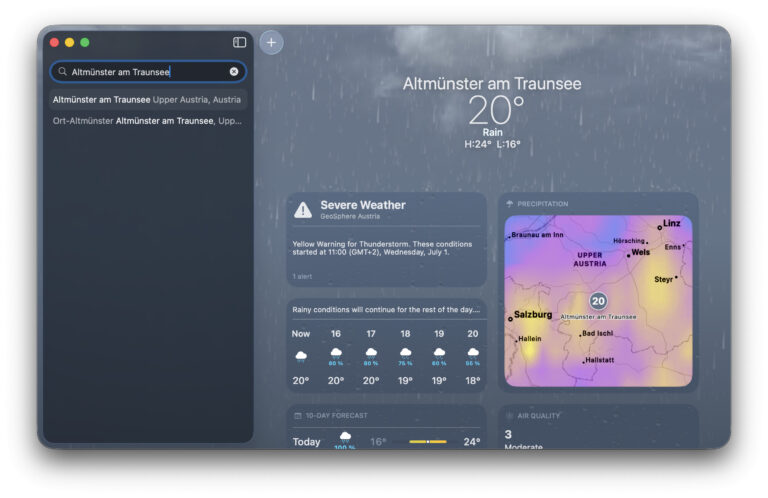
It’s the world wide weather.
Tips help fuel these email and tech how-tos.
Pick a Location for Apple Weather Using a Map
To pick a place on a map instead of searching for it by name in Apple Weather for Mac:
- Go to any existing location in Apple Weather.
- Open any weather map.
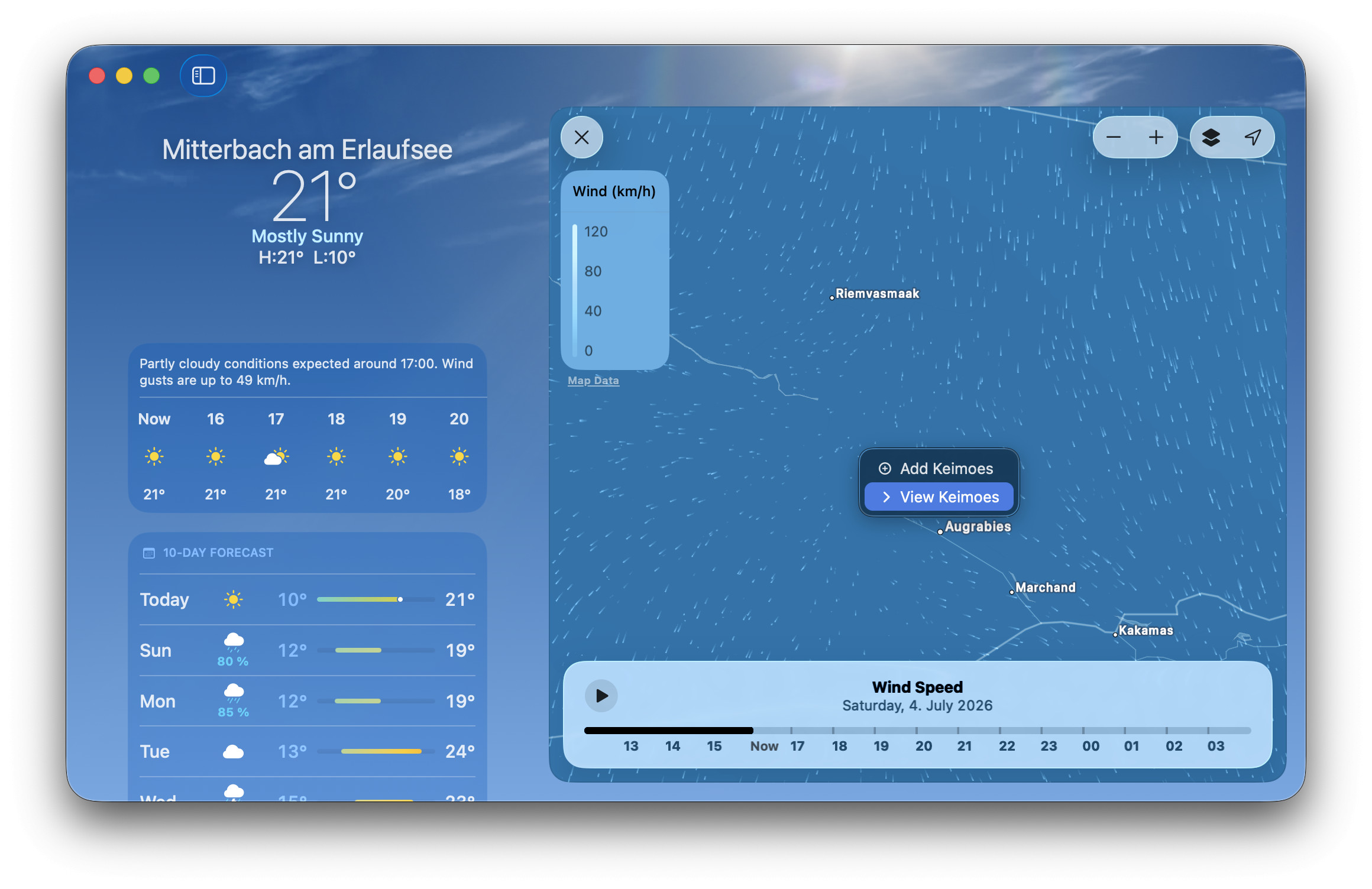
Here’s how: Click the currently highlighted weather map (wind speed, precipitation or air quality depending on current conditions) to expand the map.
Weather keyboard shortcut: You can also press Command K to toggle the expanded map display in Weather. - Find the desired location on the map..
Zooming: Pinch on a trackpad to zoom or use the + and - buttons.
Moving: Click and drag to move the map or use three-finger dragging. - Click on the desired location with the right mouse button.
- Select View {location} to show the weather and forecast for the place or Add {location} to add the location to your list of saved spots (and view its weather).
Organize Locations in Apple Weather
To reorder places in the list of saved locations in Apple Weather on a Mac:
- Open the locations sidebar in Weather; see above.
- Click, then drag and drop any location in the desired spot.
Current location: If the current location is available, it always takes the top spot.
Remove a Location from Apple Weather
To delete a place from your saved locations in Apple Weather:
- Open the Apple Weather sidebar; see above.
- Click on the location you want to remove with the right mouse button.
- Select Delete from the context menu that has appeared.
Swiping: You can also swipe across a place from right to left, then click the trashcan icon.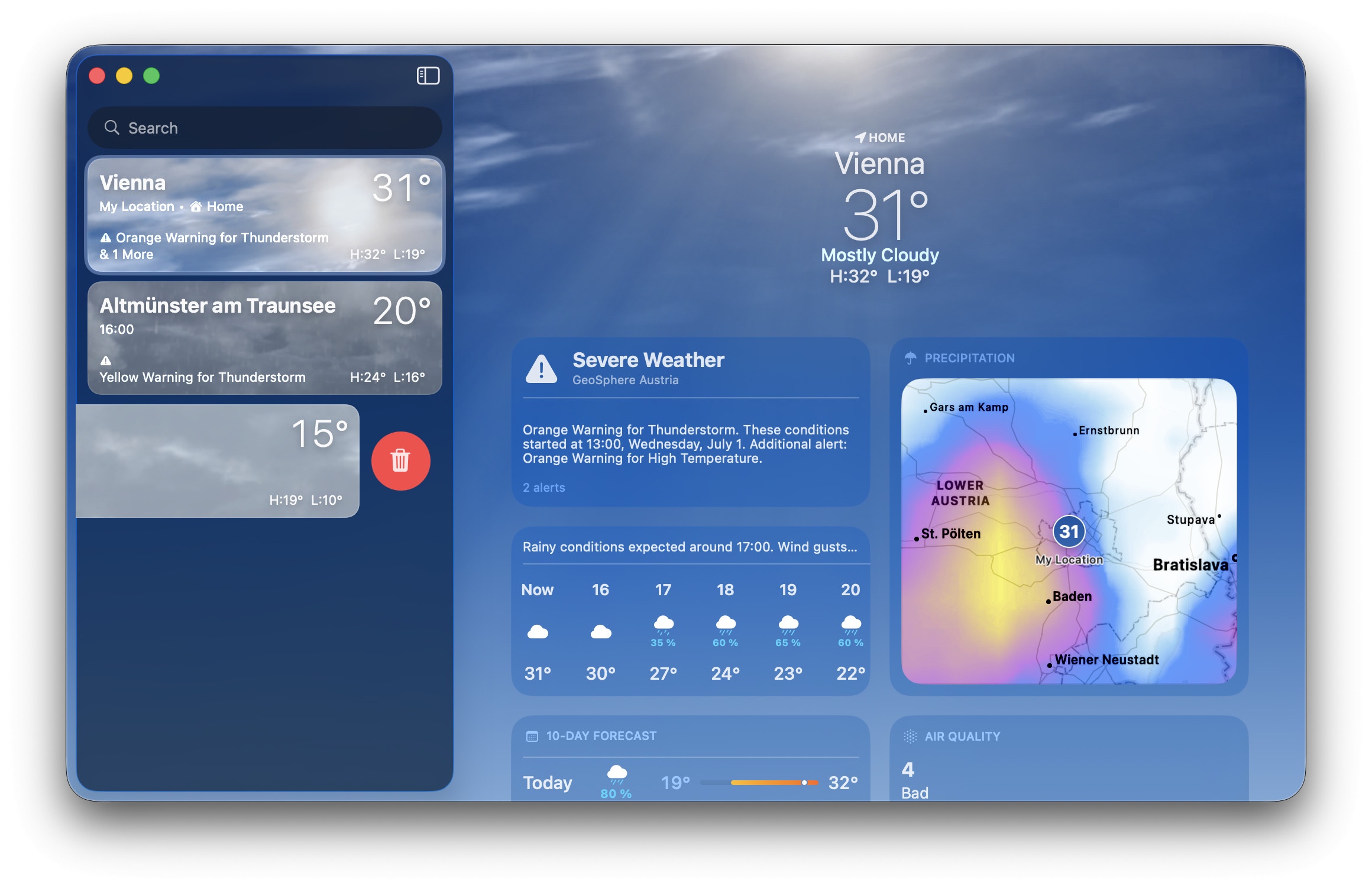
- Select Delete.
Remove the Current Location from Apple Weather
To stop Apple Weather from showing (what it thinks is) your current location in the top spot:
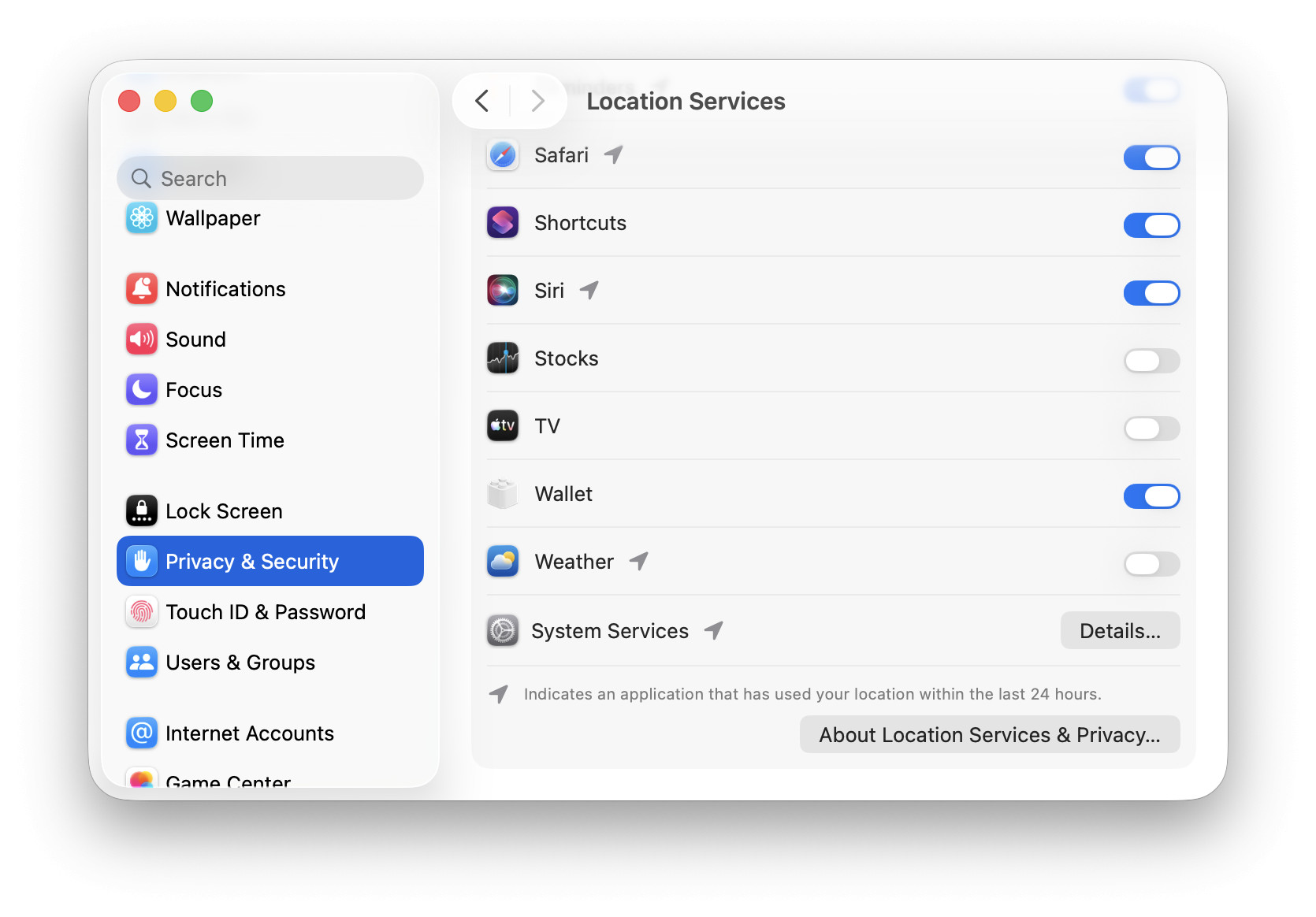
- Open System Settings on the Mac.
- Go to the Privacy & Security category.
- Choose Location Services.
- Turn off location services for Weather.
How to See Weather for Multiple Locations in Apple Weather for Mac: FAQ
Can I put a location other than the current location in the top place?
Only if you remove the current location.
Apple Weather reserves the top spot in its places list for the current location if it is available. You can remove the current location from the list altogether, of course.
Do locations synchronize with Apple Weather on other devices?
Yes.
With iCloud enabled for Weather, saved locations will synchronize between devices.
Can I have Weather automatically sort locations?
No.
New locations are always added at the bottom, and the list maintains the manual sort order.
Will I see saved locations in the macOS menu bar?
Yes.
The weather icon in the macOS menu bar always displays the top location (the current location if available or the top manually added location). The menu shows concise information for all other added locations.
(Tested with Weather 6.0 on macOS Tahoe 26; first published July 2026)