

Scrolling up should move things up — right? Don’t have time to adapt to the Mac way of mouse scrolling? Find out here how to reverse the mouse scroll direction on a Mac ⤓ with “natural scrolling” (and set it independently from the trackpad scroll direction).
On This Page
How to Reverse Mouse Scroll Direction on a Mac (Natural Scrolling On or Off)
⚡ Quick Fix
Open System Settings | Mouse and turn off Natural Scrolling.
Time needed: 2 minutes
To change the direction for scrolling with a mouse scroll wheel on a Mac:
- Open System Settings on the Mac.
Here’s how: You can select System Settings… from the Apple logo menu, for example.
- Go to the Mouse category.
No “Mouse”: If you see no Mouse category in System Settings, do make sure the mouse is connected via cable or Bluetooth; the category only shows when a mouse is connected.
- Turn off Natural Scrolling.
What this does: This will make scrolling with the mouse wheel mimic the traditional experience on Windows or Linux; the content on the screen moves opposite to your finger on the scroll wheel and along with the wheel.
Reverse scrolling: Do turn Natural Scrolling on, of course, for the scrolling to be reversed.
Per device: The setting applies to all trackpads and mice; see below for setting reverse scrolling per device.
Their word: Apple include information on mouse settings in the Mac User Guide.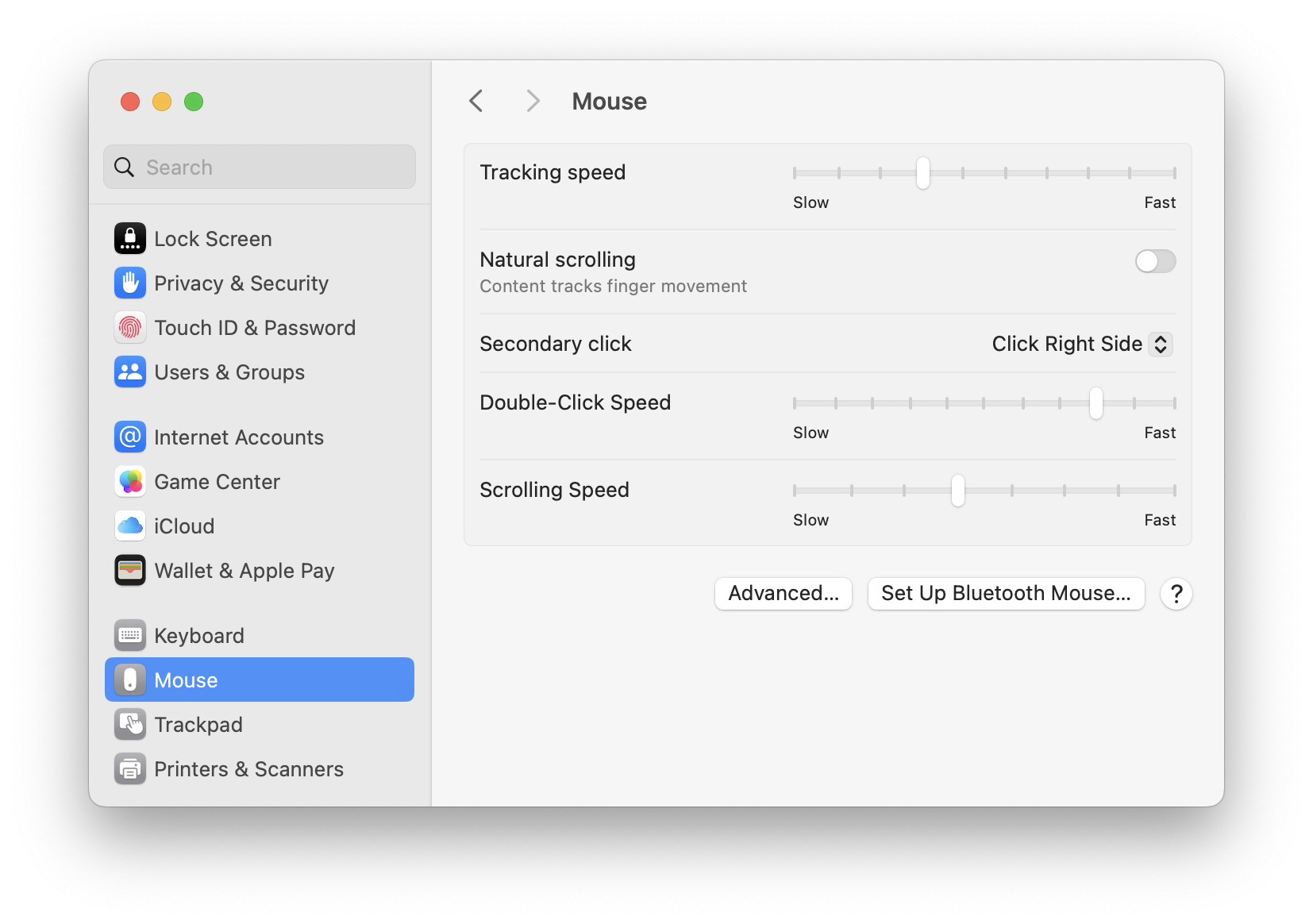
Scrolling behavior behaving at last?
Tips help fuel these email and tech how-tos.
How to Reverse Mouse Scroll Direction on a Mac (Natural Scrolling On or Off): FAQ
What is “natural scrolling”?
With Apple-dubbed natural scrolling, the page moves in the same direction as your finger. Think of it like grabbing and dragging the contents, like on a touchscreen.
Traditional scrolling moves the scrollbar instead. You move the scrollbar down to discover the bottom of a page (which moves the page contents upwards).
Can I have the mouse and trackpad scroll in reverse directions?
No, not with macOS alone.
The natural scrolling setting applies to all devices (all mice and all trackpads) in unison. When you change the scrolling orientation for the trackpad, it also changes for the mouse — and vice versa.
Yes, you can set the scrolling direction per device using additional apps, e.g.:
- Scroll Reverser: Enable natural scrolling in System Settings, for example, then reverse scrolling in Scroll Reverser only for the mouse to get traditional scrolling only for the mouse.
- LinearMouse: Set reverse vertical scrolling per device.
Looking for something to grab for scrolling? How to Show the Scroll Bar on a Mac
More settings: How to Change the Mouse Cursor Color on a Mac
No mouse? How to Right Click on a Mac (No Mouse? No Problem)
Can I set the mouse scroll direction in Terminal?
Yes.
Natural scrolling is controlled by the global com.apple.swipescrolldirection setting: true or 1 for natural scrolling, false or 0 for reverse scrolling.
To read the current setting, run defaults read -g com.apple.swipescrolldirection in Terminal.
To change the natural scrolling setting, run defaults write -g com.apple.swipescrolldirection true to enable and defaults write -g com.apple.swipescrolldirection false to disable.
This duplicates the setting in the Settings app.
(Tested with macOS Tahoe 26 and Sequoia 15; first published March 2025, last updated September 2026)