

[Archived] Tired of scrolling through pages and pages on Launchpad to find the software you want to open? Afraid you might develop complicated muscle memory and get used to a convoluted way of opening an app? You can make Launchpad your own instead and place the apps you need front and center (while those you use less often are on further pages or inside folders). Find out here how to rearrange app icons in macOS Launchpad on a Mac ⤓.
On This Page
How to Rearrange App Icons in macOS Launchpad on a Mac
This is an archived article.
Time needed: 5 minutes
To arrange app icons to your liking in Launchpad on a Mac:
- Open Launchpad on the Mac.
Here’s how: You can pinch with four or five fingers on a trackpad, for example, to bring up Launchpad.
- Drag and drop app icons to rearrange them.
Here’s how: Click the left mouse button to pick up an icon, drag it to the desired place while the mouse button is clicked, then release the button to drop the app icon in place.
Trackpad: On a trackpad, you can also use three finger dragging (and dropping).
Folders: To add an app to a folder, drag it on top of a folder until the folder is highlighted or opens, then drop it in place; see below for creating folders in Launchpad.
Screens full of apps: Move the app to the right or left edge of the screen to move it to the previous or next (or a new) screen; Launchpad also creates new screens on its own when the last screen is filled, of course.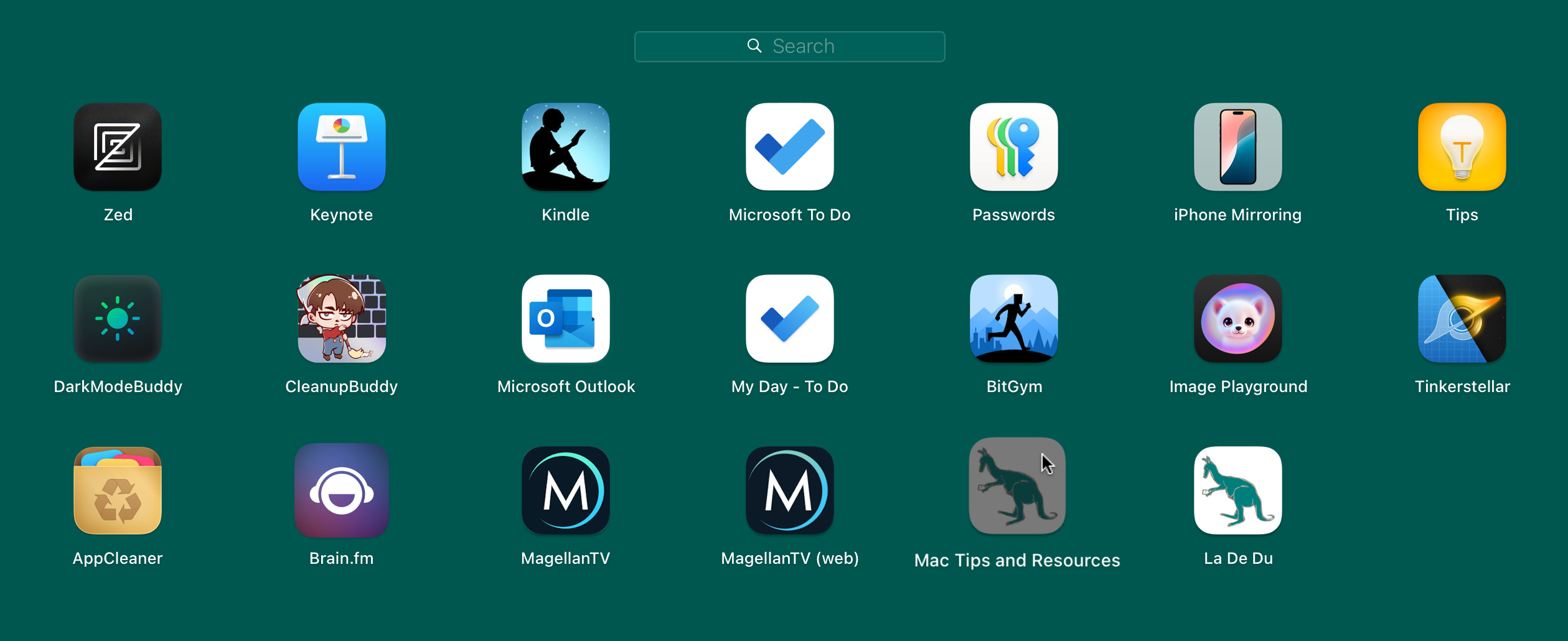
Create a New Folder in Launchpad
To set up a new folder of apps in Launchpad:
- Pick up one app you want to move to the new folder in Launchpad.
- Drag and hover it on top of another app that should be in the new folder.
Here’s what happens: A new folder will appear with a default name and the second app already in it.
The name: macOS will guess a name (something like Utilities) from the apps you have picked; if it cannot guess well, the default name is Untitled. - Position the app in the folder and release the mouse button.
Rename a folder in Launchpad
To change the name of a folder in Mac Launchpad:
- Click the folder to open it in Launchpad.
- Now click the current name.
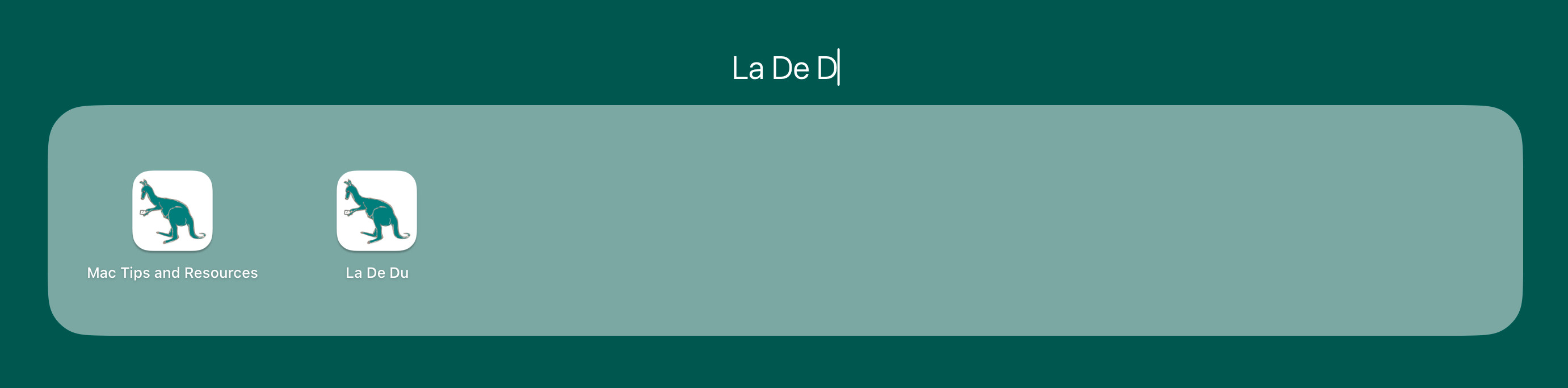
- Type the new desired name over the old one.
- Press Enter.
Taking off in order?
Tips help fuel these email and tech how-tos.
How to Rearrange Icons in macOS Launchpad on a Mac: FAQ
Can I set up folders inside folders in Launchpad?
No.
Launchpad on a Mac allows for only one level of folders. You can use Launchpad screens as one (first) level of folders, of course, and place certain folders on the rightmost screen in Launchpad, for instance.
Can I rearrange folders in Launchpad?
Yes.
You can move and arrange folders exactly like apps in Launchpad with one exception: you cannot move folders inside folders.
How can I remove an app from a folder?
To take an app out of a folder to either the top level or another folder:
- Click the folder in Launchpad to open it.
- Now click and drag the app to an area outside the folder and wait for the folder to close.
- Move the app to the desired position or new folder.
- Release the mouse button.
How do I delete a folder in Launchpad?
You need not delete folders in Launchpad, they cease to exist on their own when they have fulfilled their purpose.
To effectively remove a folder in Launchpad:
- Move all apps out of the folder.
Here’s what happens: As soon as only one app remains in the folder, it will disappear and the sole remaining app will move to the top level of Launchpad.
One app remaining: If macOS has kept a sole app in the folder, you can move that out to eventually remove the folder.
Can more than one folder have the same name in Launchpad?
Yes.
Multiple folders can share a name in Launchpad. You can set up two Utilities folders, for instance, and five called Untitled.
(Tested with macOS Sequoia 15; first published April 2025)