

Always juggling between browser tabs just to compare two things? Your mouse — and your patience — do deserve a break. Find out here how to open two web pages side by side in the same Google Chrome browser window ⤓.
On This Page
How to Open Pages Side by Side in Google Chrome
⚡ Quick Fix
Right-click any tab in Chrome and select Add tab to new split view. Alternatively, press Command Option N (Mac) or Alt Shift N (Windows and Linux).
Time needed: 1 minute
To see two pages next to each other in the same window or tab with Google Chrome:
- Click on the tab title of the first page you want to view in side-by-side view with the right mouse button.
- Select Add tab to new split view from the context menu that has appeared.
Chrome keyboard shortcut. To open a new split view, you can also press Command Option N (Mac), Alt Shift N (Windows, Linux) or Ctrl Alt N (ChromeOS).
Toolbar: You can also click the split view icon in the Chrome toolbar; see below for adding it to the toolbar. - Go to the page you want to open in the parallel view.
Existing page: To move an existing tab to that view, select it under Choose a tab to add to split view.
New page: Use the address bar to open a new page, of course.
Their word: Google include information on split view in Chrome help.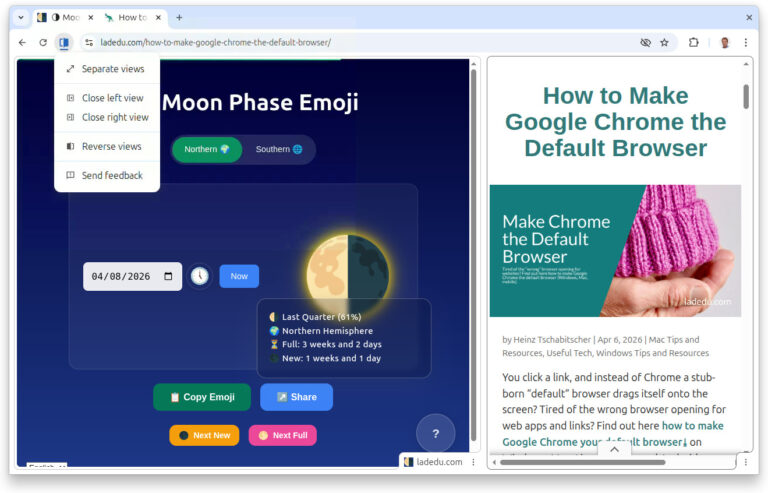
Doubled the fun?
Tips help fuel these email and tech how-tos.
Add the Split View Button to the Chrome Toolbar
To have a split view button always available in Chrome for opening new side-by-side views:
- Click the three dots menu button in Chrome.
- Select More Tools | Customize Chrome from the menu that has appeared.
- Click Toolbar.
- Turn on Open in split view under Navigation.
Open a Link in Chrome Split View (Easiest)
To open a link from the current page in a new split view:
- Click on the link with the right mouse button.
- Select Open link in split view from the menu.
Existing split view: Select Open link in right view or Open link in left view to open the link in an existing split view’s other side.
Drag to drop: You can also drag the link to the left or right edge of the current window and drop it onto Create split view once it appears.
Close Split View and Open Pages in Separate Tabs Again
To turn the two pages in a split view into two separate tabs again in Chrome:
- Switch to the tab that shows the two pages in split view.
- Click the split view button in the toolbar.
Tab bar alternative: You can also click on the split view’s tab with the right mouse button and go to Arrange split view in the context menu.
Bottom of the window alternative: Another place to find a menu for acting on split view is the lower right corner of either page; click the three dots menu in that spot. - Select Separate Views from the menu that has appeared.
A cleaner new tab page: How to Use a Blank New Tab Page in Chrome (about:blank)
How to Open Pages Side by Side in Google Chrome: FAQ
Can I open more than two pages side by side?
No.
Chrome can open two pages side by side in split view. To see more pages next to each other, you can use your operating system’s window manager to split the screen (e.g. using Windows tiles).
Can I have Chrome open links on the other side automatically?
No.
To open a link from the current page on the other side, use the link’s context menu; see above.
Is there a keyboard and mouse combination for opening a link on the other side?
No.
There is, alas, no (fast) alternative to the context menu.
Can I open the same page twice?
Yes, of course.
Opening the same page on both the left and the right makes it easy to compare two sections, for example.
Can I change the relative size of the pages in split view?
Yes.
To change how much of the screen estate is given to each of the pages open in split view:
- Drag the bar that separates the two pages.
Can I split a tab horizontally?
No.
Tabs split vertically.
How do I know which side is active?
The split view side that is active has a darker outline and is filled in the split view button on the toolbar.
(Tested with Google Chrome 146–154; first published April 2026)