

Staring at a long and unwieldy Control Center menu on your Mac with focus modes, Wi-Fi, audio, accessibility and everything else jumbled together? Without advertising it, macOS lets you split these actions into multiple, dedicated Control Center sheets. Find out here how to add custom Control Center menus to your Mac ⤓ for easy and quick access.
On This Page
How to Add Custom Control Center Menus to Your Mac for Easy Access
Time needed: 6 minutes
To set up additional macOS menu items for accessing. custom Control Center items on a Mac:
- Open Control Center.
Here’s how: You can click the Control Center menu item next to the clock in the menu bar, for example.
Mac keyboard shortcut: You can also press Fn C to open standard Control Center. - Click Edit Controls.
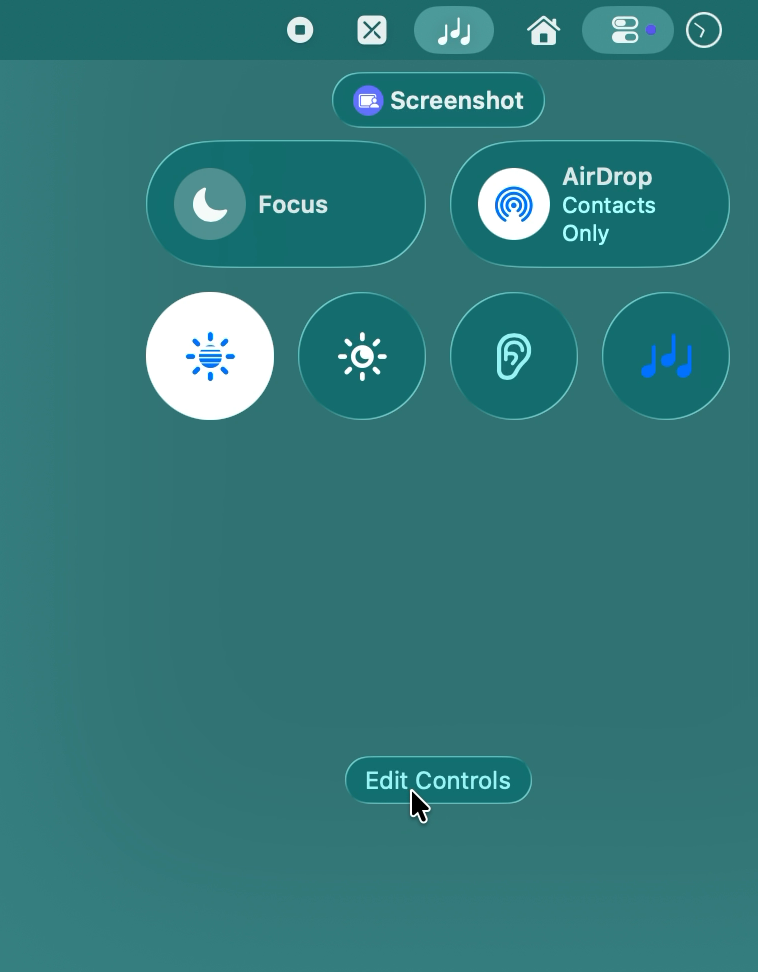
- Now click the plus sign (+) in the menu bar.
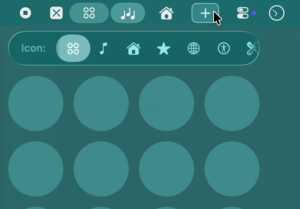
- Optional: Choose an icon for the menu bar item that will open the new Control Center sheet under Icon.
- Drag and drop items from the available controls to the desired spots on the new Control Center menu sheet.
At least one: macOS will not save empty Control Center menus; add at least one item to set up a custom Control Center menu.
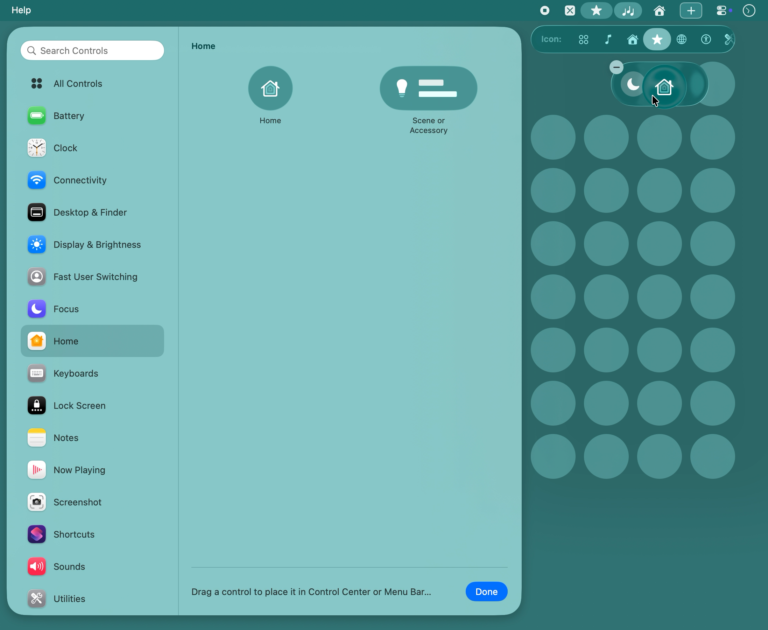
- Click Done.
Control Sheet Examples
- “Connectivity”: Wi-Fi, Bluetooth, AirDrop
- “Media”: Now Playing, Podcasts, Volume
- “Work”: Grayscale mode, Background Sounds, Focus
Fully in controls now?
Tips help fuel these email and tech how-tos.
How to Remove a Custom Control Center Menu from the macOS Menu Bar
To delete a menu bar item with its custom control center items from your Mac:
- Hold down the Command key while you drag the unwanted Control Center item from the menu bar until Remove appears beneath the item’s icon.
Rearrange: Drag items around in the menu bar while you hold Command to re-arrange them. - Release the mouse button.
You can also use the control editing screen, of course, to remove extra menu bar items.
- Open any Control Center menu.
- Select Edit Controls.
- Drag the item to be removed with the mouse from the menu bar until Remove appears.
- Release the mouse button.
How to Add Custom Control Center Menus to Your Mac: FAQ
Can I have the same control in more than one menu?
Yes.
You can add multiple copies of the same Control Center item to as many different Control Center menus as you like — or even add multiple copies of an item to the same sheet.
Can I remove or re-arrange the standard Control Center menu item?
No.
The default Control Center menu item is always present next to the Mac menu bar clock. You can neither move nor remove it.
Want to get all menu items out of the way?
How to Hide the Menu Bar on a Mac
Can I add my own menu bar icons for Control Center menu items?
No.
Choose from the icons available.
(Tested with macOS Tahoe 26; first published August 2026)