

You’re traveling or shopping abroad and stumble on a price in a currency you can’t convert in your head? No more mental math or app-hunting: your iPhone handles it instantly via context menu, Calculator or Camera. Find out here how to convert currencies instantly on your iPhone ⤓.
On This Page
How to Convert Currencies Instantly on Your iPhone
Convert Currencies with the iPhone Context Menu
Time needed: 1 minute
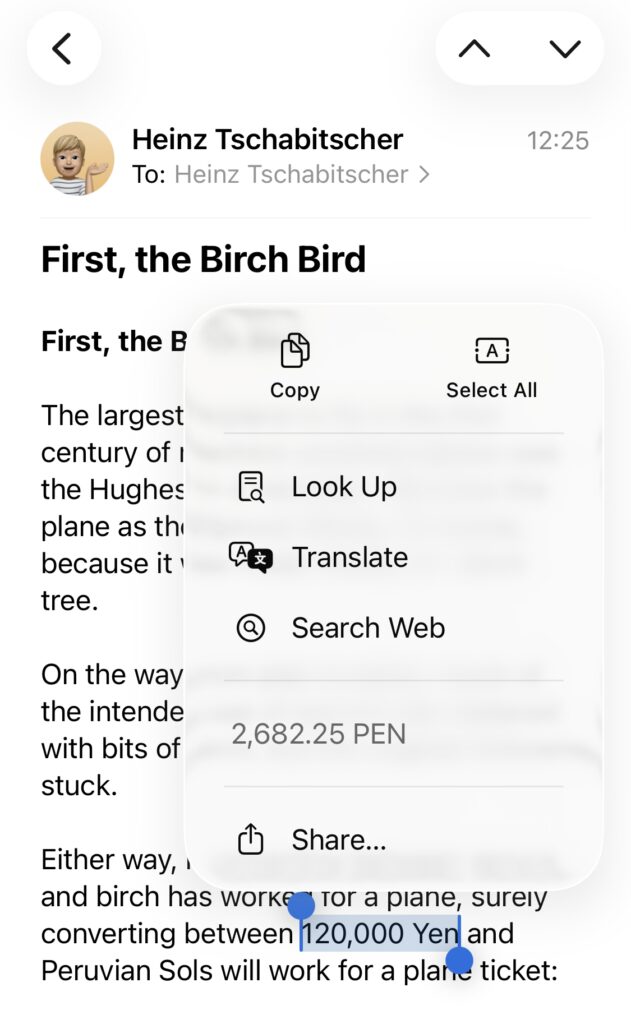
To see foreign currencies converted to your default iPhone currency quickly using the context menu:
- Highlight the currency amount together with the currency’s name or symbol.
Underlined currency: In apps that recognize amounts of currency, you will see the amount and the currency symbol, name or abbreviation marked out with a single underline.
- Tap > to expand the context menu.
Underlined: With an underlined currency amount, tap the underlined text to see it converted; tap the converted amount in the context menu to copy it.
- Find the amount converted to your device’s default currency in the context menu.
Beyond the inflation of currencies?
Tips help fuel these email and tech how-tos.
Convert Currencies with the iPhone Camera
To convert to your iPhone’s default currency right in the Camera app:
- Point the camera at the currency amount you want to convert.
Point or picture: You need not take a picture to convert, but you can convert from an image as well, of course. - Tap the OCR button to have the iPhone recognize text.
- Now tap the underlined monetary amount plus currency symbol to see it converted to the default currency.
Alternative: You can also tap the extracted text at the bottom.
Copy: Tap the amount in your default currency to copy it.
No underline: If the iPhone Camera does not recognize the currency amount, you can select and copy the number to convert using the Calculator app; see below.
While you’re out and about: How to Use iPhone Calendar with a Different Time Zone
Change Your iPhone’s Default Currency
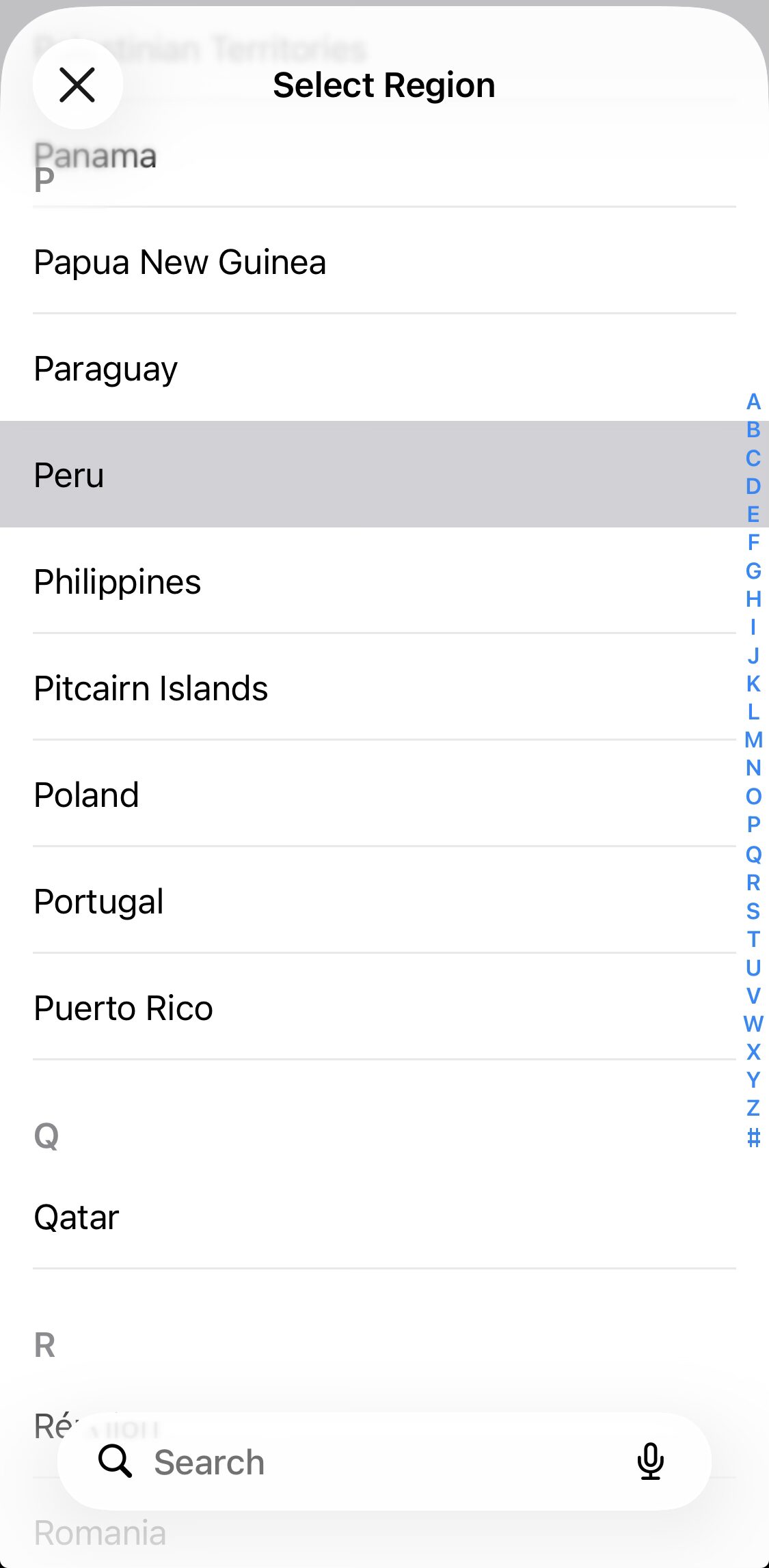
To change the iPhone default currency——which also is the currency for context menu conversions:
- Open the Settings app.
- Go to the General category.
- Choose Langauge & Region.
- Tap Region.
- Choose the region whose currency you want to use.
How to Convert Currencies Instantly on Your iPhone: FAQ
Does the iPhone use a current conversion rate?
Yes.
iOS retrieves the latest rate from Yahoo Finance for converting currencies.
Typing currency symbols: How to Type Hidden Special Characters on iPhone Keyboard
Can I convert to a currency other than the region’s default?
Yes.
To convert between arbitrary currencies on iPhone:
- Copy the numerical amount you want to convert.
Currency abbreviations: You can copy the amount together with the currency name or abbreviation (such as “USD”); when you paste in Calculator later, the non-numeric characters will be ignored. - Open Calculator on the iPhone.
- Tap the calculator button.
- First, select Basic or Scientific from the menu.
Here’s why: Math Notes mode lets you easily convert to the default currency, but not to custom currencies. - Tap the calculator button again.
- Now select Convert so it is checked.
- Paste or type the amount you want to convert in the upper or lower row.
Here’s how: Tap and hold in the row, then select Paste from the context menu to paste. - Choose the origin and the target currencies from the row’s menus.
Their word: Apple include information on converting units using Calendar in the iPhone User Guide.
(Tested with iOS 26; first published May 2026)