

Want to interrupt yourself in style and writing? Looking to give number ranges with typographic accuracy? Find out here how to insert en dash (‘–’) and em dash (‘ — ’) using the keyboard on Android devices ⤓ (using Google Gboard or Microsoft SwiftKey).
On This Page
How to Insert En Dash ( – ) and Em Dash ( — ) on an Android Keyboard
⚡ Quick Fix
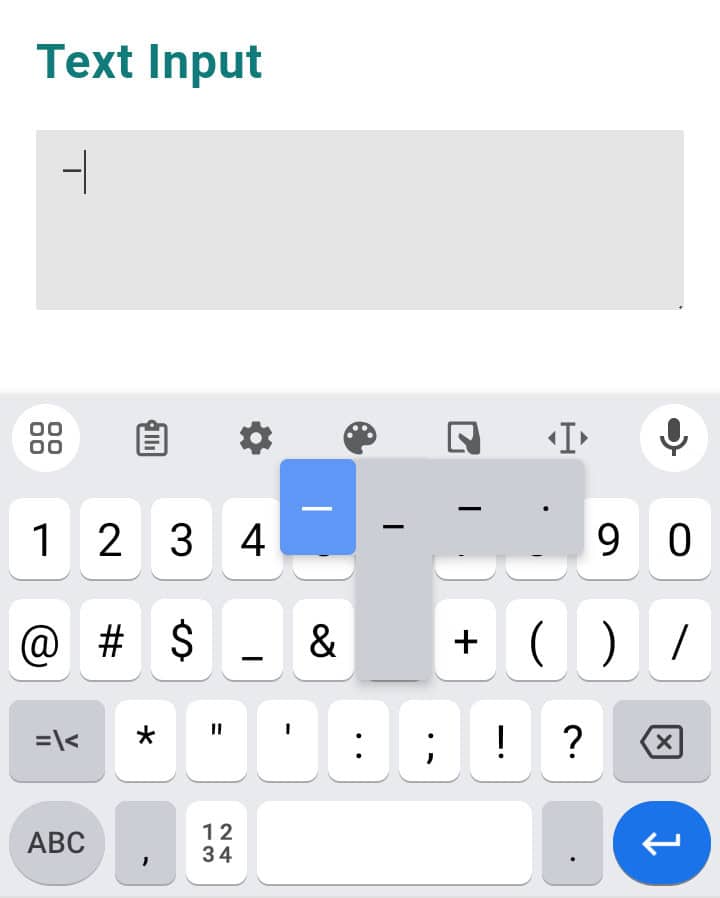
Tap ?123, touch and hold - (minus) and slide to – or —, then release to insert.
Time needed: 1 minute
To insert the longer hyphen character en dash (‘–’) and em dash (‘ — ’) on Android using the keyboard:
- Position the text cursor where you want to insert the en-dash or em-dash character.
Here’s how: Tap and hold the text, move your filter to position the cursor where you want to enter the dash, then let go.
Here’s where: Position the en-dash and em-dash directly following and directly before the surrounding characters in most cases. - Tap ?123 on the keyboard.
- Now tap and hold the - (minus) key.
- Move your finger to highlight either – (en dash) or — (em dash).
- Let go of the respective key to insert its character.
Keyboard: The steps assume the Google Gboard keyboard (which is the default for many an Android installation); see below for SwiftKey.

En-dashing through your drafts?
Tips help fuel these email and tech how-tos.
How to Insert En Dash and Em Dash on an Android Device: FAQ
What are the steps to enter em dash and en dash with SwiftKey?
To insert en- and em-dash using the Microsoft SwiftKey keyboard on an Android device:
- Tap 123.
- Now tap and hold - (minus).
- Move the input focus to select en dash (–) or em dash ( — ).
- Let go to insert the respective character.
Can I also copy the hyphens for pasting?
Yes.
Em dash hyphen — | |
En dash – |
Two em dash ⸺ | |
Three em dash ⸻ |
(Tested with Gboard 14.9 and SwiftKey 9; first published October 2024, last updated September 2026)