
Did your birthday ideas slip into the wrong hands, or did someone accidentally stumble upon sensitive client data while borrowing your phone? Find out here how to lock and protect Apple Reminders on an iPhone or iPad with Face ID ⤓, a passcode or Touch ID.
On This Page
How to Lock Apple Reminders with Passcode, Face ID or Touch ID on iPhone
⚡ Quick Fix
Touch and hold the Reminders app, then select Require Face ID (or Require Touch ID/Passcode).
Time needed: 2 minutes
To lock the Apple Reminders app on iPhone or iPad using Face ID, Touch ID or a passcode:
- Go to the Home Screen on the iPhone.
- Tap and hold the Reminders app.
Search: You can also search the device for
reminders, then tap and hold the Reminders app in search results, of course. - Select Require Face ID from the context menu that has appeared.
No “Face ID”: Depending on the device and the authentication methods you have set up on it, you will see Require Touch ID or Require Passcode.
- Select Require Face ID (or Touch ID or Passcode) again.
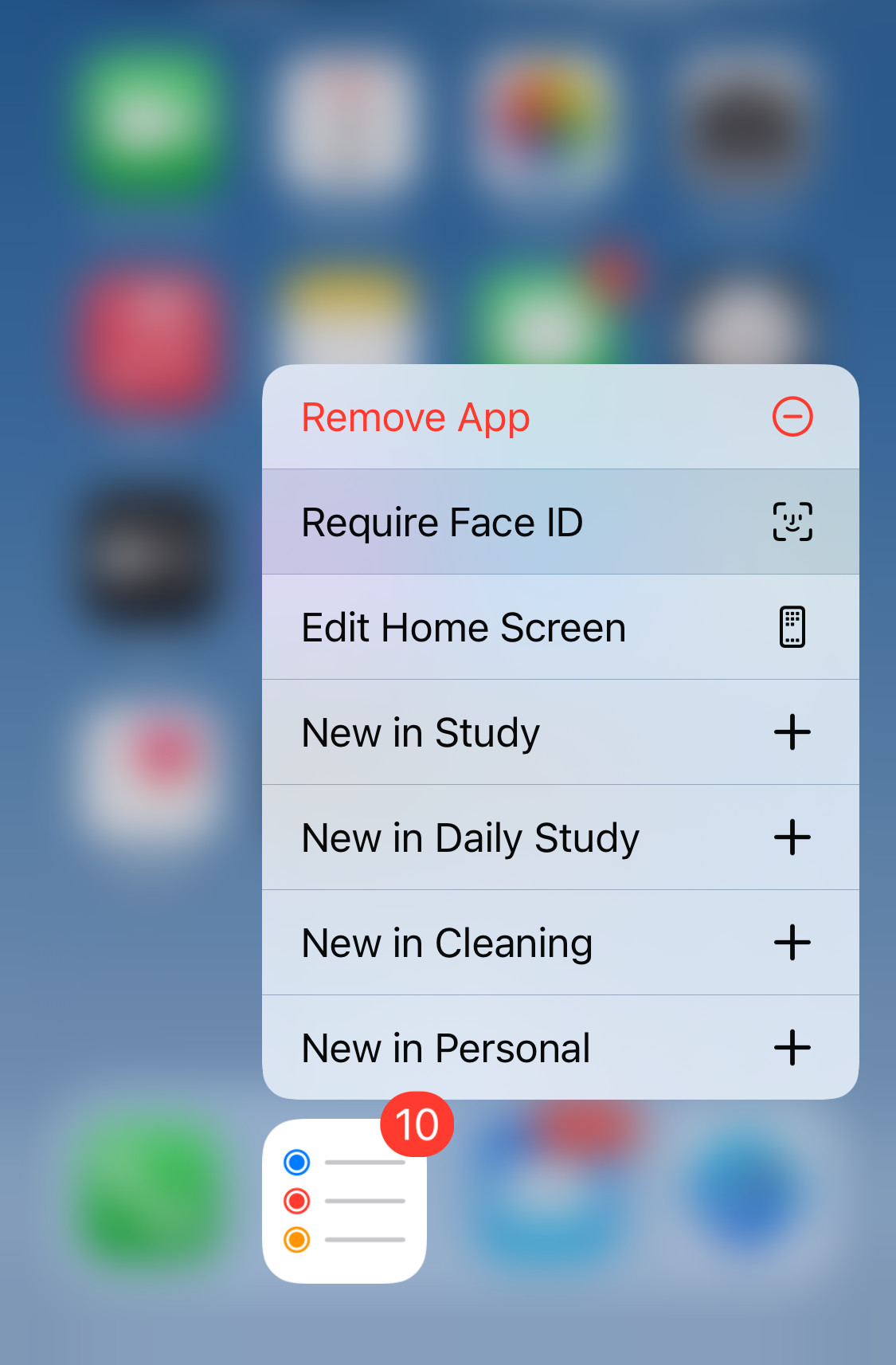
- Authenticate with the method chosen.
Their word: Apple include information on locking apps in the iPhone User Guide.
Facing privacy?
Tips help fuel these email and tech how-tos.
Open Reminders Once It Is Protected
To access your tasks in Apple Reminders when the app is protected with Face ID, Touch ID or passcode:
- Open Reminders.
- Authenticate using the chosen authentication method.
Turn Off Face ID, Touch ID or Passcode Protection for Reminders
To open Reminders without authentication again:
- Tap and hold Reminders on the Home Screen or iPhone search results.
- Select Don’t Require Face ID (or Don’t Require Touch ID or Don’t Require Passcode) from the menu.
- Authenticate using the chosen method.
How to Lock Apple Reminders with Passcode, Face ID or Touch ID on iPhone: FAQ
Will I get still get notifications about tasks with Reminders locked?
Yes.
Task notifications from Reminders appear the same whether Reminders is protected or not. You can control how notifications appear independently, too.
To have alerts for Reminders tasks not appear on the Lock Screen:
- Open the Settings app.
- Select Notifications:
- Now choose Reminders.
- Disable Lock Screen.
Can I use Siri to create tasks with Reminders locked on iPhone?
Yes.
Siri will prompt you to authenticate to unlock Reminders before it creates the task, though.
Can I protect Reminders on a Mac in a similar fashion?
No.
MacOS does not currently allow the protection of individual apps with authentication.
(Tested with iOS 18 and 26; first published February 2025, last updated September 2026)