

Tired of spelling out “foot,” “inch,” “minute,” “second” or “prime” every time? Can’t find the keys for the prime signs on your keyboard? Find out here how to input the foot ( ′ ) and inch ( ″ ) marks (as well as minute, second and other prime symbols) on Windows ⤓.
First, a Sudden Drop in the Road
As a London bus driver, do you expect the road to suddenly drop off in front of you?
Neither did Albert Gunter driving the route 78 bus on December 30, 1952. On second glance, he realized it was not so much the road sinking as his bus rising — together with the half of Tower Bridge that lifted first.
Instead of braking and hoping for the best, Mr. Gunter decided on accelerating and putting the bus to a test. He put the foot down, and the bus jumped the (reportedly) 6-foot gap. The passengers were thrown about a bit and rattled — but safe.
With so many feet up in the air and on the screen, how about we find a way to abbreviate them with one character? Let’s… jump in:
How to Type Foot ( ′ ) and Inch ( ″ ) Marks on Windows
Using Windows Character Map to Input the Foot and Inch Symbols
Time needed: 3 minutes
To use the Character Map application to find and input prime symbols (including the foot and inch marks) on Windows:
- Open Character Map on Windows.
Here’s how: Press Windows to open the Start menu, start typing
character map, then select the Character Map application to open it. - Check Advanced view.
- Type
2032under Go to Unicode :.Here’s why: U+2032 is the Unicode code point for the foot or minute mark; going directly to this character is Character Map is the fastest way to access most of the prime symbols — including foot, inch, and triple prime.
- Double-click the highlighted foot or minute sign to move it to the Characters to copy : field.
Inch: For the inch (or second) symbol, double-click the next symbol (U+2033: Double Prime).
Triple prime: The symbol following inch is the triple prime.
- With the desired character visible under Characters to copy :, click Copy.
- Paste the foot or inch mark where you want to insert it.
Using the Windows Emoji Keyboard to Insert Foot and Inch Marks
To use the Windows emoji keyboard to find and input the prime signs (or foot and inch marks):
- Position the text cursor where you want to put the symbol.
- Bring up the Windows emoji panel.
Here’s how: You can press Windows . (period), for example. - Go to the Symbols tab.
- Select General punctuation.
- Click the desired foot or inch mark to insert it.
Here’s where: Use the image below as a guide; the symbols do, alas, have no description and look very similar (if not identical) to similar, but different characters.
Using the keyboard: You can also use the arrow keys to highlight the prime symbol, then press Enter to insert it.
Their word: Microsoft include information on the emoji panel in Windows help.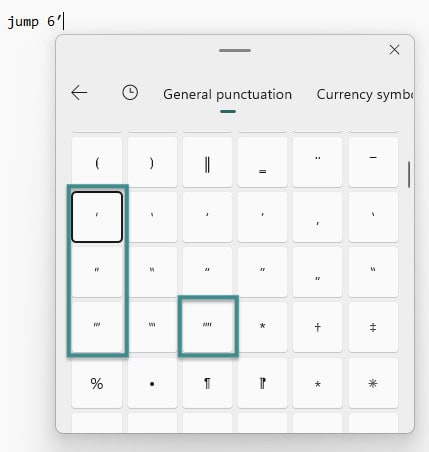
Footmark firmly planted?
Tips help fuel these email and tech how-tos.
Copy the Foot and Inch Marks (Prime Signs) for Pasting on Windows
To copy the various prime symbols for use anywhere in Windows, use the tables below:
prime, arc minute or foot ′ | |
double prime, arc second or inch ″ | |
triple prime ‴ | |
quadruple prime ⁗ |
modifying single prime ʹ | |
modifying double prime ʺ |
Use the modifying prime symbols in particular for derivatives.
Example:
Insert the Foot and Inch Signs in Word for Windows
Word for Windows has its own additional means of inserting the prime symbols.
How to Input Foot ( ′ ) and Inch ( ″ ) Symbols on Windows: FAQ
Can I enter the foot and inch symbols using the Windows keyboard directly?
No.
The standard keyboard layouts for Windows do not include any combination that will input the prime (foot, inch, minute and second) signs directly.
Can I use Windows “Alt” codes to insert the foot and inch symbols?
No.
The foot and inch marks (as well as other prime signs) do not have “Alt” codes defined in Windows. You cannot insert them with Alt and a number.
Can I use quotation marks to stand in for the foot and inch symbols?
Yes.
To avoid the hoops of inserting foot and inch symbols (and at the price of slightly less attractive or typographically correct documents), you can use straight quotation marks in lieu of the single and double prime signs:
| Prime Symbol | Quotation Mark Replacement |
|---|---|
| ′ | ' |
| ″ | " |
Curly apostrophes (”’)or typographic quotation marks are no good substitutes, though..
(Tested with Windows 11 Version 24H2–25H2; first published April 2025, last updated March 2026)