

Tired of opening folders side by side in Finder just to move or copy files? What if folders could magically spring open as you drag for dropping? Find out here how to have folders open as you hover over them with the mouse in Mac Finder (when you drag and drop files) — and how to adjust the speed to suit your needs, too.
First, from the Side and from Above
Seen from the side, the landscape looks just as is its wont and habit on this volcanic island: barren, black, stony and seemingly lifeless.
Hover over what turn out to be little craters, though, and you shall see freshly contrasting green grapevines spring forth, soon to bear berries for Lanzarote’s special wines. The craters have been dug since the 18th century by the island’s vintners to protect the plants from the prevailing hot winds.
With that in mind, want folders on a Mac to spring forth, too, and reveal their contents as you hover over them with a mouse for dragging and dropping?
How to Enable Spring-Loading in Mac Finder and Have Folders Open on Mouse Hover
Time needed: 2 minutes
To have macOS Finder open folders as you hover over them with the mouse cursor while dragging files on a Mac:
- Open System Settings on the Mac.
- Go to the Accessibility category.
- Select Pointer Control under Mobility.
- Enable Spring-loading under Mouse & Trackpad.
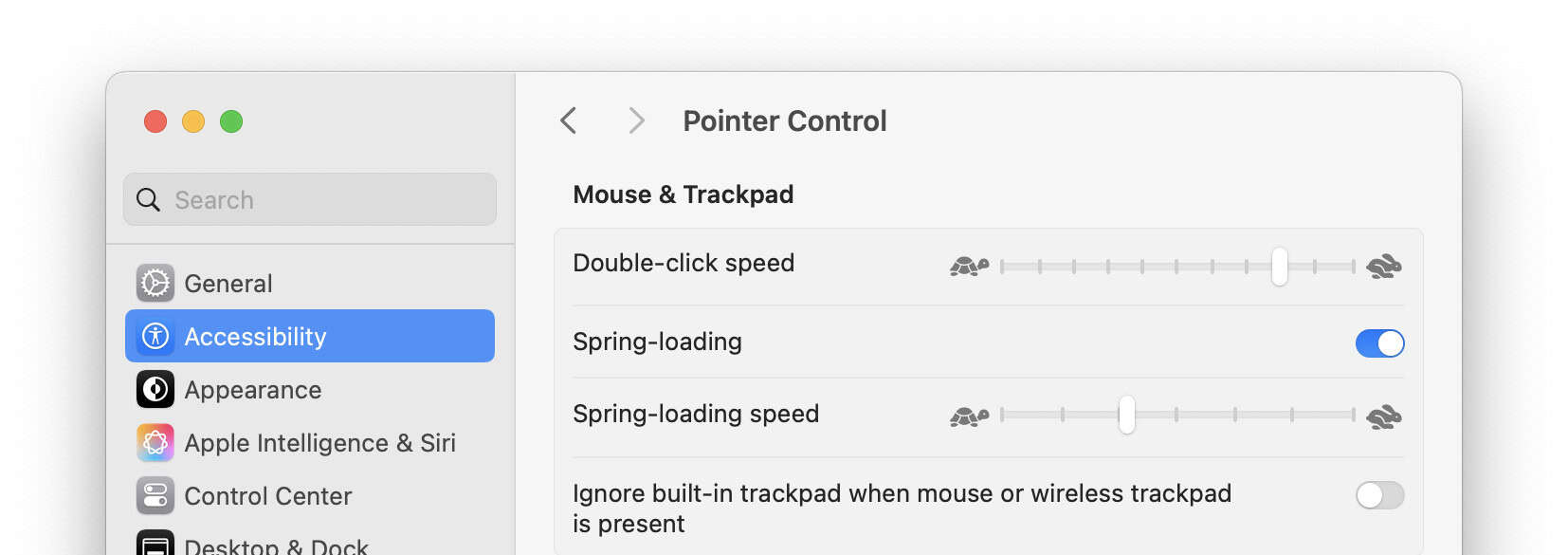
To use spring-loading folders, use three-finger dragging in Mac Finder, for example, to drop files into folders inside folders.
Change How Long You Have to Hover for Folders to Open
To change how long it takes for a spring-loading folder to open after you have positioned the mouse cursor over it:
- Go to the Pointer Control settings in System Settings (see above).
- Choose the desired delay under Spring-loading speed.
Here’s how: To the left is a long delay starting at a few seconds; to the very right is a practically inexistent delay.
How to Enable Spring-Loading in Mac Finder and Have Folders Open on Mouse Hover: FAQ
After a folder has spring-loaded, how do I go back?
To go back from a spring-loaded folder to its parent in Finder when you drag and drop (without dropping):
- Move the mouse cursor over the back button (See folders you viewed previously).
- Hold it until that “folder,” in turn, spring-loads.
Can I use keyboard shortcuts to go back or up a level?
No.
While you drag and drop, Finder keyboard shortcuts do, for the most part, not work. You can press Esc to cancel dragging, of course, and return to the original folder.
(Tested with macOS Tahoe 26.0–26.2 and Sequoia 15.2–15.4; first published May 2025, last updated December 2025)