

“I wanted a photo, and all I got was this video.” If that is your situation, you can get just the frame you want from that movie as a screen grab or still — without resorting to a blurry screenshot. Find out here how to extract a still image from a movie on a Mac (using just Photos or iMovie and without installing additional software).
First, Honey, But No Bees
Around the year 327 BCE and presumably on the banks of the River Indus, Nearchos — one of the generals that accompanied Alexander — is famously reported writing down something he had noticed about everyday life in Northern India:
A reed [here] brings forth honey without the need of bees, from which an intoxicating drink is made, though the plant bears no fruit.
This is one of the first written records of the sweet wonder of the sugar cane. With that in mind, are you looking for an everyday movie that brings forth a still image without the need of a screenshot, though you haven’t installed any additional apps on your Mac?
How to Extract a Still Image from a Movie on a Mac
Extract a Still with macOS Photos
Time needed: 5 minutes
To save a still image as a TIFF file from a movie using only apps that come with macOS on any Mac:
- Import the video into Mac Photos (if it is not already in your Photos library).
Here‘s how: You can import videos by dragging and dropping them onto the Photos app icon in the Dock or select File | Import… in Photos.
Formats: Photos supports mostly MPEG-4 video; see below for details. - Open the video.
Here’s how: Double-click the video or press Space with the video highlighted.
Here’s where: Newly imported files are automatically gathered in the Utilities/Imports folder. - Use the scrubbing bar to go to the frame you want to save as a still image.
No stepping in: There is, alas, no way to use the keyboard or any gesture to advance the video frame by frame; you can use iMovie to scrub more precisely if needed.

- Select File | Export | Export Frame to Pictures from the menu.

- Open the “Pictures” folder in Mac Finder.
Here’s how: You can press Command Shift H to open your home folder in Finder, for example, then open the Pictures folder in it.
- Find the frame saved as a TIFF file with the export timestamp in its filename.
TIFF: You can open the TIFF file in Preview, for example, to convert to the desired format, e.g., JPEG.
Optional: Delete the imported movie file from Photos.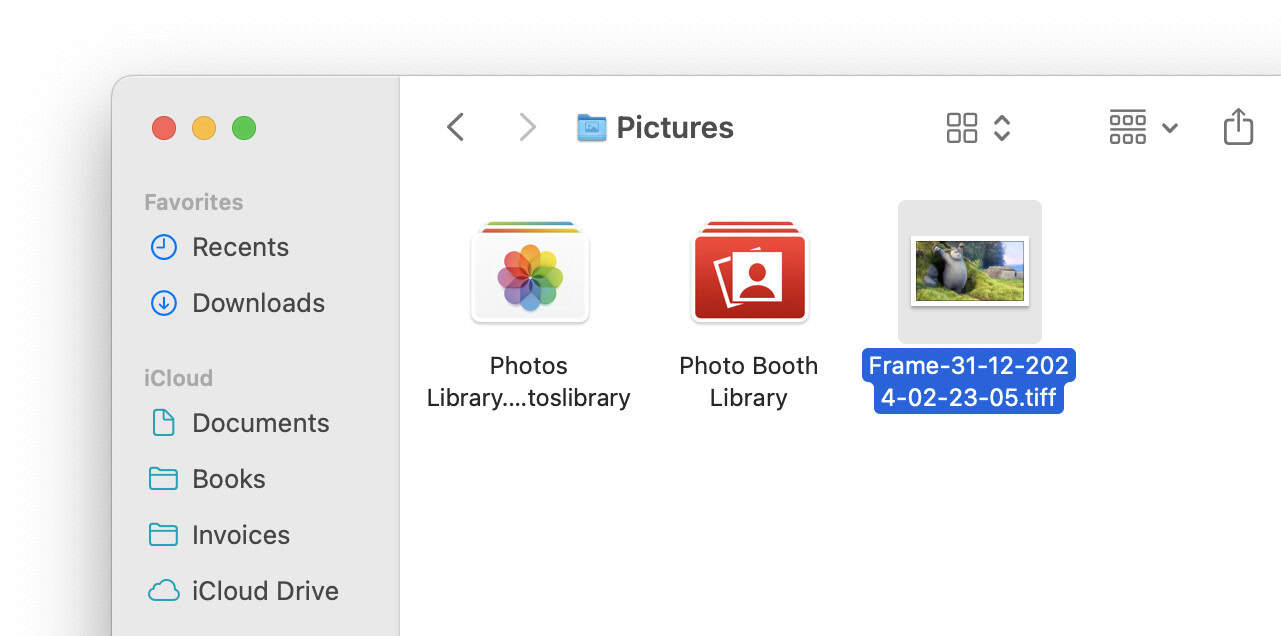
Save a Movie Frame from iMovie
To save a still image from a movie as a JPEG file using iMovie on a Mac:
- Import the movie file into iMovie.
Here’s how: Go to Media in iMovie, then drag and drop or use File | Import… to import. - Mouse over the clip to find the location you want to save as still image.
Precision: Use the left and right arrow keys to step through frames. - Select File | Share | Image… from the menu.

- Pick a file name and location using the Save dialog.
Format: iMovie will save the image as a JPEG file. - Click Save.
How to Extract a Movie Frame as a Still Image on a Mac: FAQ
What video file formats are supported in Apple Photos for Mac?
You can import a number of video file formats (mostly using the MPEG-4 video format) into the Photos app. For unsupported formats, seek to convert the video to an MPEG-4 (MP4) file.
Video File Formats Supported in Apple Photos for Mac
| Video Format | File Extensions |
|---|---|
| ✅ MPEG-4 | .MP4 .M4V |
| ✅ QuickTime | .MOV .QT |
| ✅ 3GP MPEG-4 | .3GP .3G2 |
Video Formats Not Supported in Apple Photos for Mac
| Video Format | File Extensions |
|---|---|
| 🚫 AVI (Audio Video Interleave) | .AVI |
| 🚫 Flash Video | .FLV .F4V |
| 🚫 Matroska Video | .MKV |
| 🚫 RealVideo | .RV .RM |
| 🚫 WebM | .WEBM |
| 🚫 Windows Media Video | .WMV |
(Tested with macOS Tahoe 26.0 and Sequoia 15.2–15.5; first published January 2025, last updated December 2025)