

Looking for a cleaner start to every new tab you open in Safari? Tired of all the patterns it has to offer for the start page? Find out here how to disable the Start Page background image in Safari for Mac, iPhone and iPad ⤓ — and how to change the background color to boot.
On This Page
First, a Sound Background
The startup sound of Windows 95 was composed by Brian Eno — on a Mac, naturally, though that’s another story.
Eno is best known, of course, for his ambient music, the kind of sound background you barely notice until it suddenly stops.
Now, if you’d like to stop the visual background music in Safari, you don’t need Windows 95. A Brian Eno soundscape sure won’t hurt, but all you really need is a little option change:
How to Disable the Start Page Background Image in Safari
Time needed: 2 minutes
To remove the background image from the Safari start page on a Mac, iPhone or iPad:
- Open the Safari start page.
Here’s how: Select Bookmarks | Show Start Page from the menu on a Mac and open a new tab in Safari for iOS and iPadOS.
- Select Edit.
- Turn off Background Image.
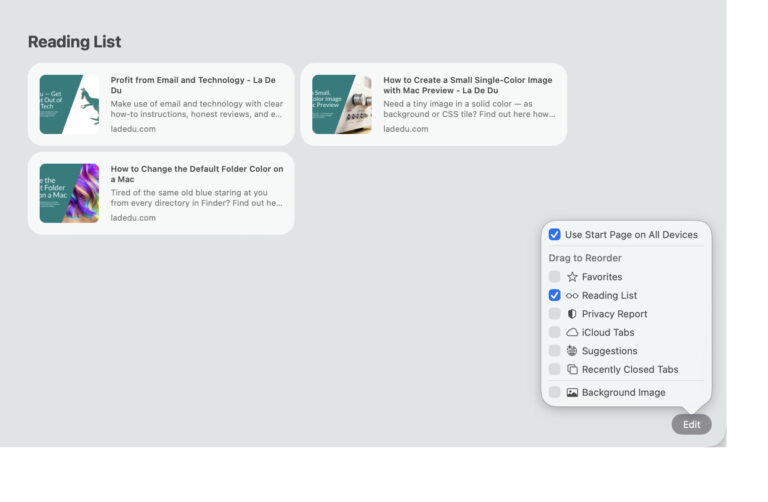
No background: check ✓?
Tips help fuel these email and tech how-tos.
How to Disable the Start Page Background Image in Safari: FAQ
Can I change the color of the Safari start page?
Yes, with a background image.
While you cannot change the color of the Safari start page, you can pick a single-colored image as the background, of course.
To set a custom Safari Start Page background image:
- Open Start Page settings in Safari; see above.
- Turn on Background Image.
- Click or tap + in the list of available
No +. Safari only saves one custom background image; use x for the existing background to add a new one. - Use Photos or the file explorer to choose the single-color image you’d like to use for the Safari Start Page background.
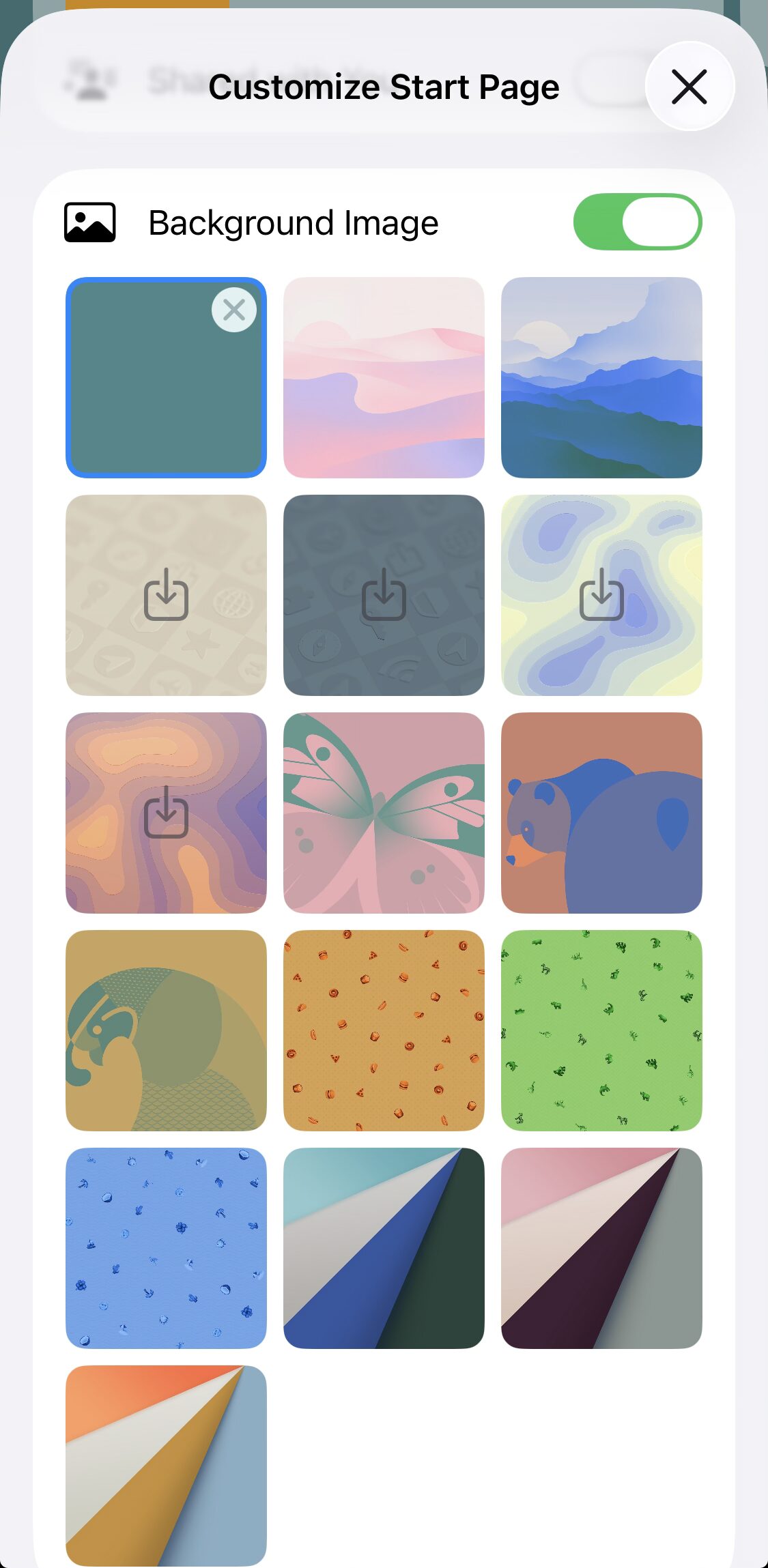
Looking for even less?
How to Start Safari with a Blank Page (“about:blank”)
Will the background change synchronize?
Yes.
With Use Start Page on all devices enabled on the individual devices, your background choice for the Safari start page will synchronize to all devices signed into the same iCloud account.
(Tested with Safari 26 for Mac and iOS; first published June 2026)