

“Yes, I have.” “Thank you!” “I don’t know.” Outlook suggests these replies as supposed shortcuts, but are as helpful as a fork for soup, and you end up rewriting anyway? You’d rather not have your writing be sent anywhere (and certainly no AI) other than to the intended recipient? Find out here how to disable suggested replies and other AI writing assistance in Outlook for Windows and Outlook on the Web.
First, a Portuguese Poet Swims in the Mekong Delta
In the 1560s, a poet originally hailing from Portugal (and on his long journey back there), struggled ashore flailing with but one arm in the picturesque and sprawling Mekong delta. On his way from Macau to Goa, he had just escaped a shipwreck.
He made it to the shore safely — and not alone. For the arm we did not see thrashing water was heroically held above water, holding the manuscript to what would become Portugal’s national poem.
So, at least, the story of Luís de Camões rescuing his Os Lusíadas (The Lusiads) goes.
Now, want to save your writing from the murky seas of AI interference?
How to Disable Suggested Replies and AI Writing Assistance in Outlook
Outlook for Windows
Time needed: 3 minutes
To turn off suggestions from AI in Outlook for Windows:
- Select File in Outlook.
- Select Options.
- Go to the Mail category.
- Disable Show suggested replies under Replies and forwards.
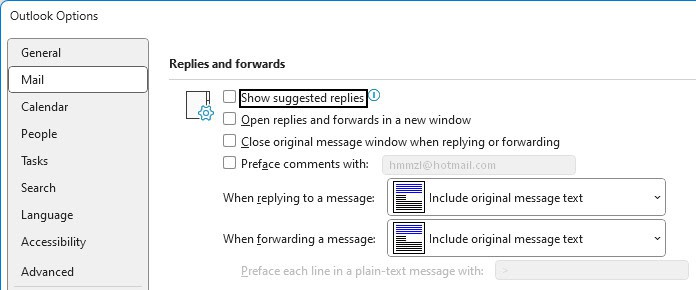
- Disable Show text predictions while typing under Compose messages.

- Click OK.
To disable spelling and grammar checks using Microsoft Editor:
- Select File | Options in Outlook.
- Go to the Trust Center category.
- Click Trust Center Settings….
- Select Privacy Options.
- Now click Privacy Settings….
- Disable Turn on experiences that analyze your content.

- Click OK a total of three times to close all dialogs.
Disable AI Suggestions in New Outlook and Outlook on the Web
To disable suggested replies and AI text suggestions in New Outlook and Outlook on the Web:
- Click the Settings gear icon.
- Go to the Mail category.
- Select Smart suggestions.
- Turn off Show suggested replies to disable reply suggestions.
- Disable Suggest words or phrases as I type to stop Outlook on the Web from completing your sentences.
- Now go to the Copilot category.
- Disable Turn on Copilot.
Outlook for iPhone and Android
To turn off suggested replies and text auto-completions in Outlook for iOS and Outlook for Android:
- Tap your avatar in he top left column.
- Now tap the settings gear icon.
- Go to the account for which you want to disable reply suggestions or predicted text.
- Disable Suggested Replies under Account Settings.
Disable Text Predictions, also under Account Settings.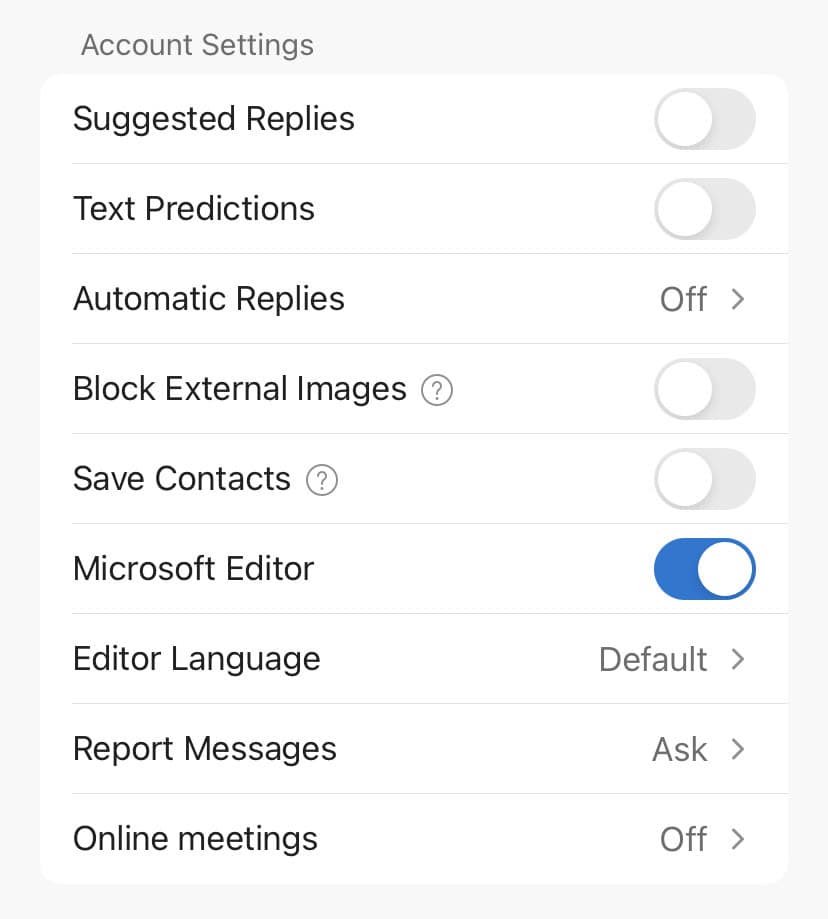
To disable server-side text analysis:
- Open Outlook mobile settings (see above).
- Select Privacy Settings.
- Disable Analyze Content.
(Tested with Outlook for Windows for Microsoft 365 Versions 2305–2510, New Outlook 1.2024–1.2025.522, Outlook on the Web and Outlook for iOS 4.232; first published June 2023, last updated November 2025)