

Looking at a sea of text or code, dreading the thought of having to delete unwanted lines one by one? Relax: Vim lets you mass-delete in style. Find out here how to delete a line (or multiple lines in one go) with Vim and Neovim ⤓.
On This Page
How to Delete a Line Fast in Vim or Neovim
⚡ Quick Fix
Delete current line: D D.
Delete line range: :10,30d.
Delete from current line until end of file: D Shift G.
Delete visually: Shift V, select lines, press D.
Delete all lines: G G D Shift G or :%d.
To delete a single line fast in Vim, Neovim and Vim-modes in other editing environments:
- Position the text cursor in the line you want to delete.
Here’s how: You can use the motion keys J (down) and K (up) in normal mode (exit insert mode first).
Less repetition: Especially with line numbers visible, press : for command mode, enter the line number and press Enter.
Anywhere: Any spot on the line is fine; you do not need to concern yourself with the horizontal position at all. - Press D D (D two times).
Delete line contents: Press Shift D to delete from the current cursor position until the end of the line.
Repetition: You can repeat this command to delete more than one line at a time, of course; see below.
How to Delete Multiple Lines in One Go in Vim or Neovim
Visual Mode: What You See Is What You Delete
Time needed: 1 minute
To delete multiple lines in Vim (or Neovim or, typically, another editor in a Vim-like mode) using visual mode to highlight the unwanted lines:
- Position the cursor in the first or last line you want to delete.
Normal mode: Do exit insert mode in Vim and make sure you are in normal mode.
Anywhere: it does not matter where on the line the cursor is positioned.
Vim movement: Use J, most basically, to move the cursor down and K to move it up.
Go to line: To go to a line, press : (colon), enter the desire line (:15, for example) number and press Enter. - Press Shift V to switch to visual line mode
- Use the motion keys to expand (or contract) the line-mode selection.
Search: You can press / (dash) to search for a string and expand the selection to the search target; end searching with Enter.
- Press D to delete
Undo: Press U to undo if you deleted something you did not want to delete.
Without visual highlight: See below for deleting a line or multiple lines even faster in normal mode.
Their word: Vim.org include information on visual mode in Vim help.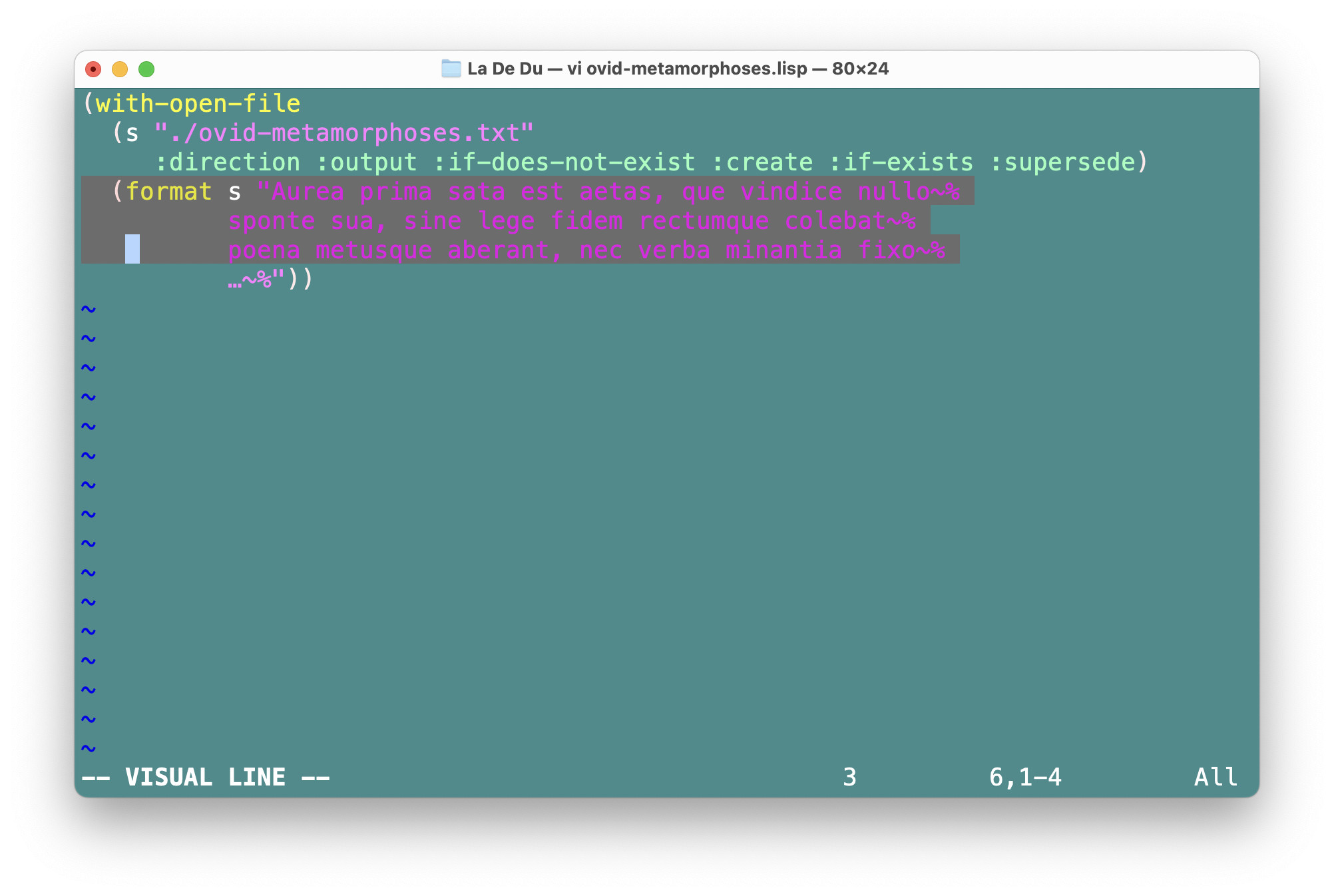
One command to cut the lot?
Tips help fuel these email and tech how-tos.
Vim Normal Mode: Delete Multiple Lines Fast
To delete a line or multiple lines of text fast in Vim in normal mode:
- Press D D to delete the current line; see above.
- Press
<number of lines>D D to delete the next <number of lines> lines.
Example: Press 3 D D to delete the current and the next 2 lines.
Shift: Here, the alternative<number of lines>Shift D deletes from the current cursor position until the end of the line plus the following lines.
Line numbers: You can have Vim show you line numbers (intermittently or by default), of course.
Vim Command or Normal Mode: Delete All Lines
To delete every line in the current buffer:
- Press : to enter command mode.
- Type
%d. - Press Enter.
Normal mode: In normal mode, you can press G G D Shift G to delete the entire file’s contents.
Vim Command Mode: Delete Specific Lines
To delete lines by number in Vim:
- Press : in normal mode to enter command mode.
- Type the range of line numbers to delete separated by a comma.
It’s also relative: Use-<line count>and+<line count>for lines relative to the line the cursor is on currently.
First line: The first line is both0and1.
Last line: You can use$for the last line. - Append
d.
Examples::10,30ddeletes lines 10–30;:.,+5ddeletes the current and the next 5 lines and:%ddeletes all lines in the current file. - Press Enter.
(Tested with Vim 9.1 and Neovim 0.9–0.12; first published April 2024, last updated September 2026)