
Why type when you can talk… except when your iPhone does not understand you, of course, and seems stuck in a different language altogether. Whether you’re switching tongues for work or family chat, your iPhone can be made to listen. Find out here how to change the language for dictation on the keyboard with iPhone and iPad ⤓.
On This Page
How to Change the Dictation Language on iPhone and iPad
Time needed: 1 minute
To change the language used for transcribing your dictation on iPhone and iPad:
- Choose the keyboard for typing in the desired language (or language combination) on the iPhone or iPad.
Here’s why: You can type and dictate in parallel; typing is best done on a keyboard set up for the language.
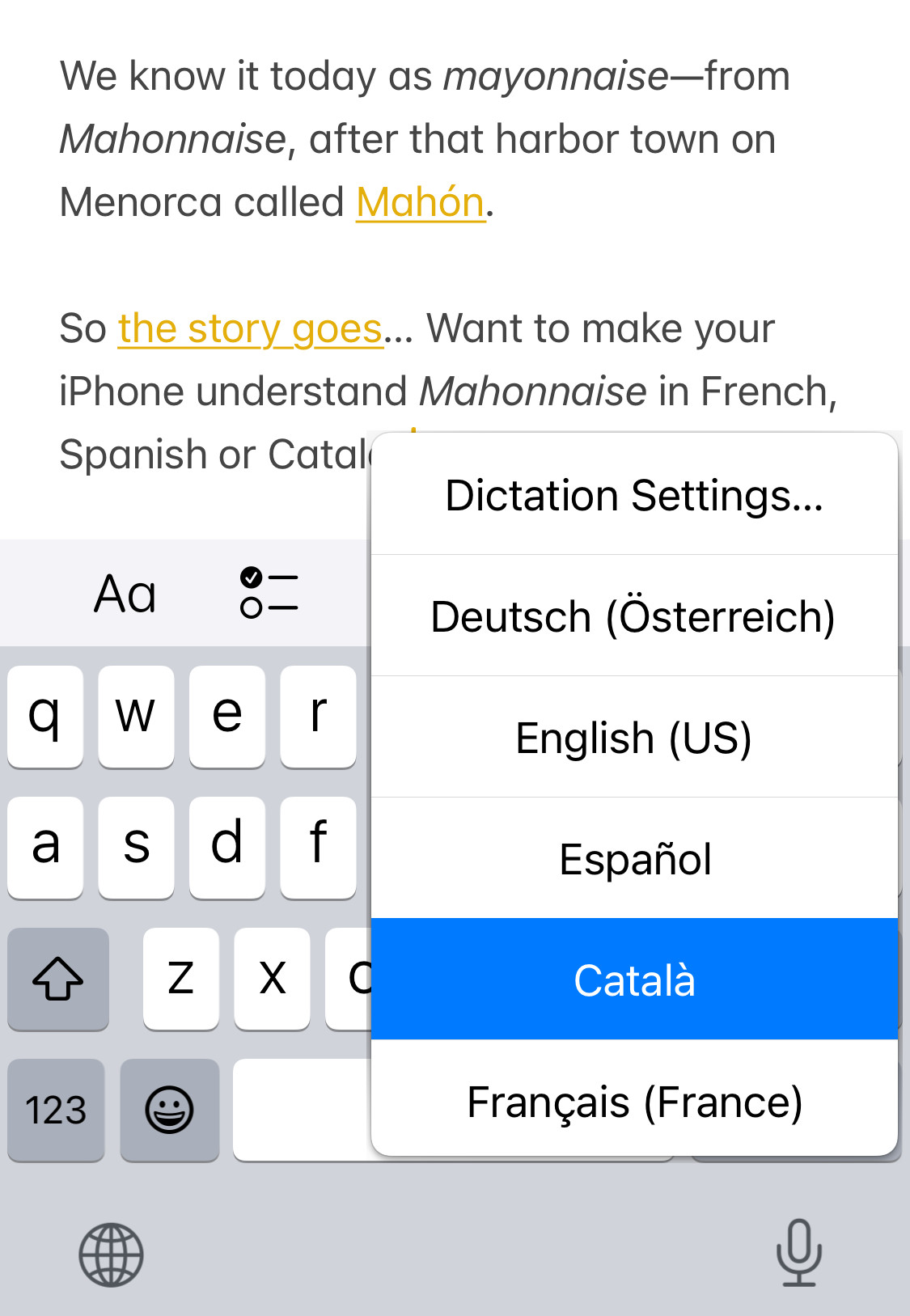
- Tap and hold the dictation microphone button in the keyboard’s lower right corner.
Here’s why: This lets you choose the very language for diction processing.
Short tap: A short tap will start dictation for the keyboard’s default language; for dual language keyboards, this may not be the one you were about to use. - Select the language you want to use for dictation from the menu that has appeared.
Missing language: If the language you want to use is missing, see below for adding and enable it for dictation on iPhone and iPad.
Can you hear me adesso?
Tips help fuel these email and tech how-tos.
Add a Language for Dictation on iPhone and iPad
To enable dictation for a language in iOS and iPadOS:
- Check the language is enabled for the touch keyboard.
- Open the Settings app.
- Select General.
- Go to the Keyboard category.
- Turn on Enable Dictation under DICTATION.
- Tap Dictation Languages.
- Now tap languages to enable (or disable) them for dictation.
How to tell: Languages set up for dictation sport a checkmark.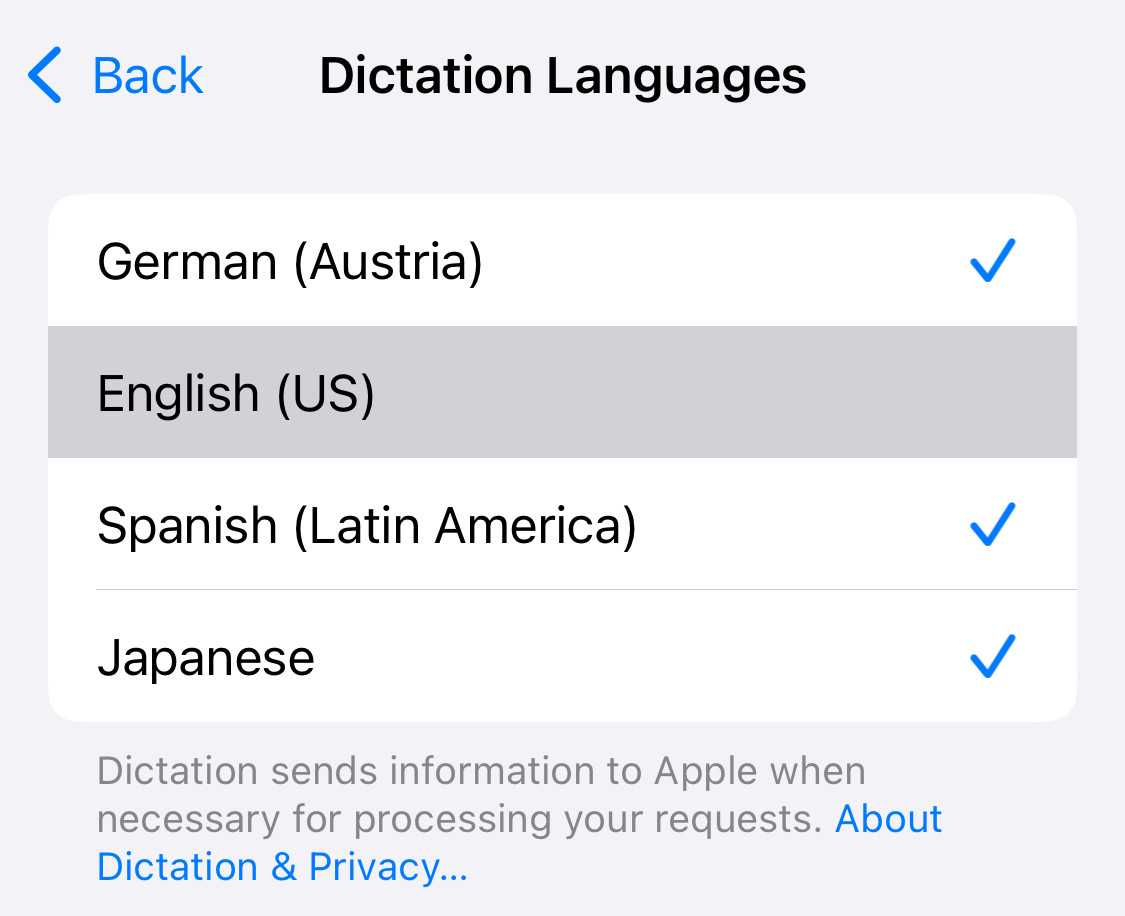
How to Change the Language for Dictation on iPhone and iPad
Can I change a dictation language to one different from the typing language?
Yes.
Changing the keyboard layout and language will switch to the corresponding language for dictation (provided dictation is enabled for it), but you can still freely choose a different dictation language.
Will iPhone let me dictate in either language with a dual language keyboard layout?
No.
With keyboards that recognize and let you type in two languages, you can still always only dictate in one of them. Do follow the steps above to pick the one you’re using at the time.
Can I add a language for dictation without adding a keyboard layout for it?
No.
You can enable diction only for languages also set up for typing in iPhone or iPad keyboard settings.
(Tested with iOS 18 and 26; first published February 2025, last updated August 2026)