
Irritated by windows that almost fit? You line them up, you snap them into place with FancyZones, yet there’s always a thin strip of desktop peeking through. It doesn’t have to be that way. Find out here how to change window padding in MS PowerToys FancyZones ⤓ to finally close those stubborn gaps — or even let your windows overlap.
On This Page
How to Change the Padding and Gap Between Windows Snapped to MS PowerToys FancyZones
Time needed: 2 minutes
To adapt the gap that appears between windows placed in adjacent zones with MS PowerToys FancyZones on Windows:
- Open the FancyZones layout editor.
Here’s how: You can use the standard keyboard shortcut Windows Shift ;.
- Click the editing pencil button for the layout whose padding you want to edit.
Context menu: You can also click on the layout with the right mouse button and select Edit in the context menu that has appeared.
- Use the slider for Space around zones to adjust padding around windows snapped to zones.
No sliding: The slider is only active, of course, when Space around zones is enabled; if it is turned off, this corresponds to a space of 0 (zero).
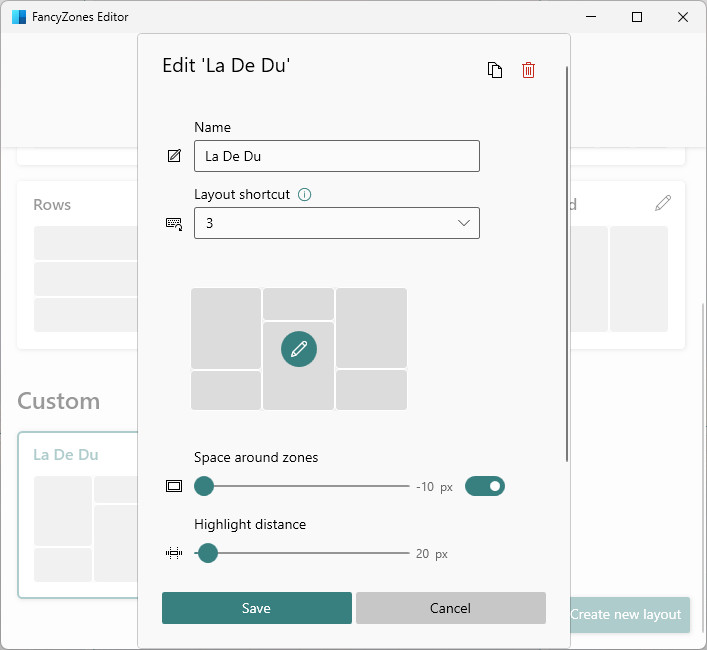
- Click Save.
Their word: Microsoft include information on editing FancyZones layouts in PowerToys documentation.
Windows minding the gap?
Tips help fuel these email and tech how-tos.
How to Change the Padding and Gap Between Windows Snapped to MS PowerToys FancyZones: FAQ
Can I set the gap to be negative for overlap?
Yes — you can configure up to 10 px of negative space around windows. Windows will overlap by the amount of negative space, and they will extend beyond visible screen estate as well.
By snapping a window to the whole screen with negative space and FancyZones, you can eliminate window borders and extend the window a bit beyond the screen.
Will padding around existing windows snapped to zones change?
Yes — if you change the space around zones for the currently active layout, padding for windows currently snapped to zones will change as you click Save.
Can I set a default padding for FancyZones?
No — each layout has its own space around windows, and you can only change the setting for each layout individually.
(Tested with Windows 11 Version 25H2 and MS PowerToys 0.96–0.99; first published December 2026, last updated May 2026)