

You’ve divided your screen into perfectly shaped little corners with FancyZones — but not every app or window fits neatly inside them. Instead of reshuffling your layout, let certain windows occupy more than one area. Find out here how to snap a window across multiple zones with MS PowerToys FancyZones ⤓.
On This Page
How to Snap a Window Across Multiple PowerToys FancyZones
Time needed: 2 minutes
To snap a window to multiple (adjacent) zones using MS PowerToys FancyZones on Windows:
- Enable FancyZones for Tiling in MS PowerToys.
Here’s how: Turn on Enable FancyZones in PowerToys settings.
- Holding down Shift, move the window using the left mouse button to the first zone you want it to occupy.
- Now, holding down Shift and Ctrl, move the window to adjacent zones until all the desired zones are highlighted.
- Release the mouse button (and the Shift and Ctrl keys).
Their word: Microsoft include information on snapping windows in FancyZones help.
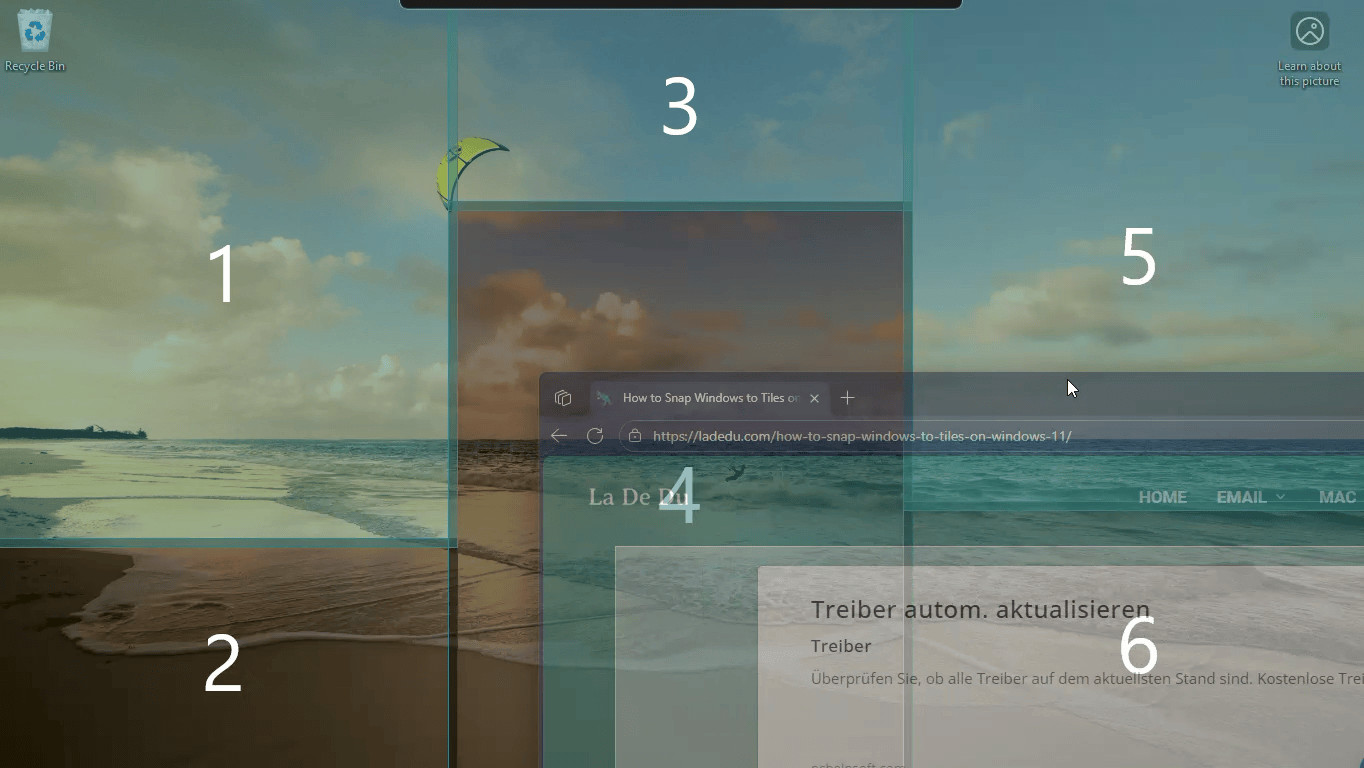
Ah, snap!
Tips help fuel these email and tech how-tos.
Snap a Window to Multiple Zones Using Just the Mouse
To use only the mouse to snap a Window to more than one FancyZones zone:
- Set up the right mouse button to trigger FancyZones snapping; see below.
- Start dragging the window with the left mouse button and, while still dragging with the left, click the right mouse button in addition.
- Drag the window to the border between two zones or the corner between zones.
Like “Ctrl”. With middle mouse button enabled, press the middle mouse button in addition to the other two to have selecting zones behave as if you would hold the Ctrl key. - Release the left, then the right mouse button as all desired zones have lit up.
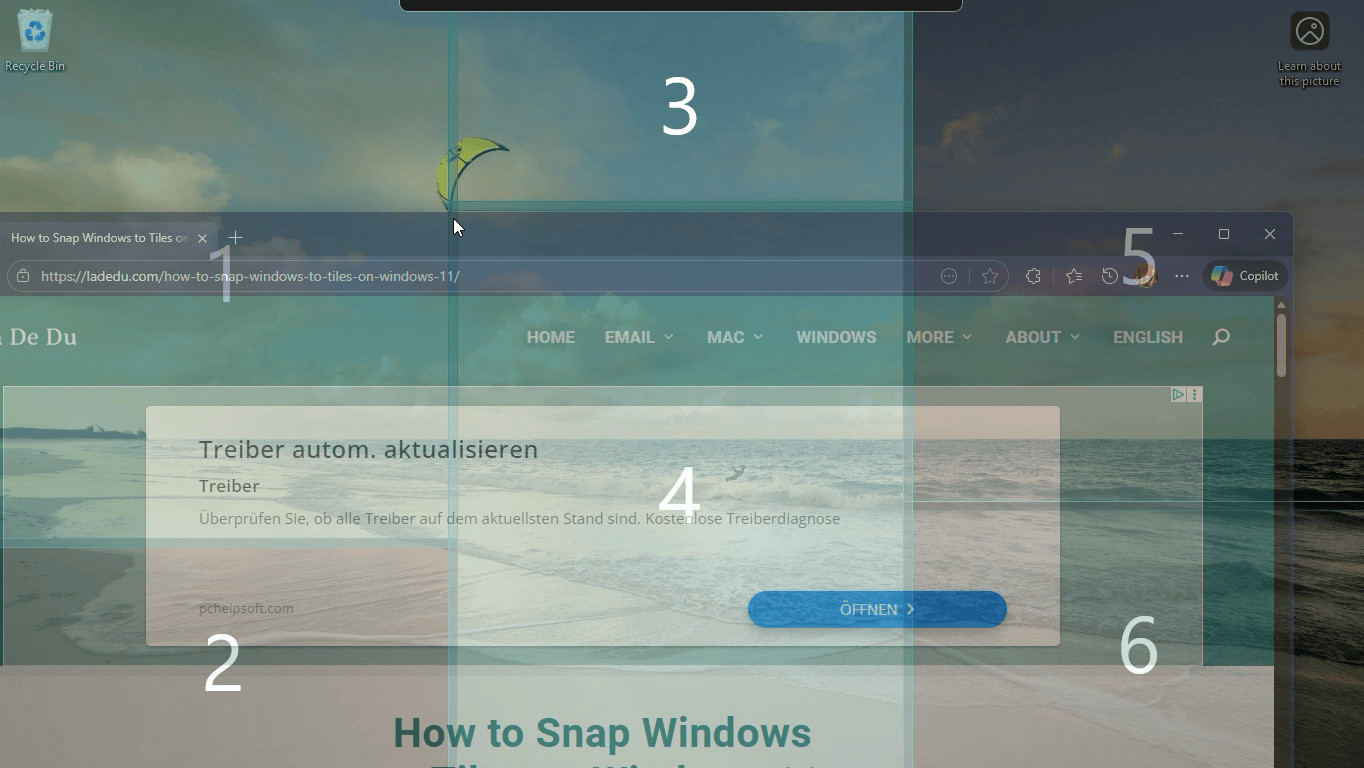
Trigger Snapping to FancyZones with the Right Mouse Button
To be able to snap windows to zones in FancyZones using the mouse alone:
- Open MS PowerToys settings.
Here's how: You can open the PowerToys app from the Start menu, for example. - Go to the FancyZones category under Windowing & Layout.
- Expand Zone behavior under Zones.
- Turn on Use a non-primary mouse button to toggle zone activation.
Middle click for “Ctrl”: Turn on Use middle-click mouse button to toggle multiple zones spanning to also span multiple zones that are not next to each other with the mouse alone.
Let a Window Occupy More Than One Zone with the Keyboard Alone Using FancyZones
To expand a window to more than one FancyZones screen zone using just keyboard shortcuts:
- Enable snapping keyboard shortcuts for FancyZones; see below.
- Press Windows ⬅ or Windows ➡ until the window is snapped to one of the zones you want it to occupy.
- Now hold down Windows Alt Ctrl together with any of the arrow keys to expand the window to adjacent zones.
Enable Snapping and Expanding Keyboard Shortcuts for PowerToys FancyZones
To allow snapping windows to multiple zones using the keyboard in FancyZones:
- Open FancyZones settings in PowerToys.
- Turn on Override Windows Snap.
- Set Move windows based on to Relative position.
Here’s why: With this setting, the window is sure to move to an adjacent zone and can occupy both; with Zone index set, snapping a window to multiple zones with keyboard shortcuts does not work.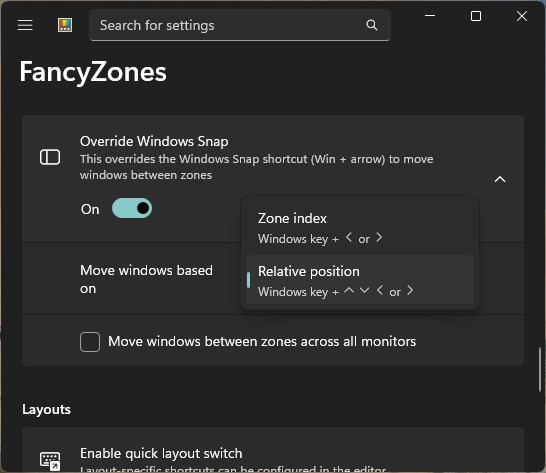
How to Make a Window Occupy More than One Zone with PowerToys FancyZones: FAQ
Can I snap a window to all zones?
Yes.
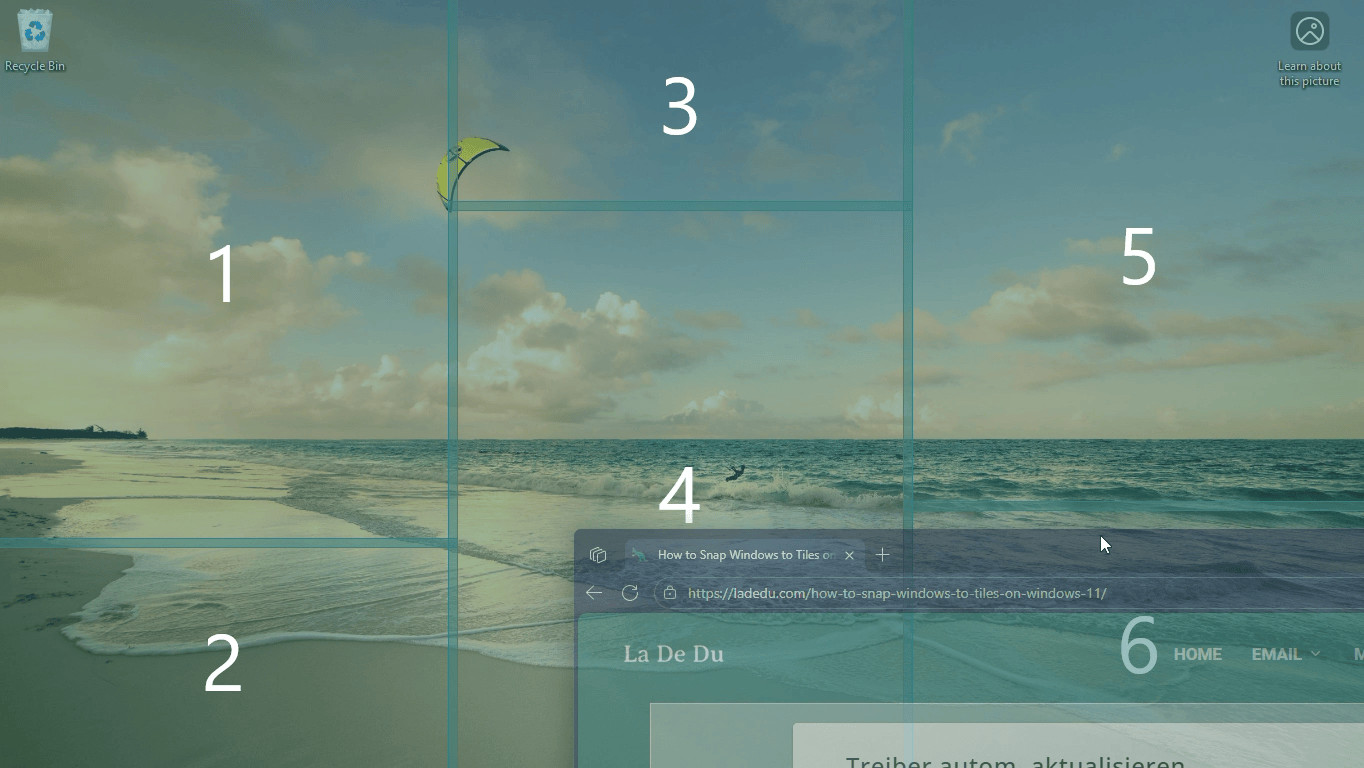
To have a window span across all zones in FancyZones:
- Start with snapping the window to a zone next to a corner (holding Shift while moving the window).
- Holding down Shift and Ctrl, move the window to the opposite corner
- Release the mouse button.
(Tested with Windows 11 Version 25H2 and MS PowerToys 0.96–0.100; first published December 2026, last updated July 2026)