

Trying to send a whole folder of files to someone, frustrated by Gmail’s refusal to cooperate? Want to avoid dragging files one by one — and possibly losing the folder structure you have set up so carefully? Find out here how to attach and send a folder of files by email in Gmail on the web.
First, If One Hopes to Catch Anything
If one hopes to catch anything with a net, surely it must go straight into the water.
What, though, if one were to wait for the water to come to meet the net?
Using fog nets that look either like I’m picturing a typical fishing net or much like a piece of wire-mesh fence, it is possible to collect water from the air, moisture that fails to fall to earth as rainy precipitation. It works in places as dry in surface water like the Atacama desert.
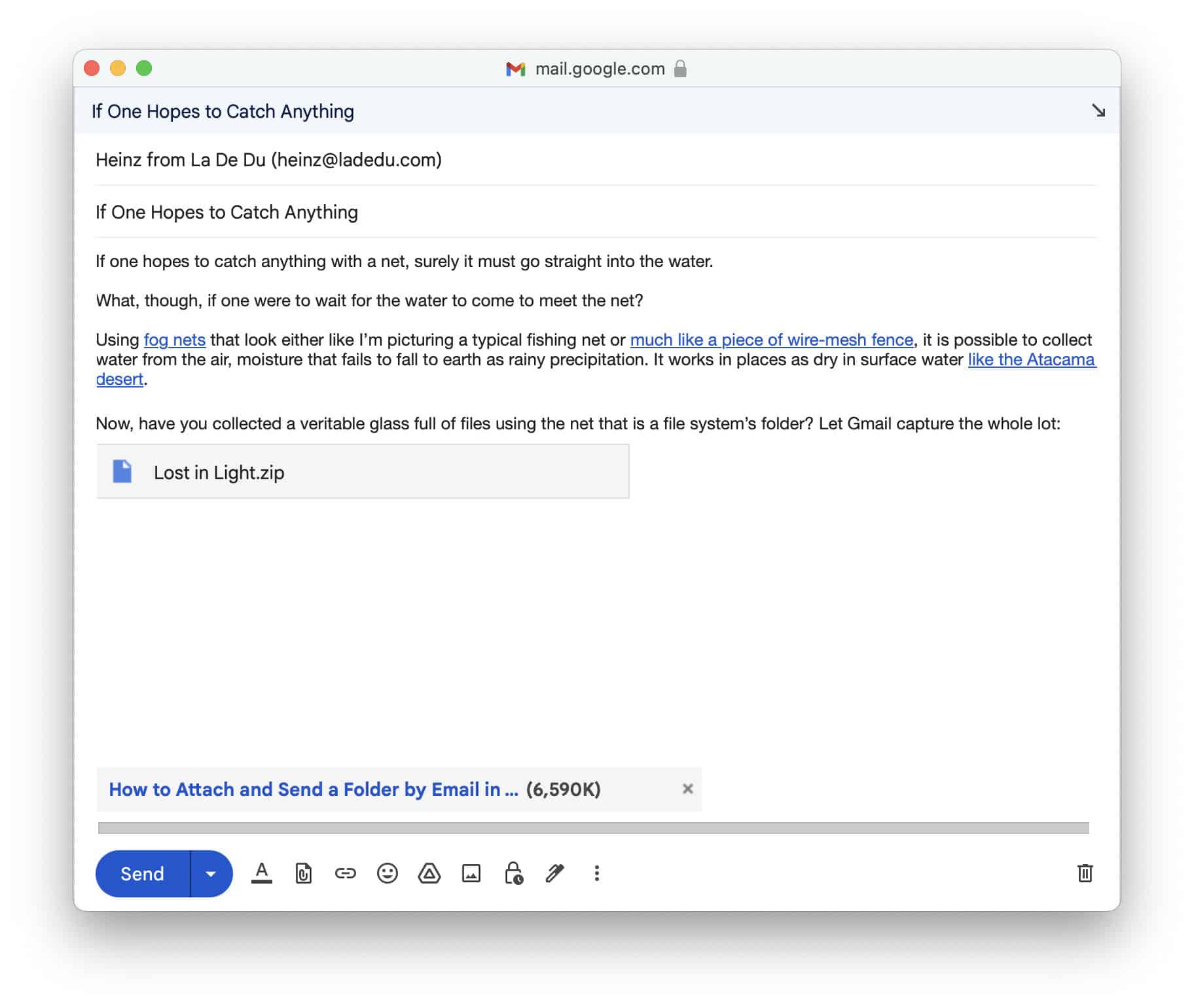
Now, have you collected a veritable glass full of files using the net that is a file system’s folder? Let Gmail capture the whole lot:
How to Attach and Send a Folder by Email in Gmail
You can use one of two methods to send entire folders by email through Gmail:
- Using a ZIP file, which preserves folder structure but also requires some steps to take for both you and the recipient).
- Using Google Drive, which turns folders into individual file attachments but works effortlessly with Gmail.
Using a ZIP File
Time needed: 2 minutes
To send a folder that contains files and possibly other folders intact via email in Gmail in a manner that preserves the folder structure:
- Create a ZIP file that contains the folder and its contents as you want to send it by email.
Here’s how: You can create ZIP files comfortably using Windows, with Linux and on a Mac.
- Start and compose the email message to which you want to attach the folder in Gmail on the web.
- Click Attach files (📎).

- Find and select the ZIP file you have created before.
Large files: Files that exceed the Gmail attachment size limit will be sent as Google Drive links automatically, but still as ZIP files that preserve the directory structure.
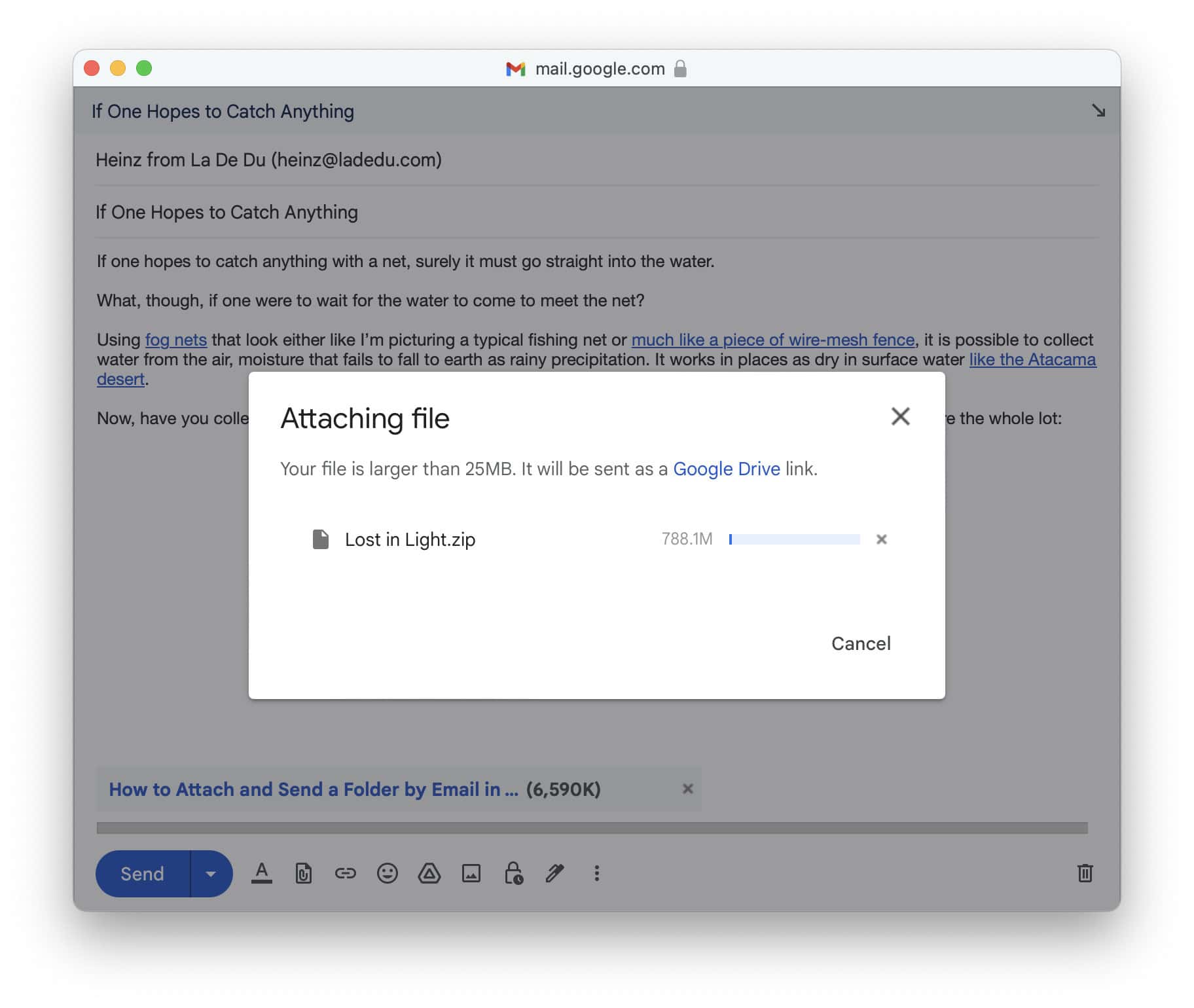
- Continue editing the email and eventually send it.
Using Google Drive
To easily send all files a folder via email using Gmail and Google Drive:
- Click Insert files using Drive in the email composition window in Gmail.
- Go to the Upload tab.
- Drag and drop the folder over Drag files here.
- Now click Upload.
- Continue with the email as desired.
How to Attach and Send a Folder by Email in Gmail: FAQ
Will the folder structure remain intact if I send it by email in Gmail?
Yes.
If you send the files compressed into a ZIP file, the file structure is typically included in the ZIP file and can be recreated.
No.
If you send a folder using Google Drive in Gmail, all folder information is lost.
All files from an attached folder and from all folders in it will be added to the email. Google Drive and Gmail will not differentiate the different folders’ files in any way, though. They all appear as individual files attached to the message (not as individual folders).
Can I use 7-Zip, bzip2, tar.gz or other archiving and compression formats?
Yes.
While ZIP is the format most universally accepted for compressed and archived files, you can also send folders using other formats, of course, including bzip2, 7-Zip or TAR.XZ.
What size limits do apply? How big can the file and folders be?
For files sent through Gmail and Google Drive, the Google Drive file size limit applies. You can attach ZIP files up to the attachment size limit for Gmail.
(Tested with Gmail in a desktop browser; first published September 2024, last updated June 2025)